Configure Test Invites Settings for Tests
Last updated: July 30, 2025
You can manage how test invites are generated, shared, and secured. HackerRank lets you configure the following test invite settings:
Invite expiry
Public test URL
Private test URL
Master password
Prerequisites
You must have already created a test.
Configuring test invites settings
To configure test invite settings for a test:
Log in to your HackerRank for Work account using your credentials.
Go to the Tests tab.
Open the test you want to configure.
Go to Settings > Test Invites.
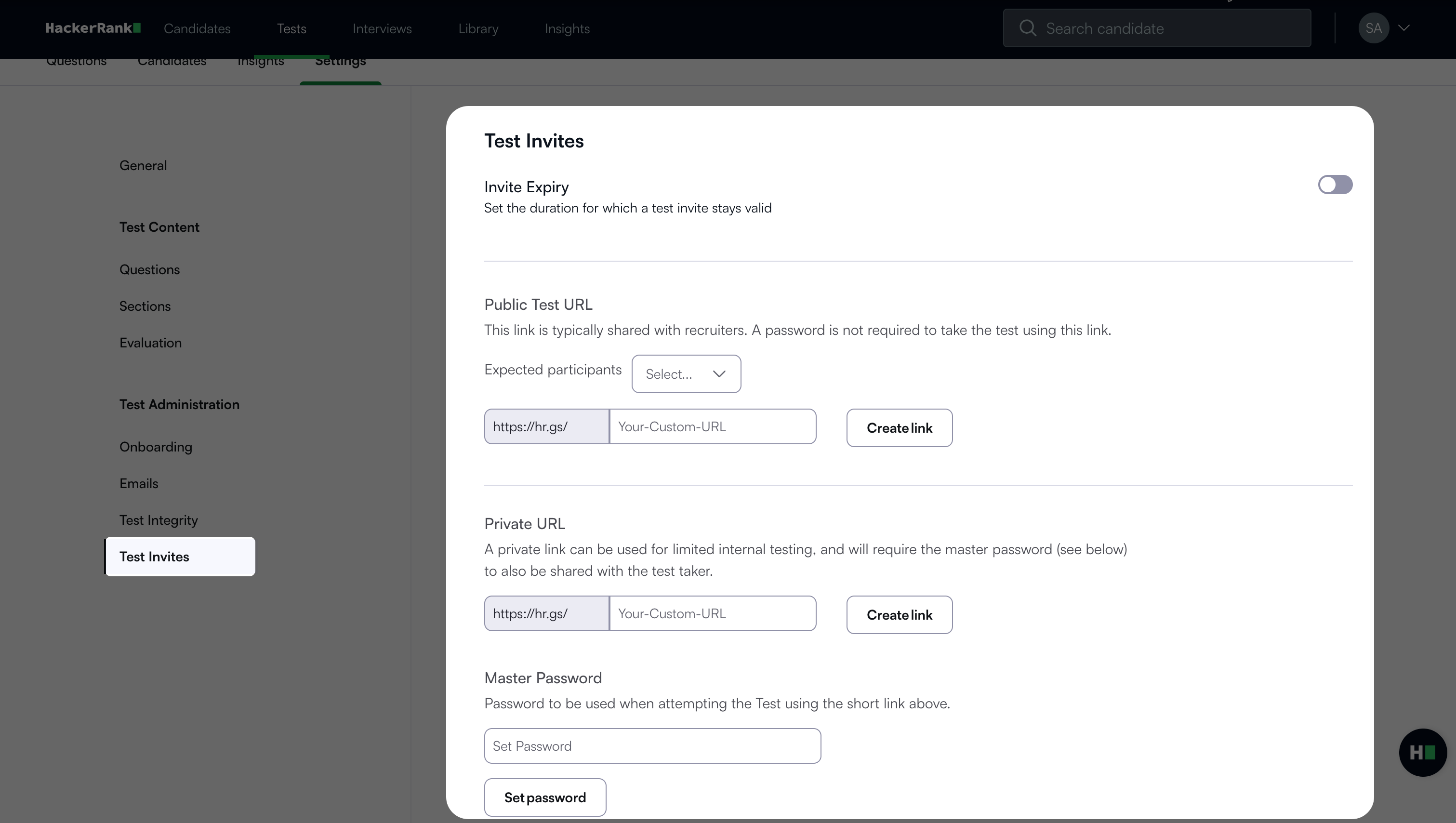
In the Test Invites section, you can configure the following:Click Save Changes to apply your changes.
Invite Expiry
Set how long a test invite remains valid. Choose either a duration after the invite is sent or a fixed expiry date. By default, this setting is disabled
To enable invite expiry:
Turn on the Invite Expiry toggle.
Choose one of the following options:
Set time period:
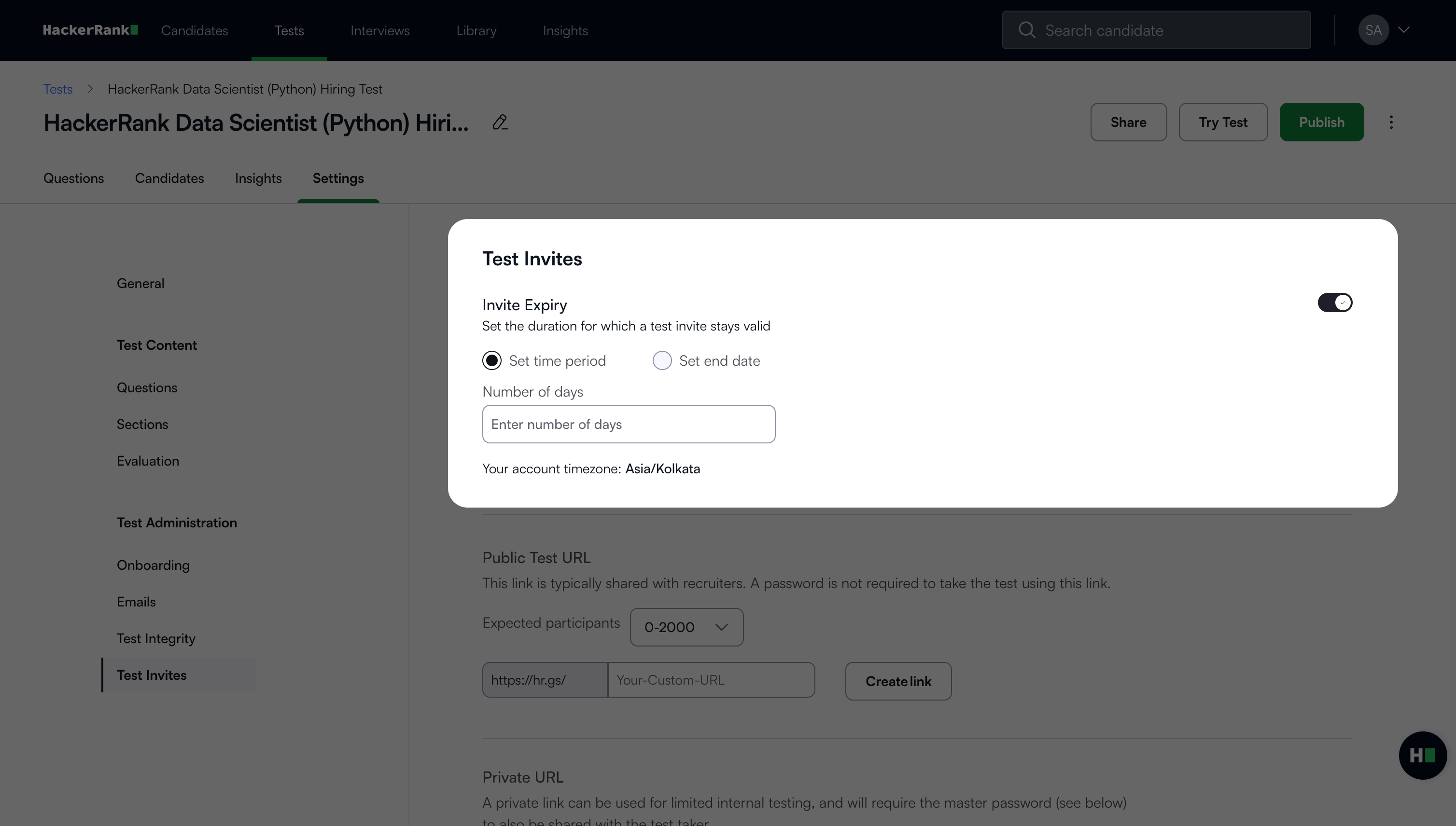
Select Set time period.
Enter the number of days the invite remains valid.
Set end date:
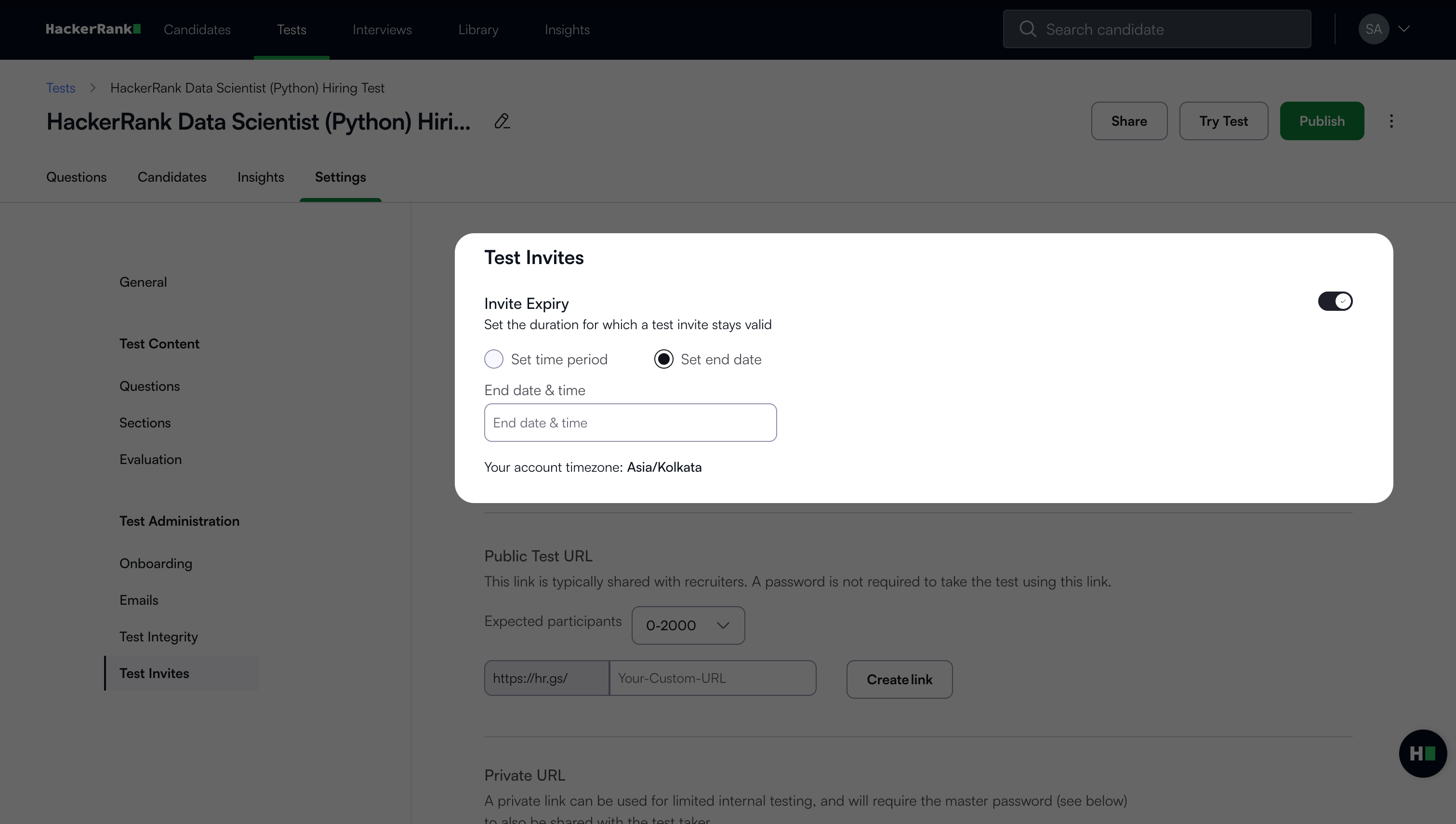
Select Set end date.
Choose the specific date on which the invite expires.
Public Test URL
Generate a shareable test URL for bulk invitations without requiring a password. This option is suitable for large-scale hiring drives. Recruiters can share the public URL with candidates, who can access the test directly without entering a password.
Note: You must publish the test before creating a public URL.
To generate a public test URL:
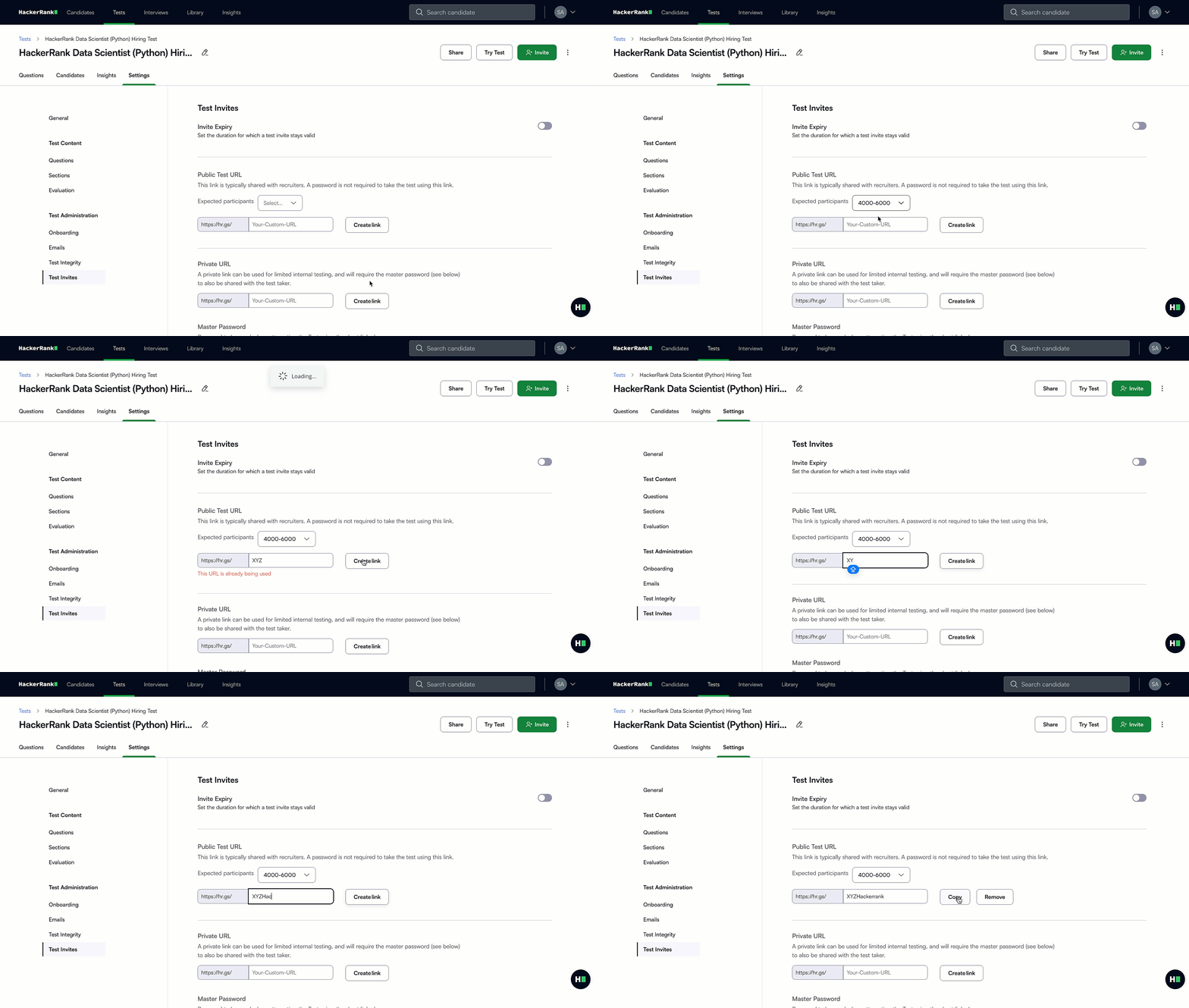
In the Public Test URL section, select the expected number of participants from the Expected participants drop-down menu.
Enter your custom URL in the text field.
If the URL is already in use, the system prompts you to enter a different one.
Click Create link.
Note:
Click Remove to delete an existing public test URL.
Click Copy to copy the public test URL to your clipboard.
Private URL
Generate a restricted access test link secured with a master password. This option is useful for controlled candidate groups.
Note:
You must publish the test before creating a private URL.
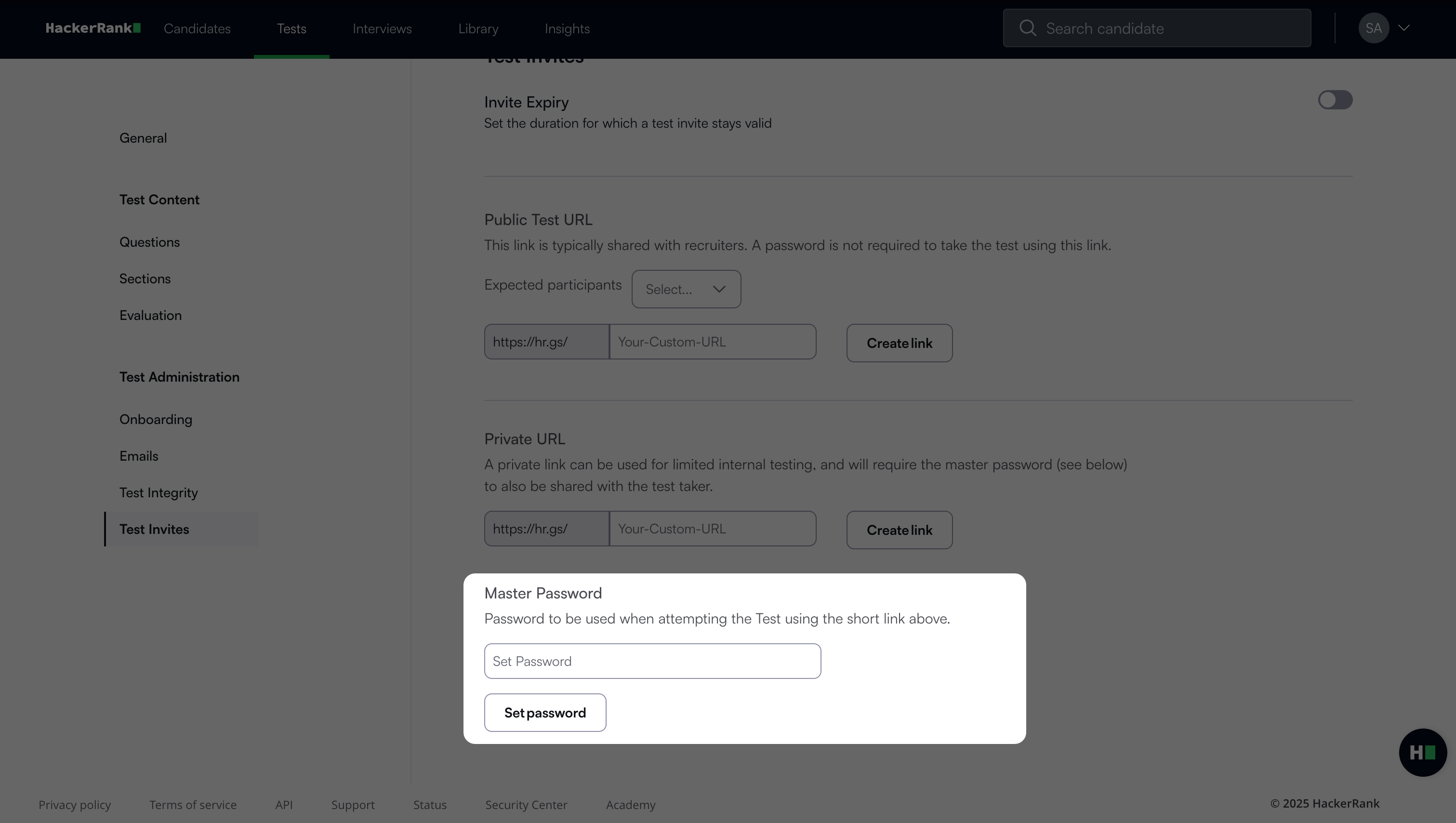
You must also set and share a Master Password with the candidates. For more information on the master password, see Master Password.
To generate a private test URL:
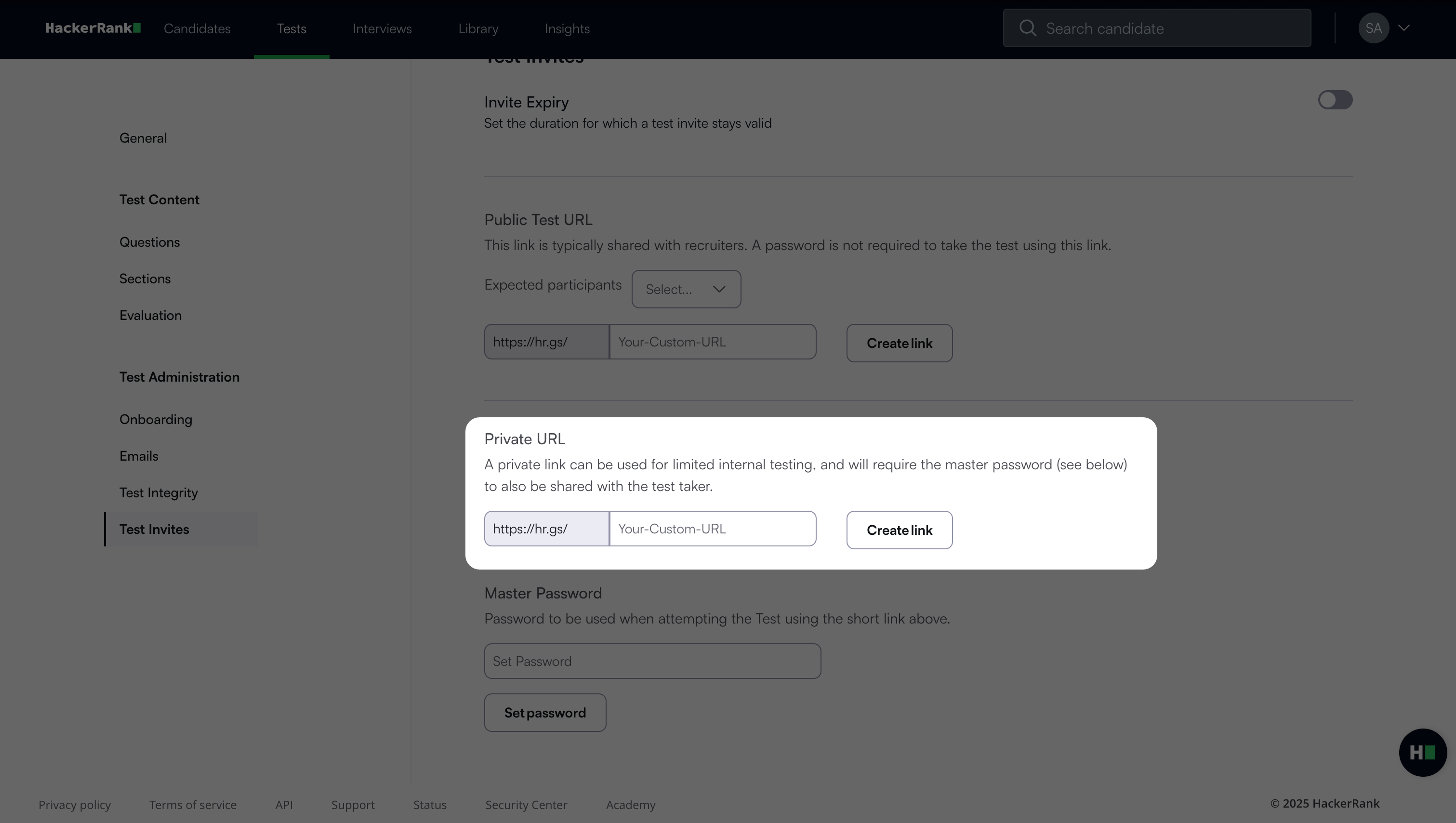
Enter your custom URL in the text field under the Private URL section.
If the URL is already in use, the system prompts you to enter a different one.
Click Create link.
Note:
Click Remove to delete an existing private test URL.
Click Copy to copy the private test URL to your clipboard.
Master Password
Set a password in the Master Password section that candidates must enter to access the test through the private URL. Share this password with candidates along with the private link.