Modify Question Settings for Tests
Last updated: May 19, 2026
You can customize question settings in a test to manage programming language access, question display options, and candidate experience for test cases and project questions.
Prerequisites
You must have already created a test.
Modifying question settings
To modify the question settings of a test:
Log in to your HackerRank for Work account using your credentials.
Go to the Tests tab.
Open the test you want to update.
Go to Settings > Questions.
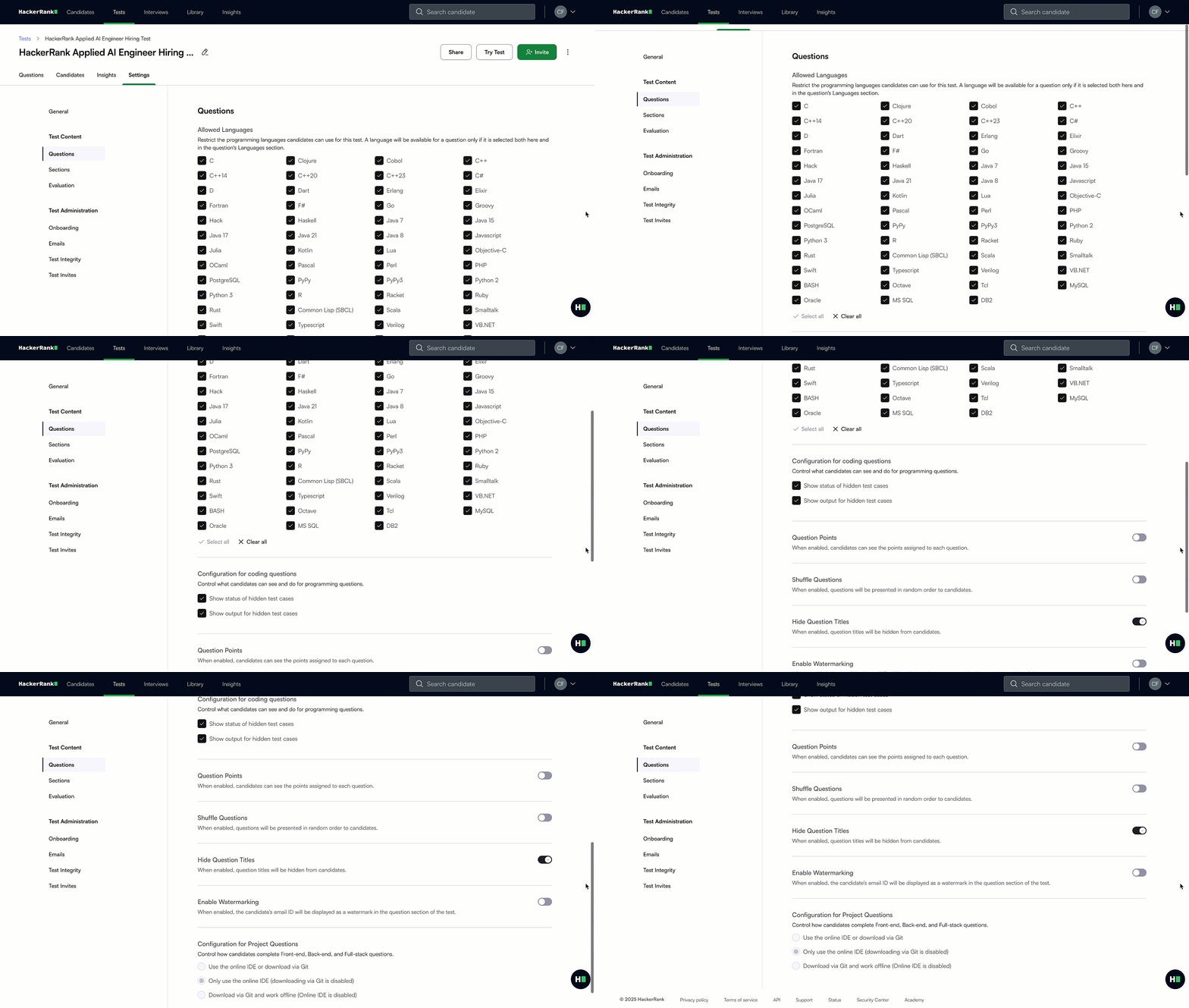
In the Question section, you can update the following:
Allowed Languages: Select the programming languages that candidates can use during the test. Only the selected languages are available for coding questions.
Configuration for Coding Question:
Show Status of Hidden Test Cases: Select this option to show candidates whether they pass or fail hidden test cases after submission.
Show Output of Hidden Test Cases: Select this option to display the actual output of hidden test cases and provide detailed feedback for the candidates.
Question Points: Turn on this option to display the point value for each question. Disabling it may encourage candidates to focus on problem-solving rather than maximizing scores.
Shuffle Questions: Turn on this option to randomize the order of questions for each candidate and reduce the risk of copying among candidates taking the test simultaneously.
Hide Question Title: Turn on this option to hide the original titles of questions in a test. For more information, see 📄 Hide Question Title.
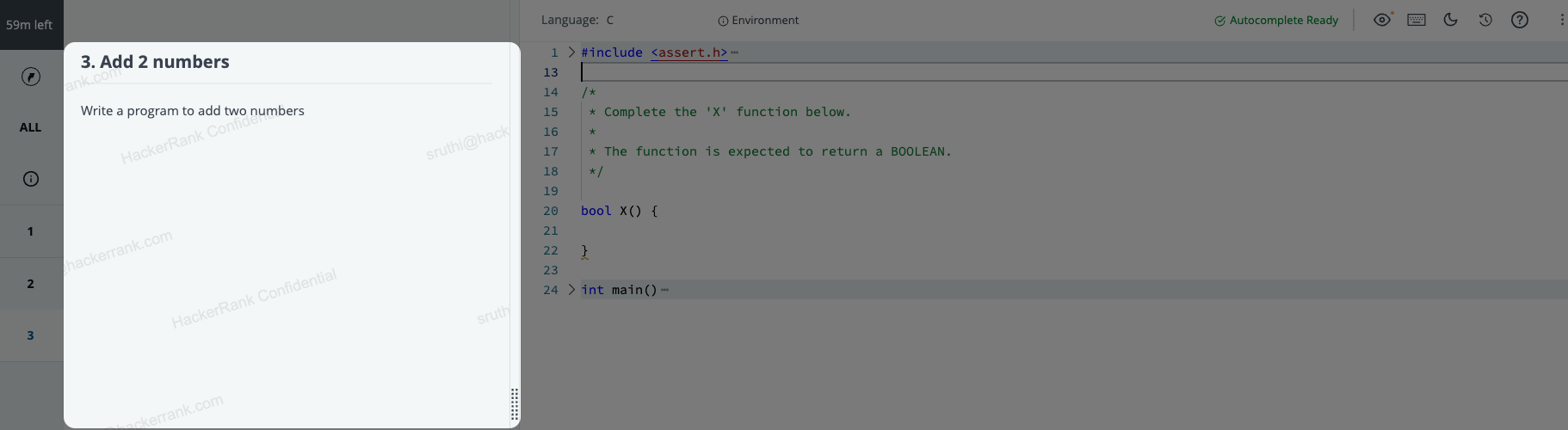
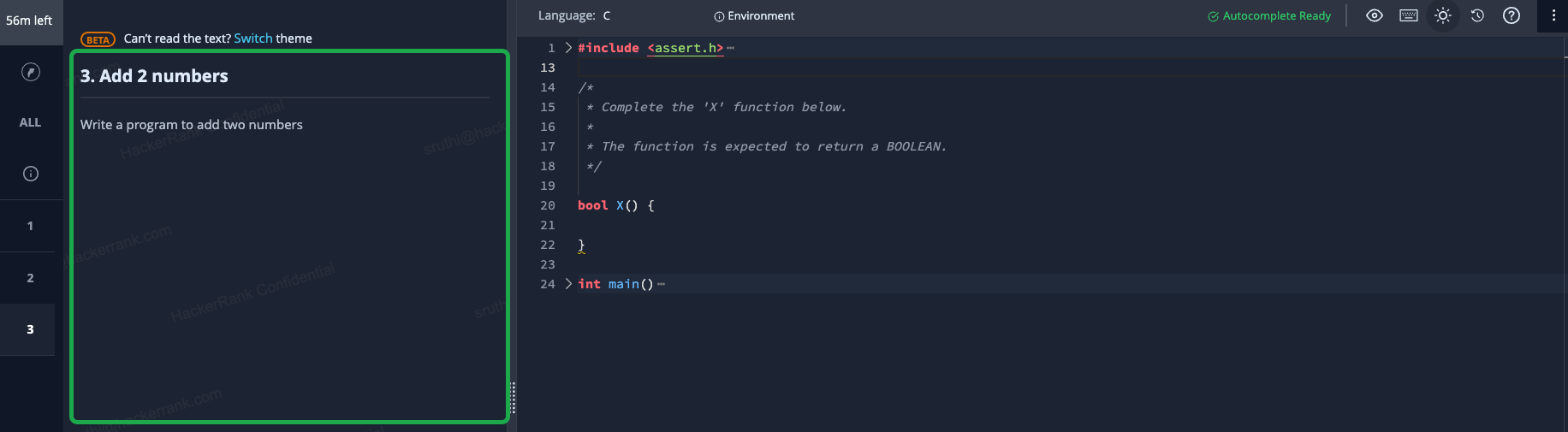
Enable Watermarking: Turn on this feature to deter unauthorized sharing of questions. When this feature is enabled, the logged-in candidate’s email address appears as a watermark on the question section of the test page.
This discourages candidates from capturing and sharing test content on public platforms such as Telegram, as the watermark exposes their identity.
Example:
Light mode
Dark mode
Project Question Configuration: Choose how candidates complete project questions:
Use the online IDE or download via Git: Allow candidates to choose between using the online IDE or downloading the project using Git.
Only use the online IDE: Candidates must complete the project in the online IDE. Git download is not available.
Click Save Changes to apply your changes.