Generative AI Questions
Last updated: March 26, 2026
Generative AI questions assess a candidate’s ability to design, build, and evaluate AI-powered solutions in real-world environments.
Use the Generative AI questions to evaluate how candidates:
Retrieve and index data (for example, using vector databases)
Integrate retrieved data with generative AI models
Fine-tune models
Evaluate and optimize generated outputs
Note: HackerRank currently supports Generative AI questions in the Retrieval-Augmented Generation (RAG) environment.
Creating a Generative AI question
To create a Generative AI question:
Log in to your HackerRank for Work account using your credentials.
Go to the Library tab.
Click Create Question.
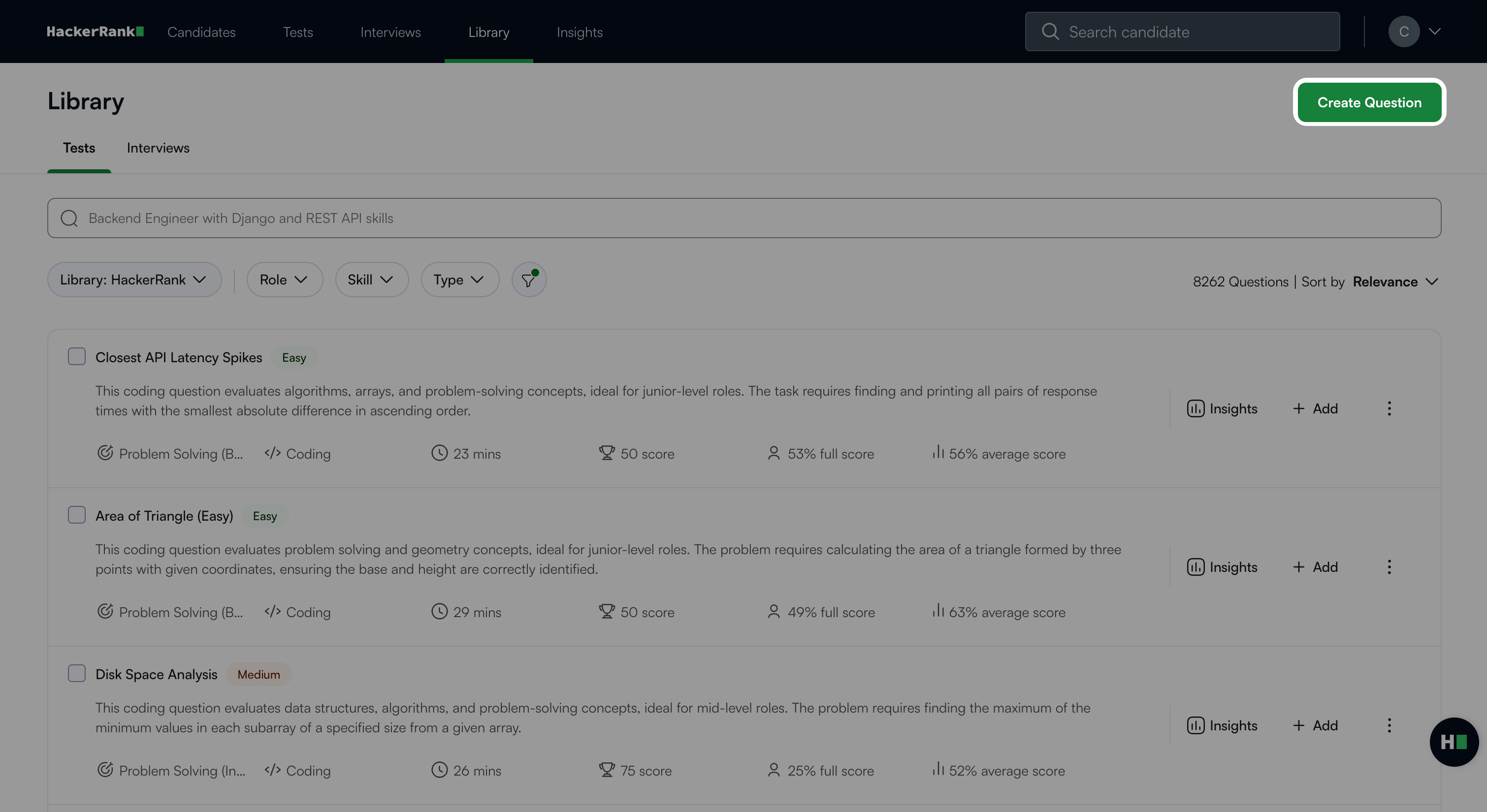
Select Generative AI under Projects.
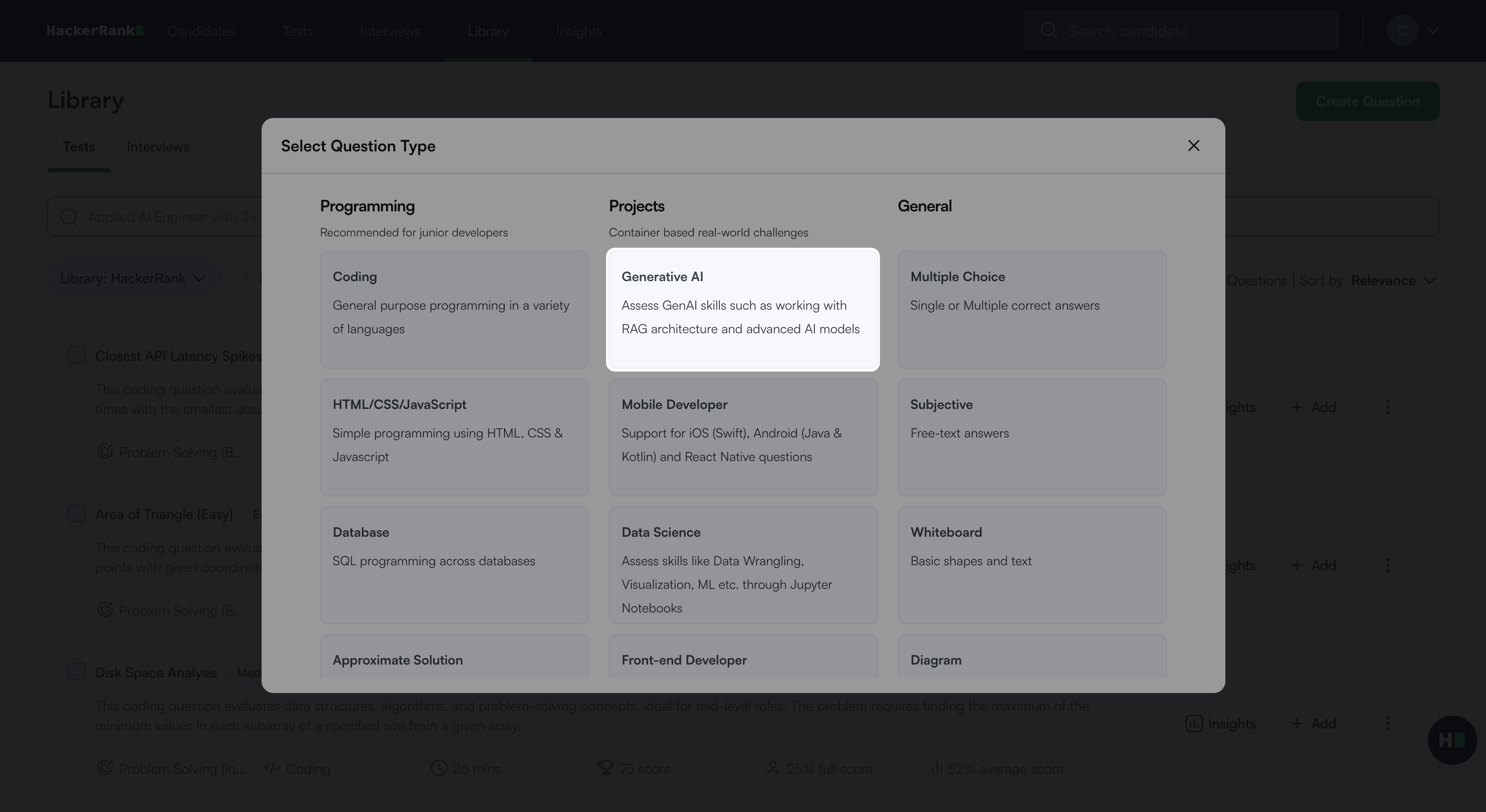
The Generative AI question creation workflow opens with the following three steps.
Step 1: Environment
Select RAG under Generative AI Environments.
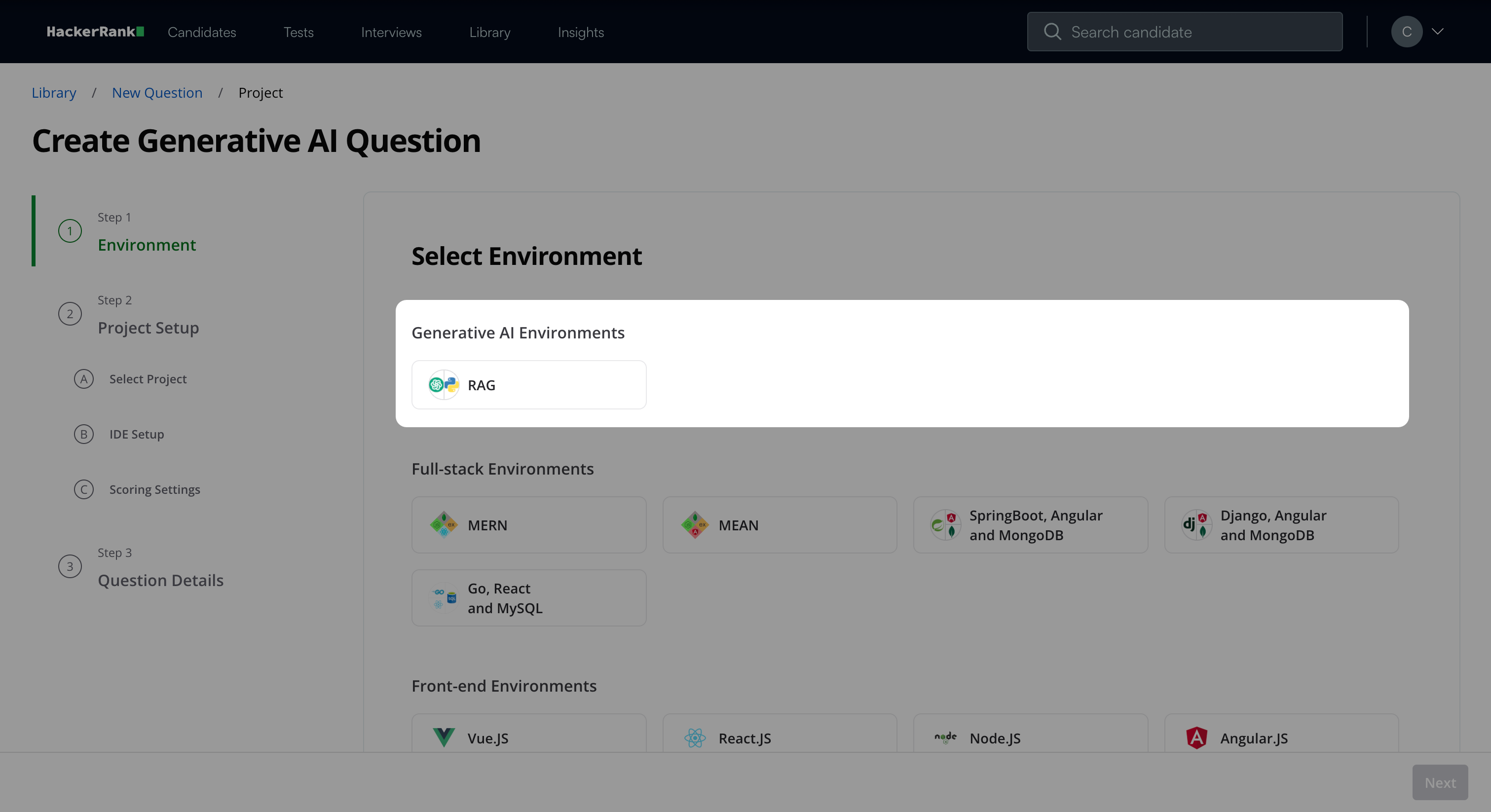
Click Next.
Step 2: Project Setup
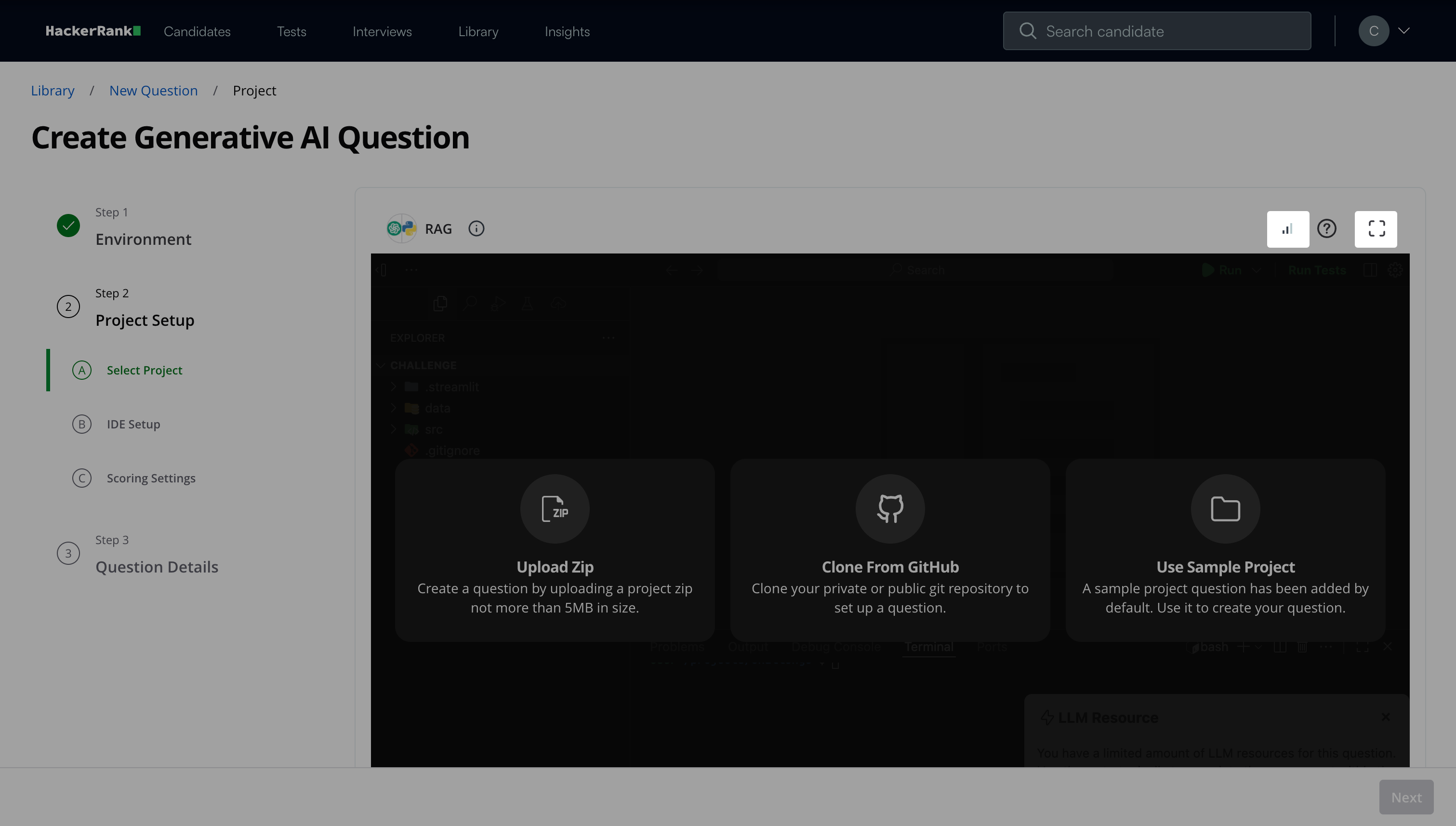
Step 2A: Select Project
Set up the project using one of the following methods:
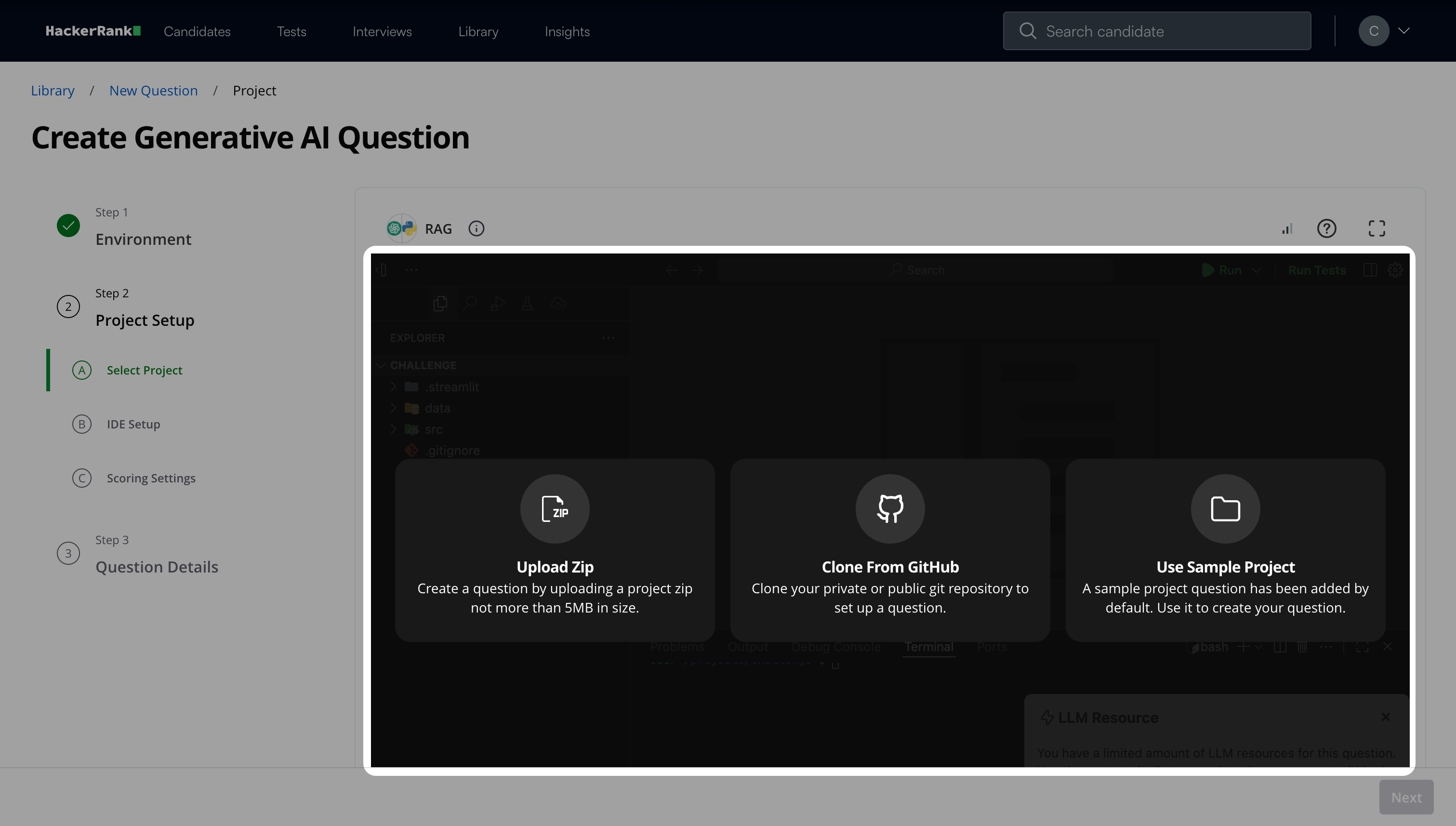
Upload Zip: Upload the project file in ZIP format. The file size must not exceed 5 MB.
Clone from GitHub: Clone the project from your Git repository by providing the repository link. If the repository is private, the IDE requests permission to connect with the GitHub repository using a one-time access token.
Note: HackerRank does not store your GitHub credentials.
Use Sample Project: Select a sample project to build your question.
Note: Do not use sample projects in tests as they are not designed to evaluate candidate skills.
Configure debugger support after selecting a project. The project root folder stores all files at the root level, which simplifies setup. When you enable the debugger, it automatically appears in the candidate’s environment, removing the need for manual configuration.
Click Next.
Note:
Monitor the Network Indicator in the IDE to ensure a stable connection while you create the question. Click the expand icon to view in fullscreen mode.
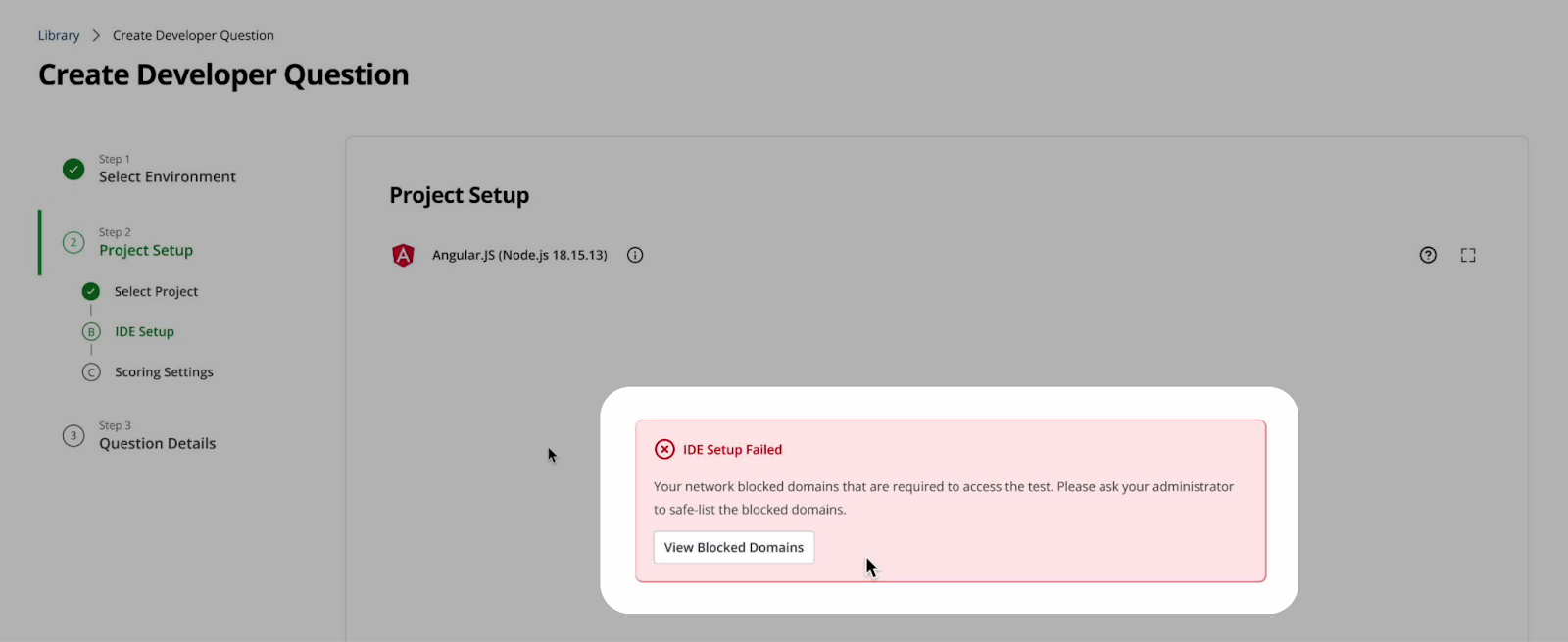
If your project includes any blacklisted domains, the IDE notifies you automatically. Click View Blocked Domains to see the list of blocked domain URLs.
Step 2B: IDE Setup
Define a data source for the model to retrieve information from. Choose one of the following storage options:
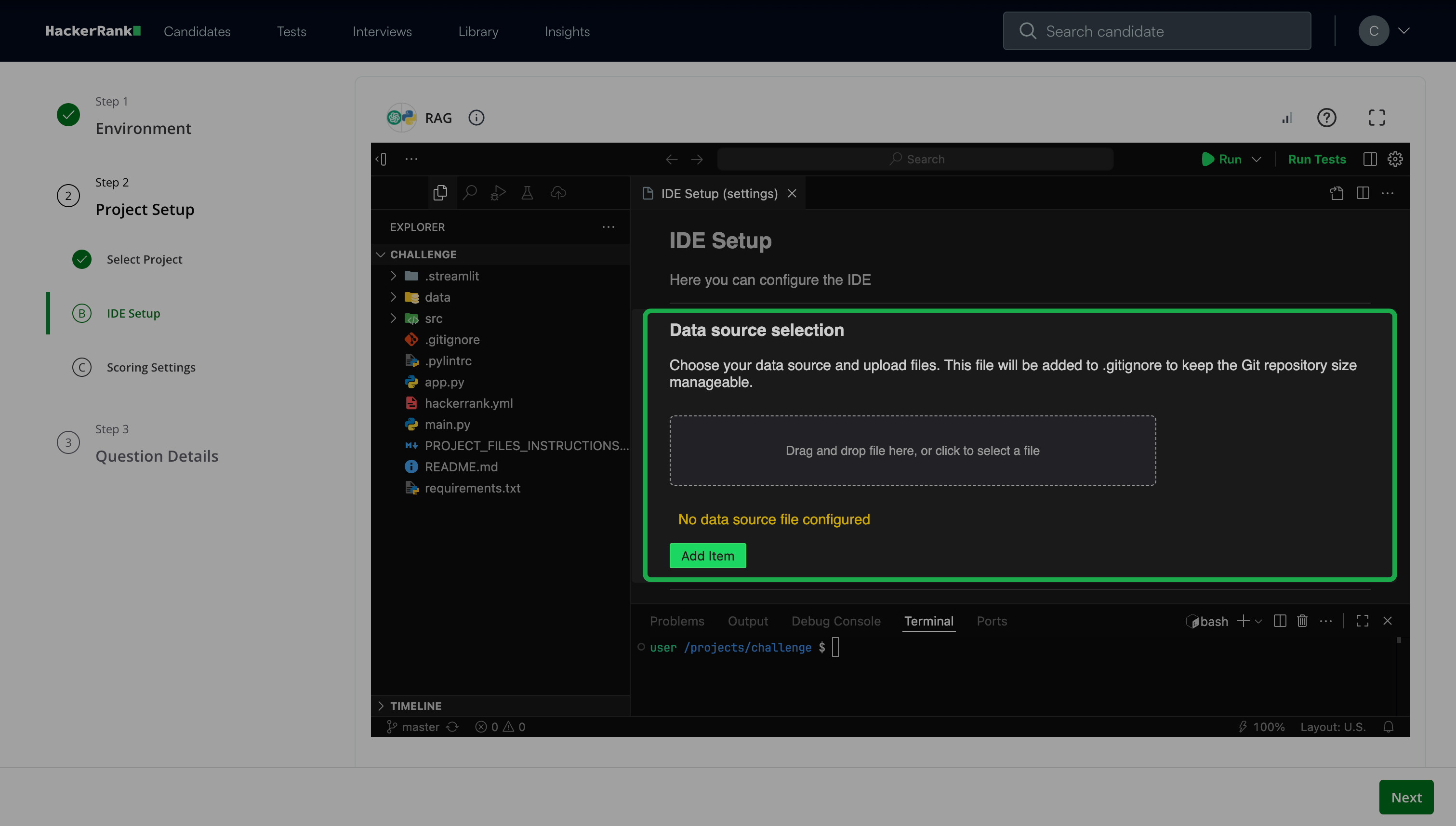
File-based storage: Use file-based storage to provide unstructured or text-based data through project files.
You can:Reference an existing file path in your project.
The system displays the token count and size limits.Upload a new file through the UI.
The platform stores the file in Amazon S3 or in the IDE, depending on your environment.
Database (DB) storage: Use database storage to provide structured data.
You can:
Upload a .db file to load an existing database into the project.
Upload a .sql file to initialize or modify a database.
Note:
Data source limits and constraints
File size and storage limits
Upload files or databases up to 500 MB or up to the effective token capacity, whichever limit applies first.
The system validates non-text files based only on file size.
The platform stores all uploaded files in a dedicated data folder and automatically adds them to
.gitignore.
Token usage limits
After each upload, the system displays the token count and applicable limits.
Large embeddings from files or databases may trigger rate limiting.
Request limits
Send up to 30 requests per minute.
Process up to 3,000 tokens per minute for standard requests.
Process up to 30,000 tokens per minute for embedding models.
Run up to five parallel requests.
Configure the IDE project commands for Install, Run, and Test.
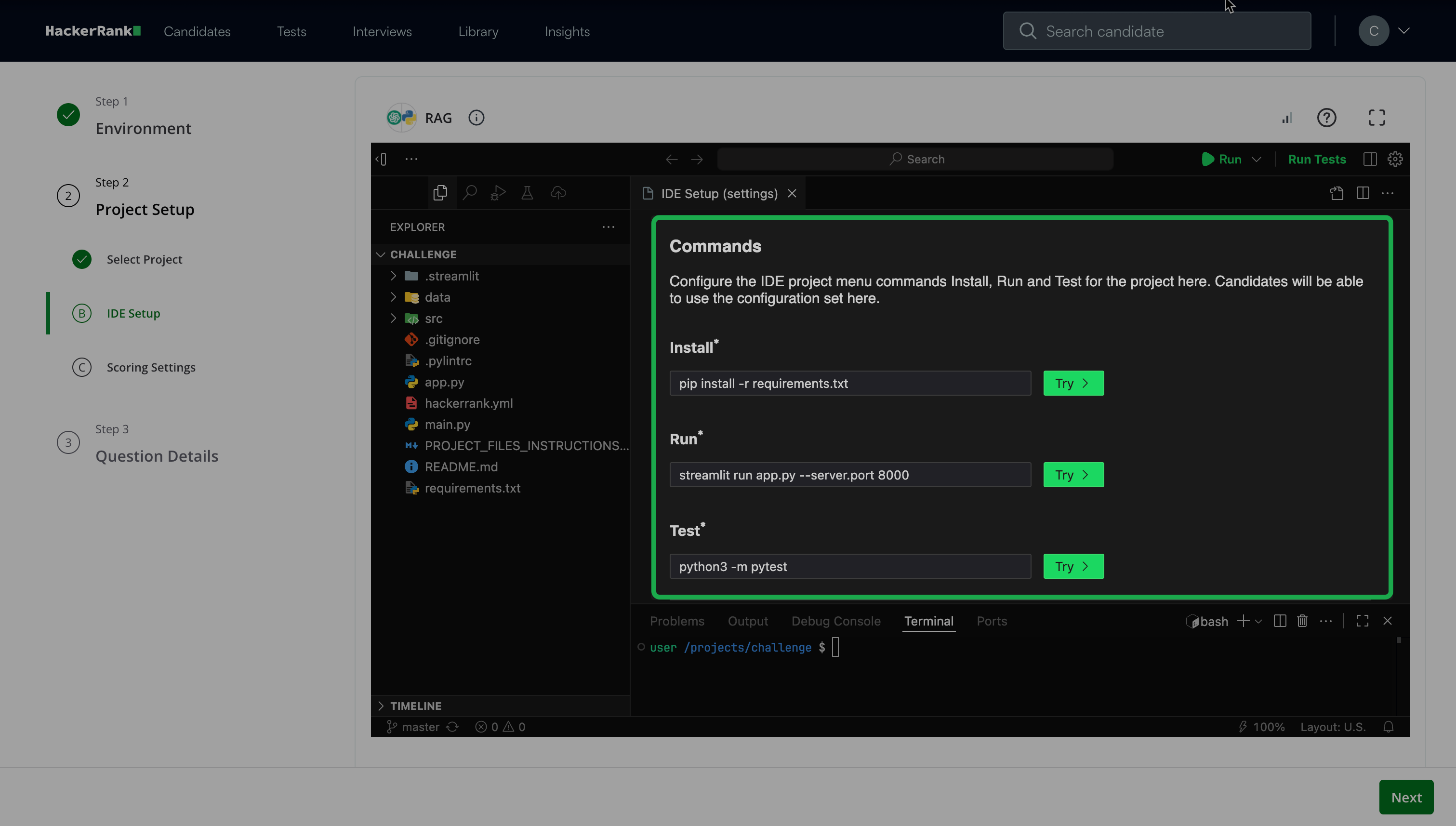
Add Default open files that appear when candidates open the IDE.
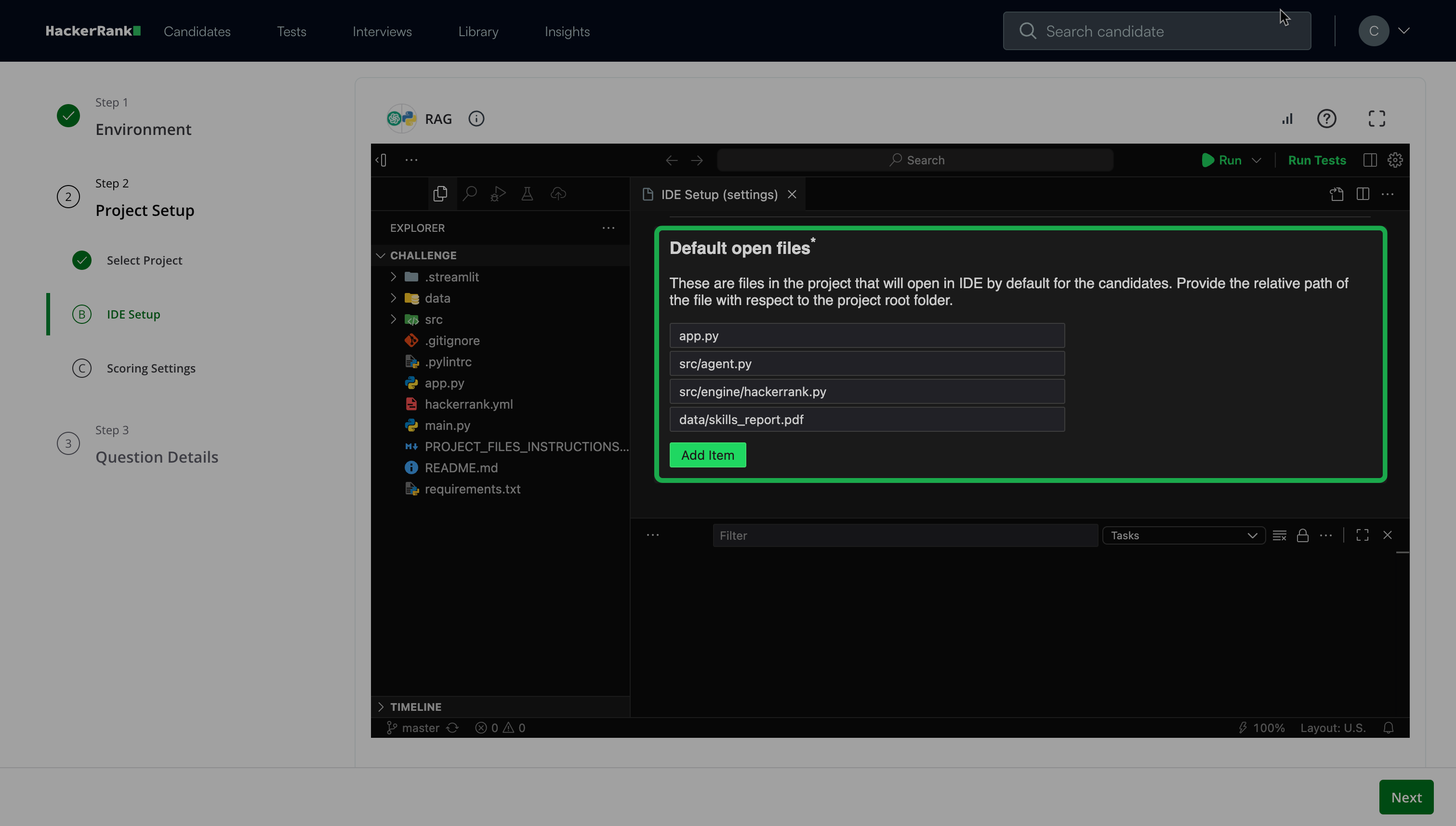
Note: You can add multiple files that open by default when candidates work on the project. You must add at least one file.
(Optional) Add Read-only files that candidates cannot modify. For example, test cases or README files.
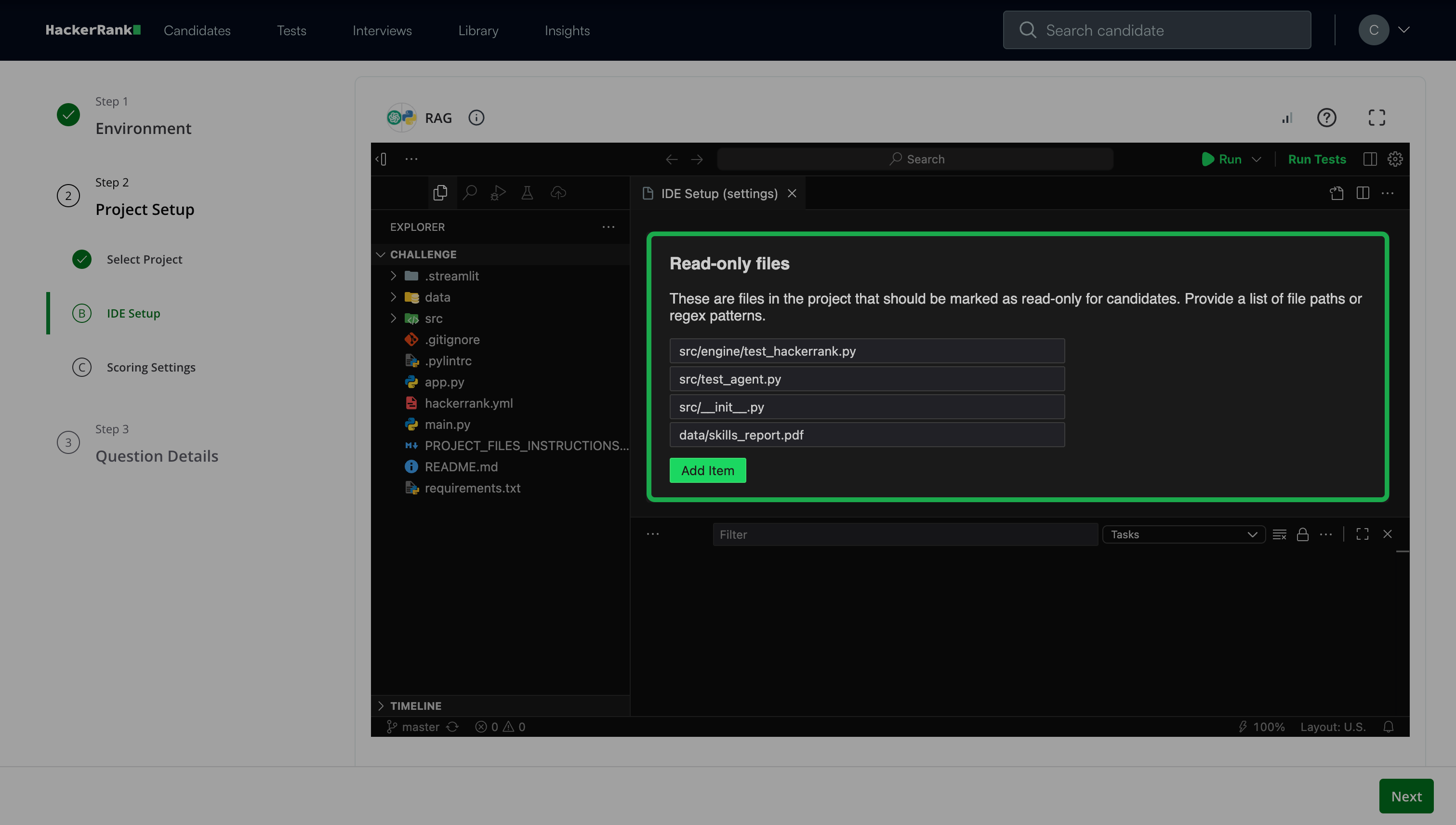
Click Next.
Step 2C: Scoring Settings
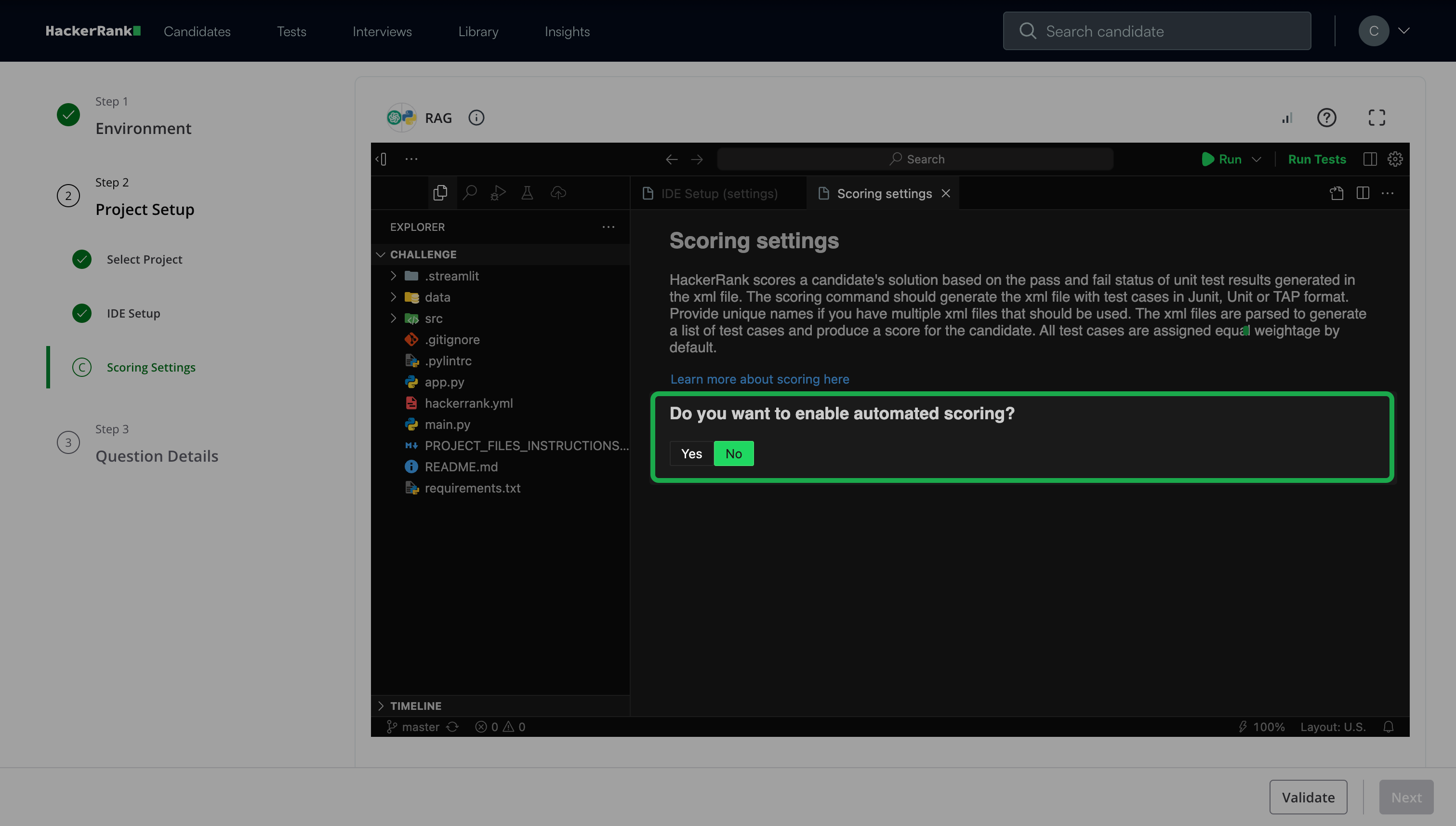
Choose whether to enable automated scoring.
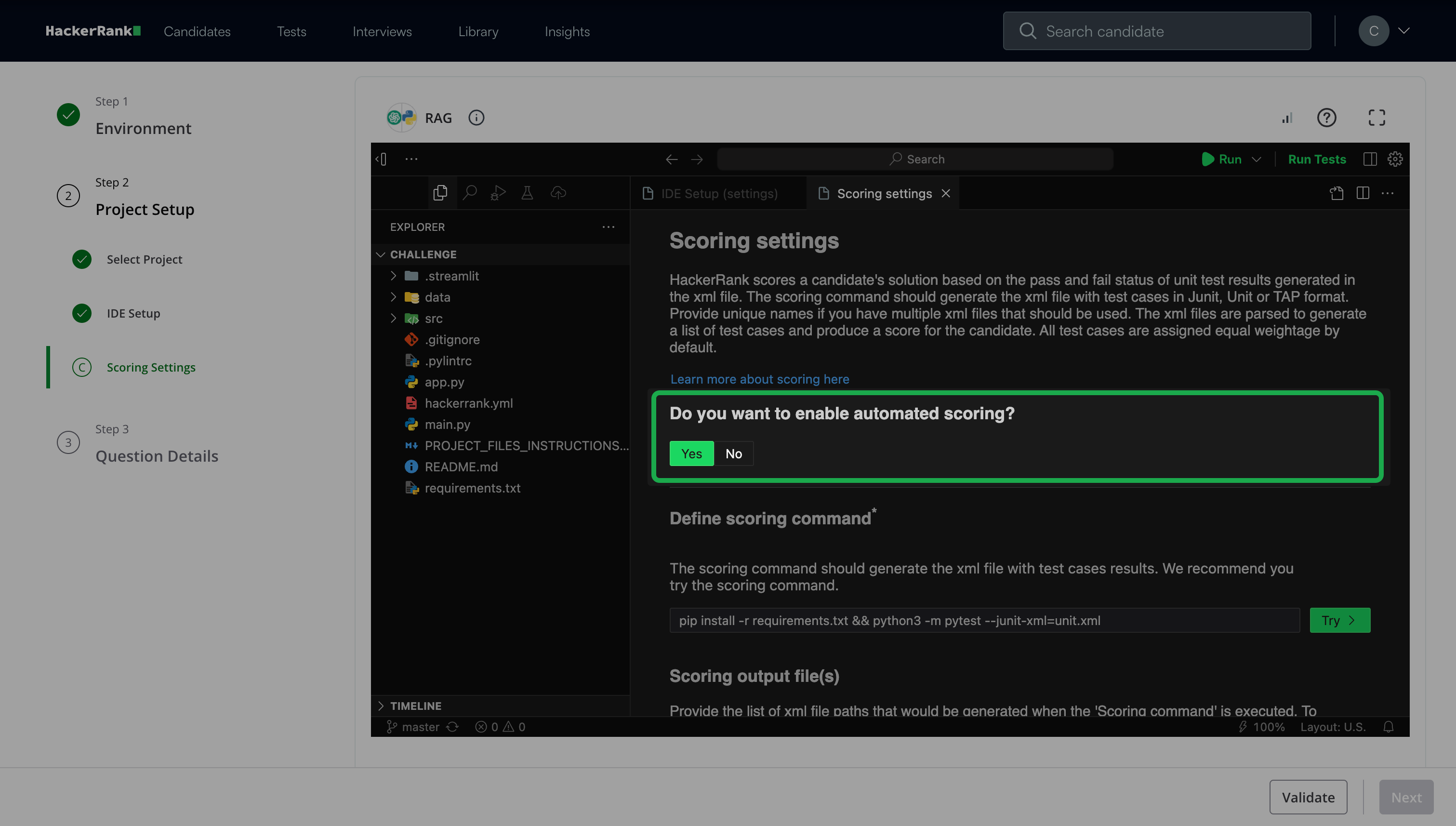
If you select Yes:
Click Try under Define scoring command.
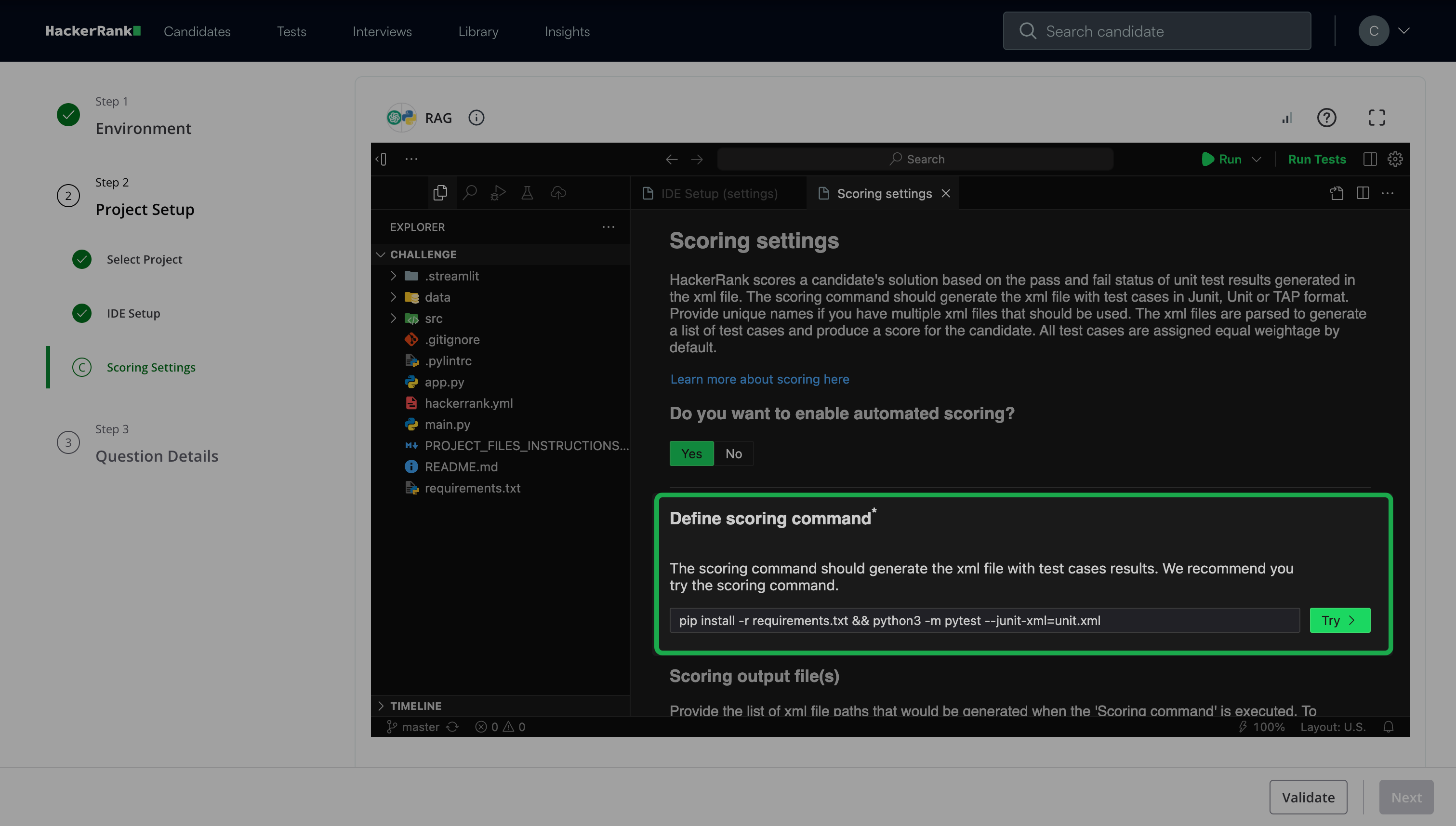
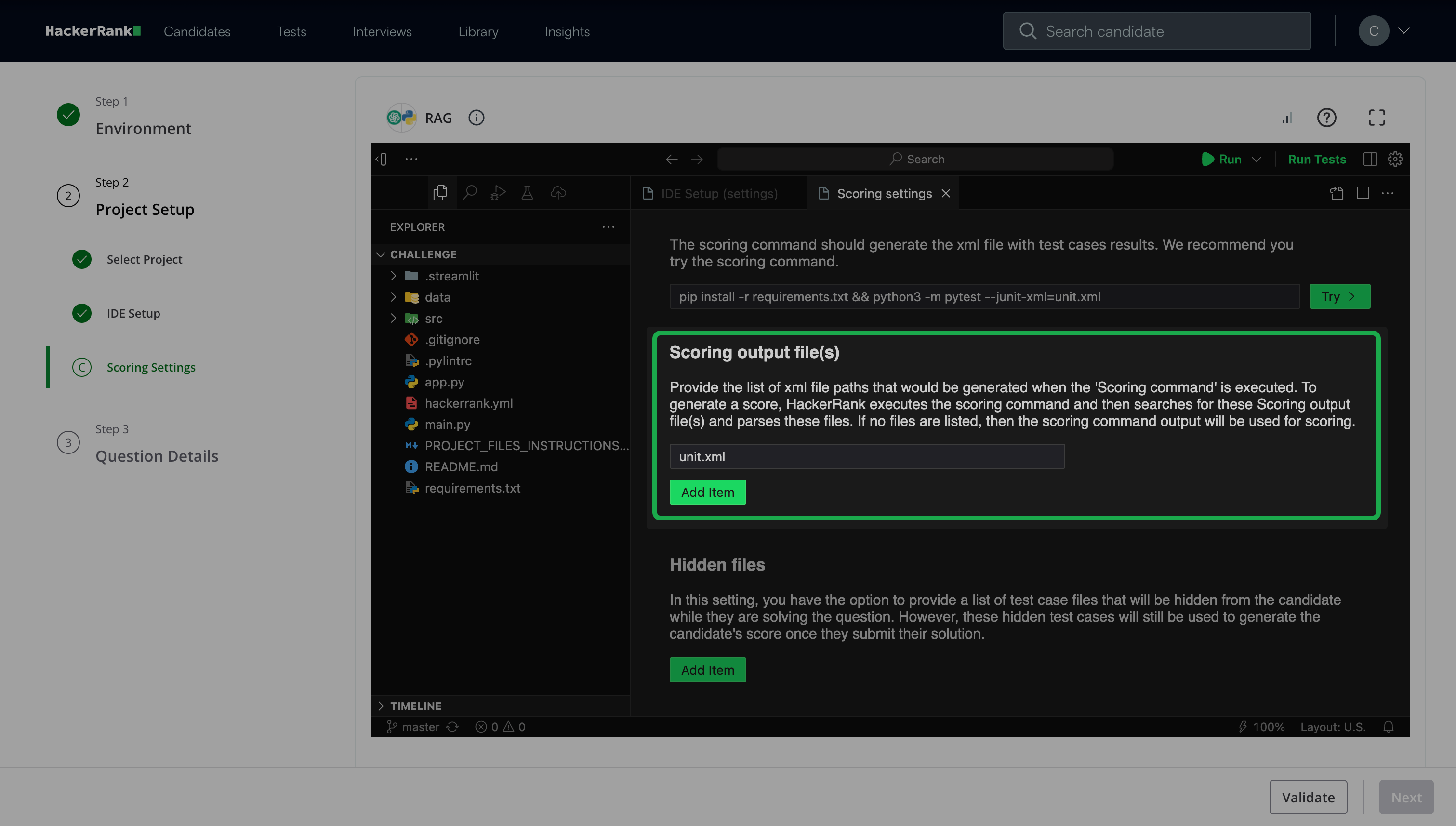
(Optional) Click Add item under Scoring output file(s) to provide a list of XML file paths to generate when the scoring command runs.
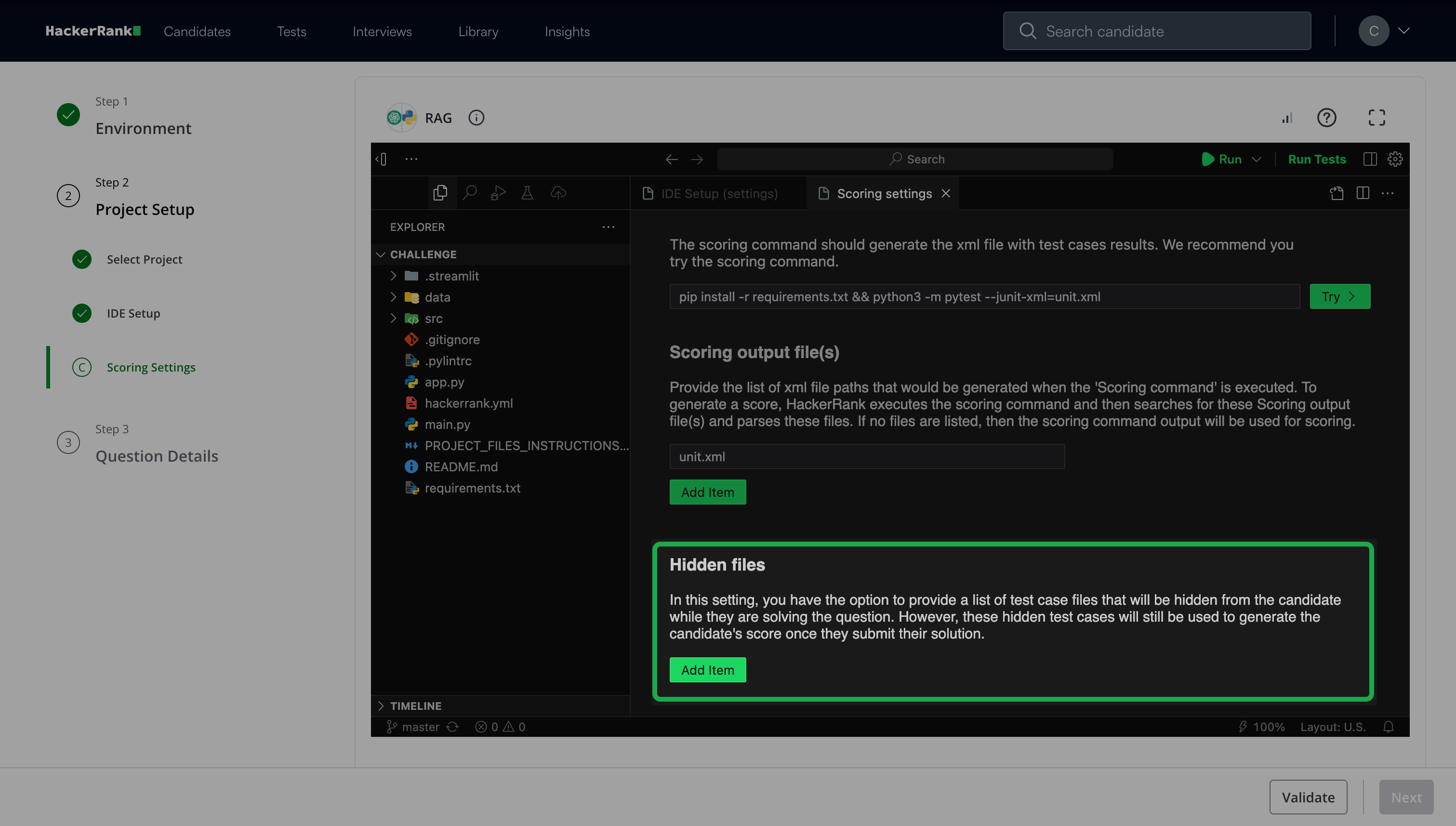
(Optional) Click Add item under Hidden files to provide a list of test case files to hide from candidates during the test.
If you select No, you can assign scores manually.
For more information about scoring, see Scoring a Generative AI Question in tests.
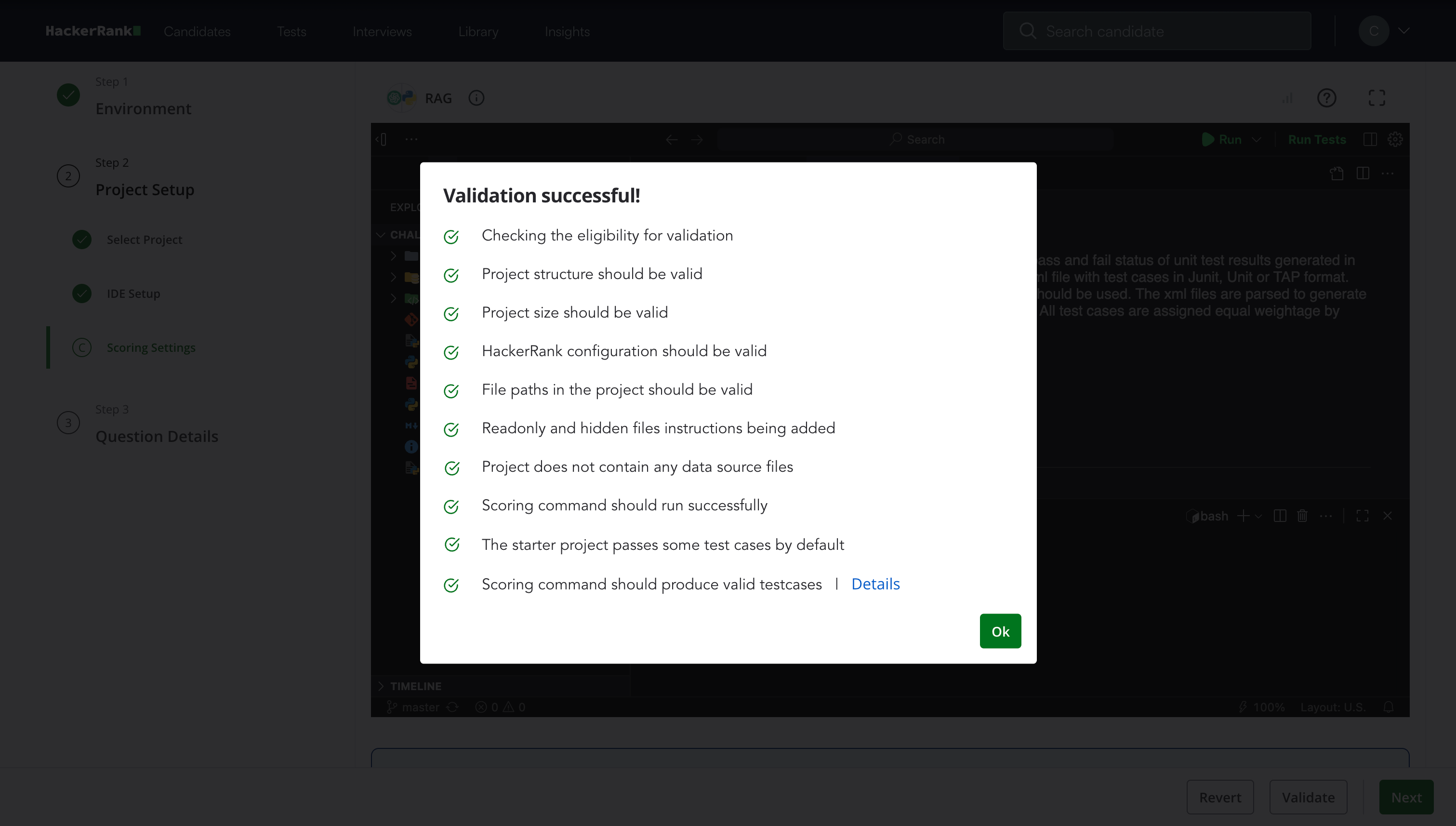
Click Validate and then click Ok once validation is complete.
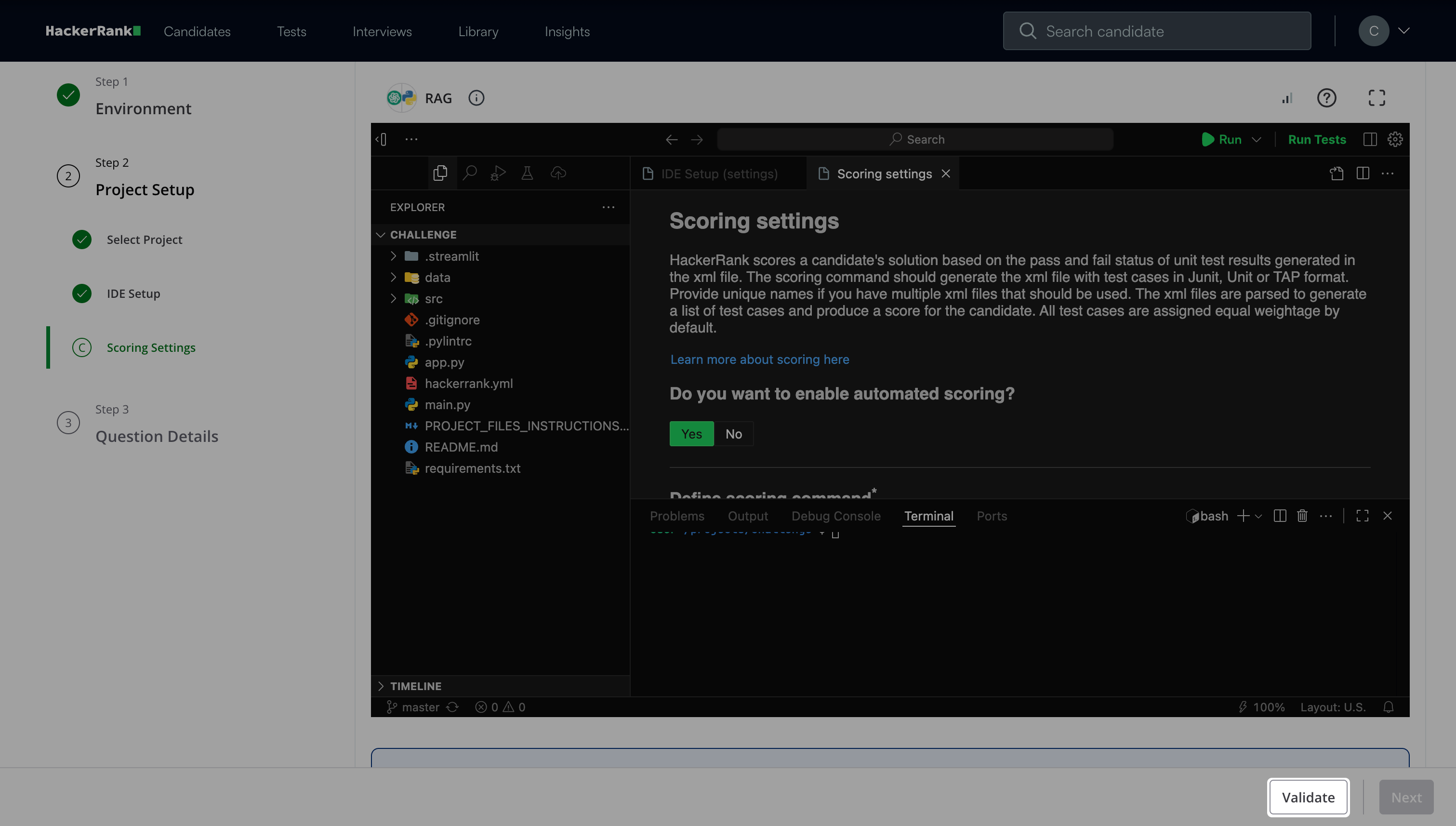
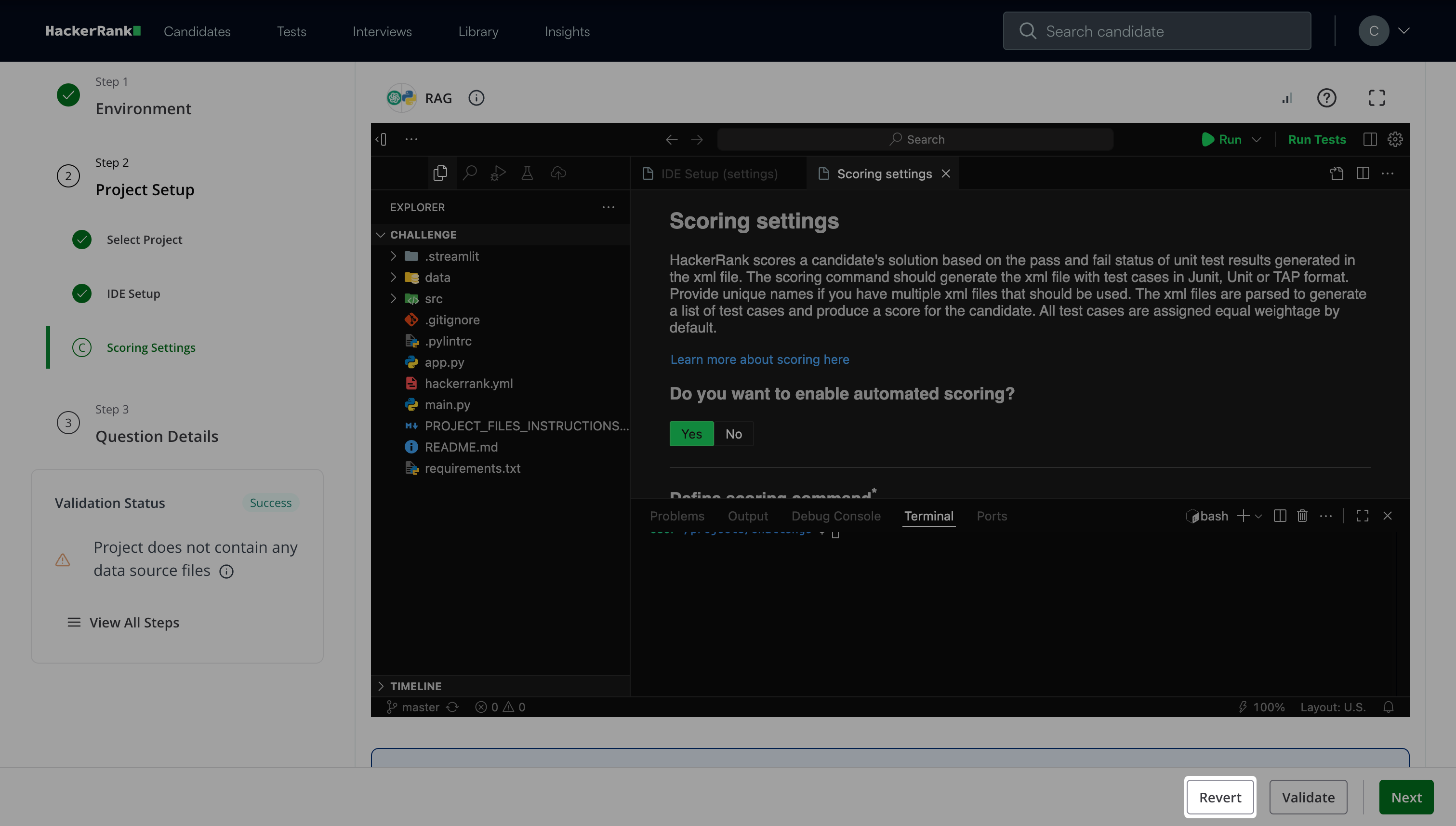
Note: Click Revert to revert to the last validation state.
Click Next.
Step 3: Question Details
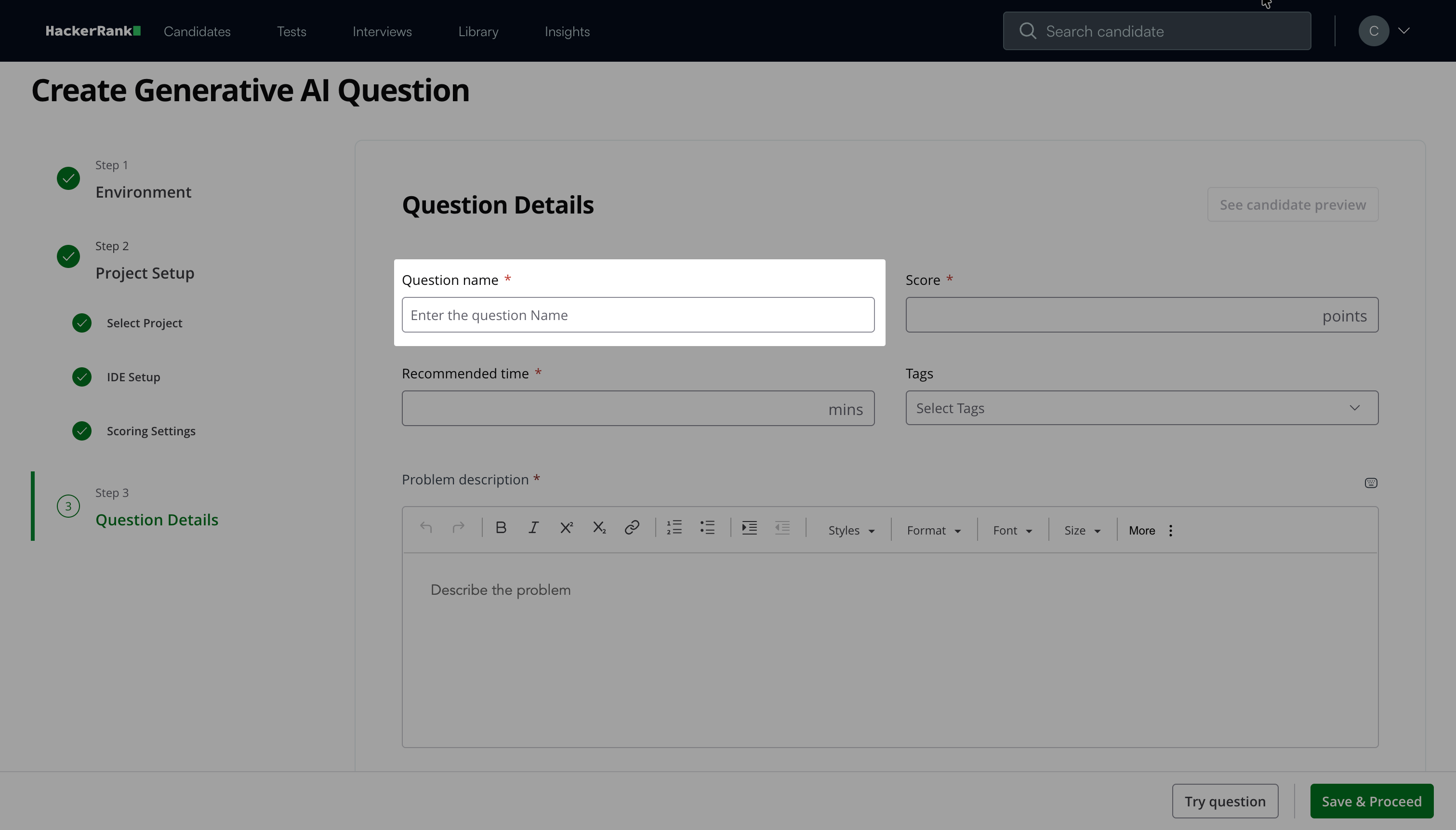
Enter the Question name.
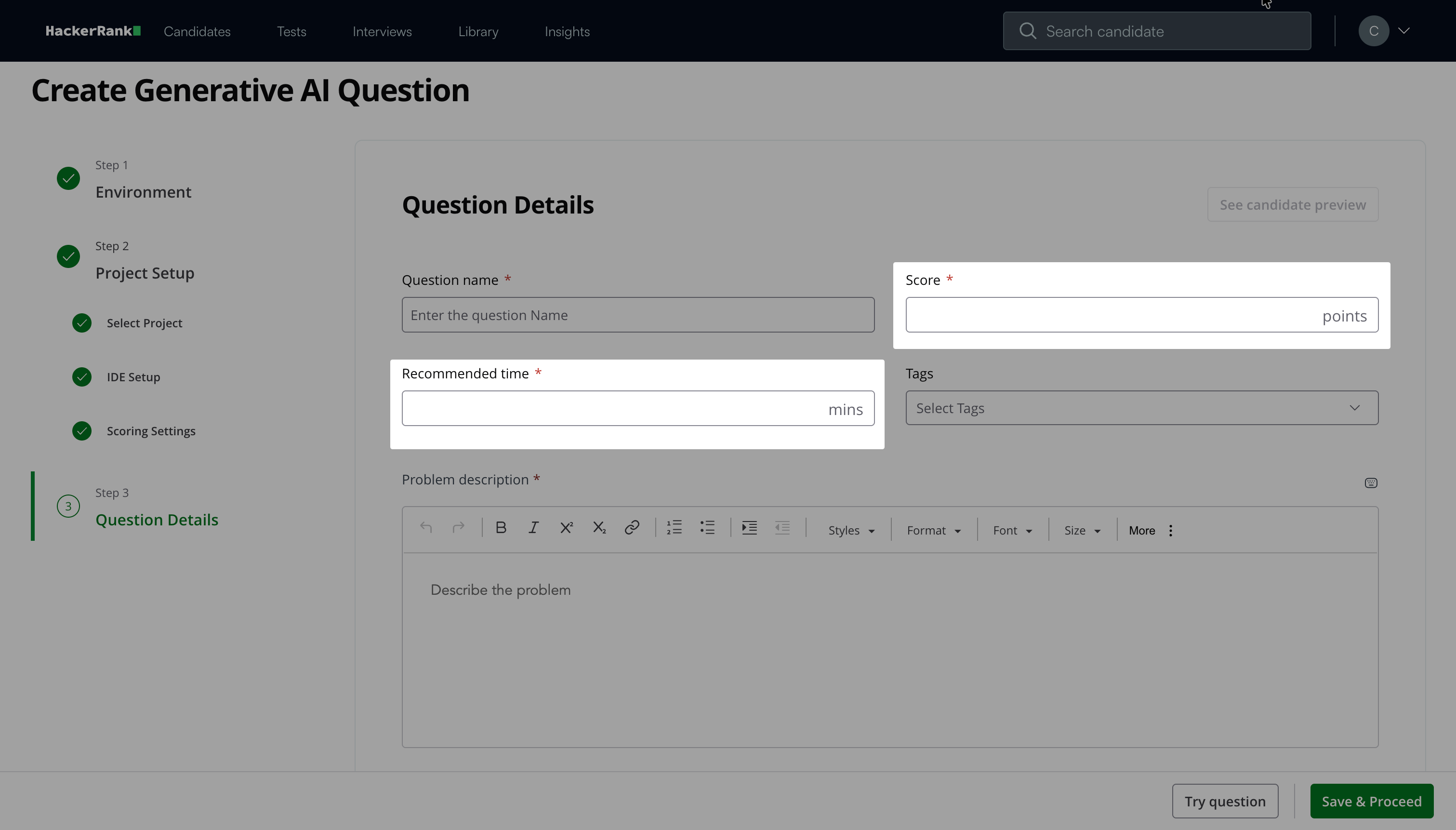
Enter the Score and Recommended time based on question difficulty.
(Optional) Add Tags from the drop-down list or create new ones.
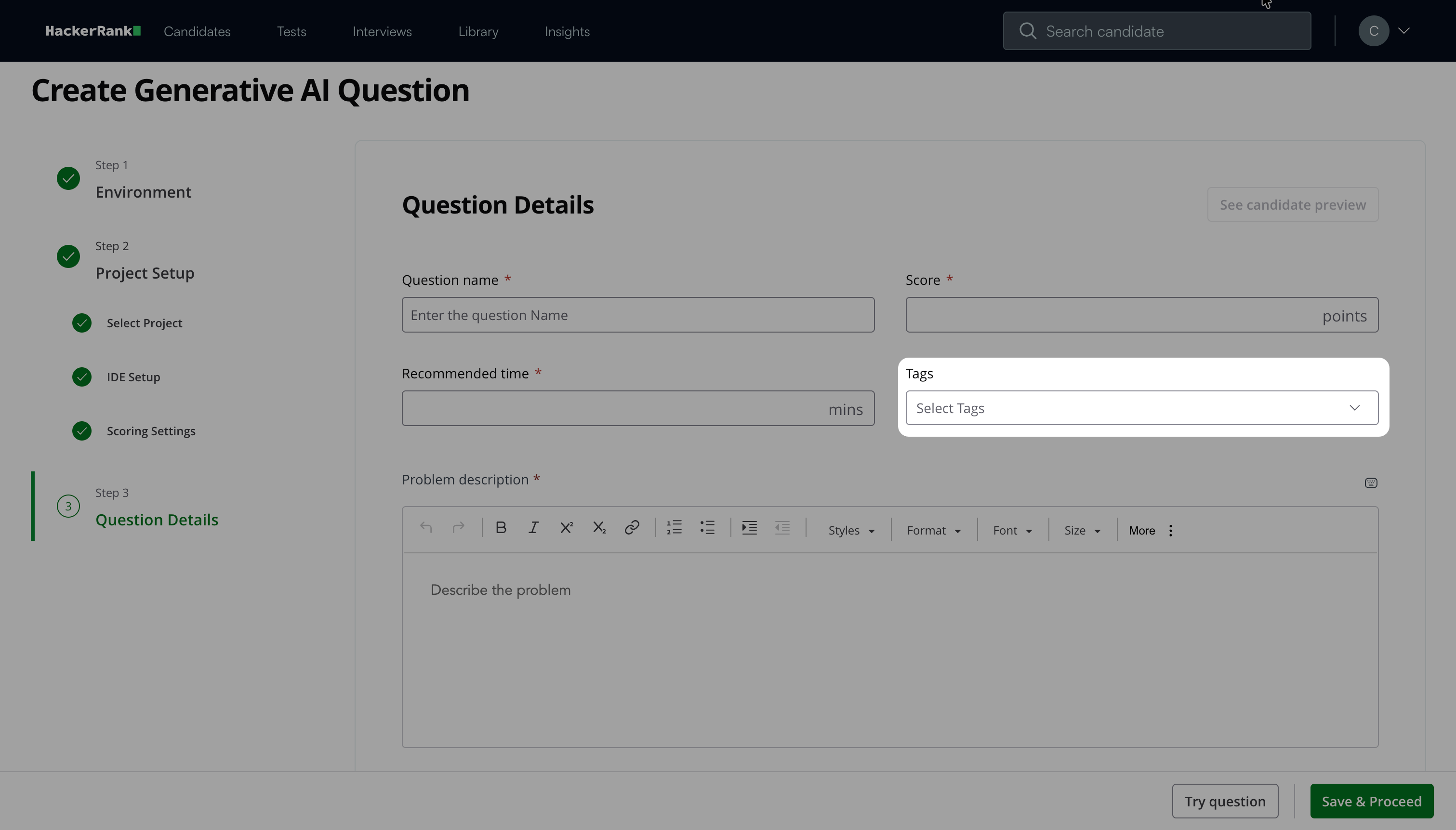
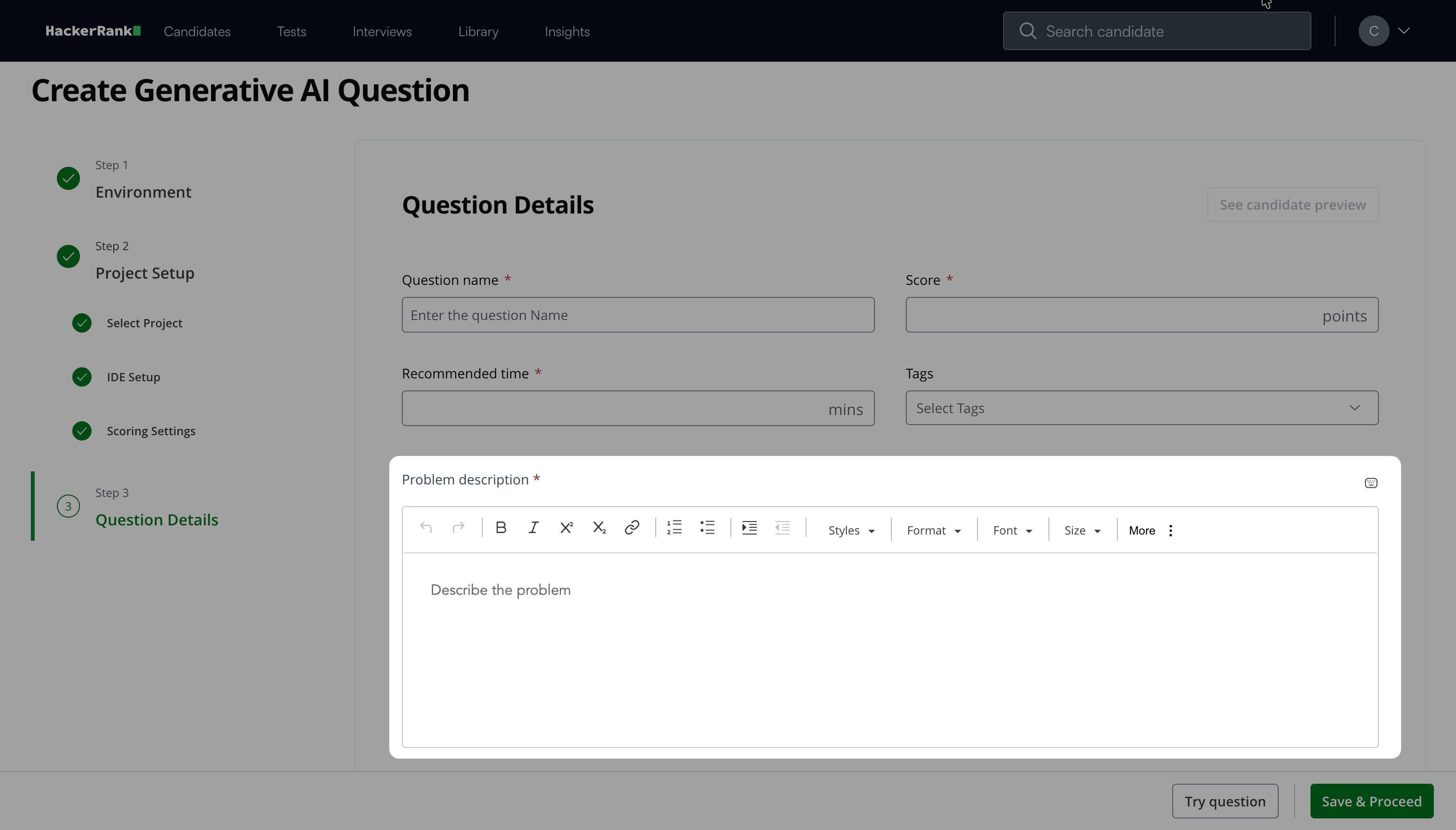
Describe the problem in the Problem Description field. You can use the formatting menu to format the text or to include elements such as tables or images.
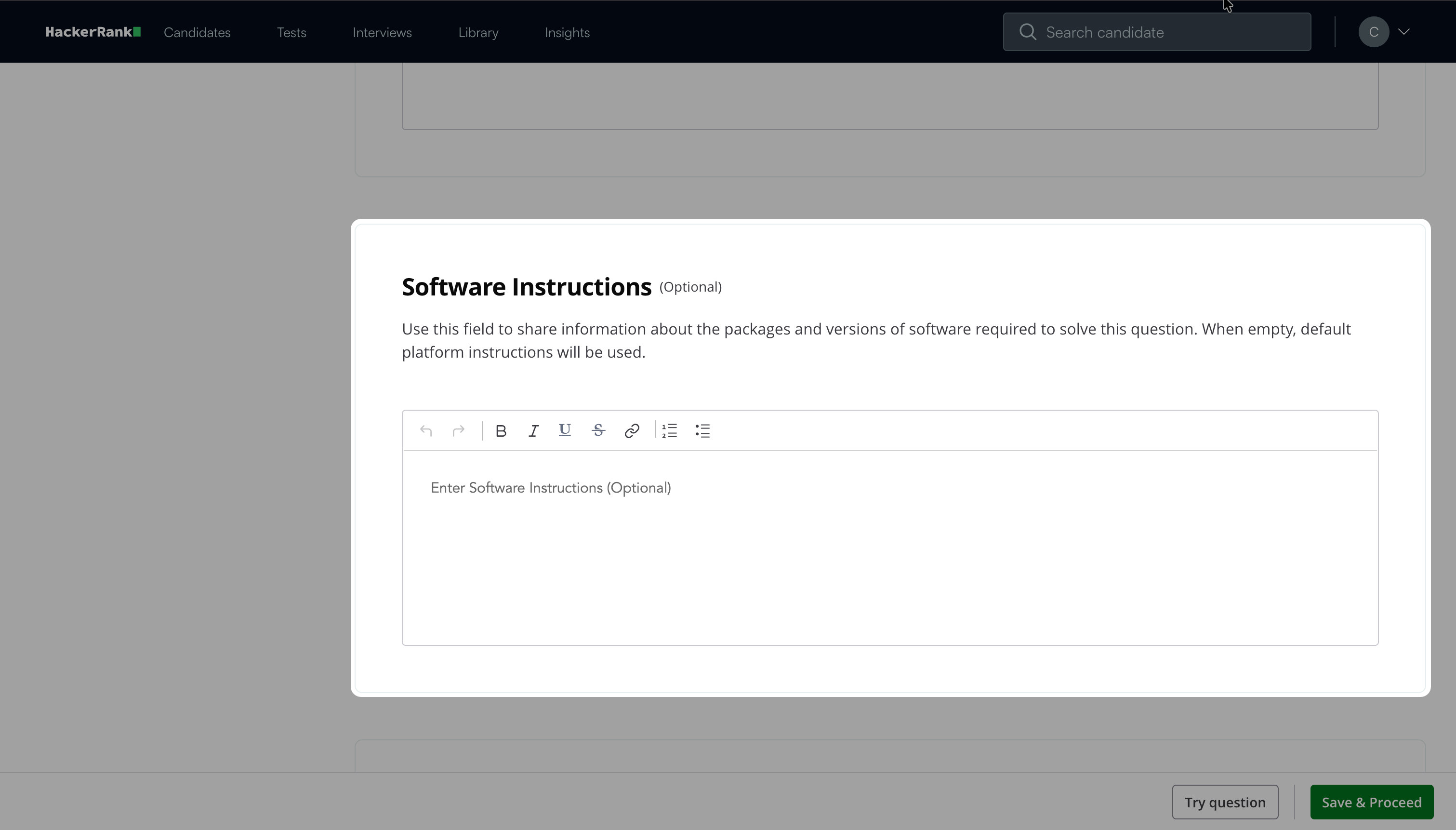
(Optional) Add Software Instructions to specify required packages or software versions. If you leave this field empty, the platform uses the default instructions.
(Optional) Add Interviewer guidelines for internal use, such as evaluation notes, hints, or reference solutions.
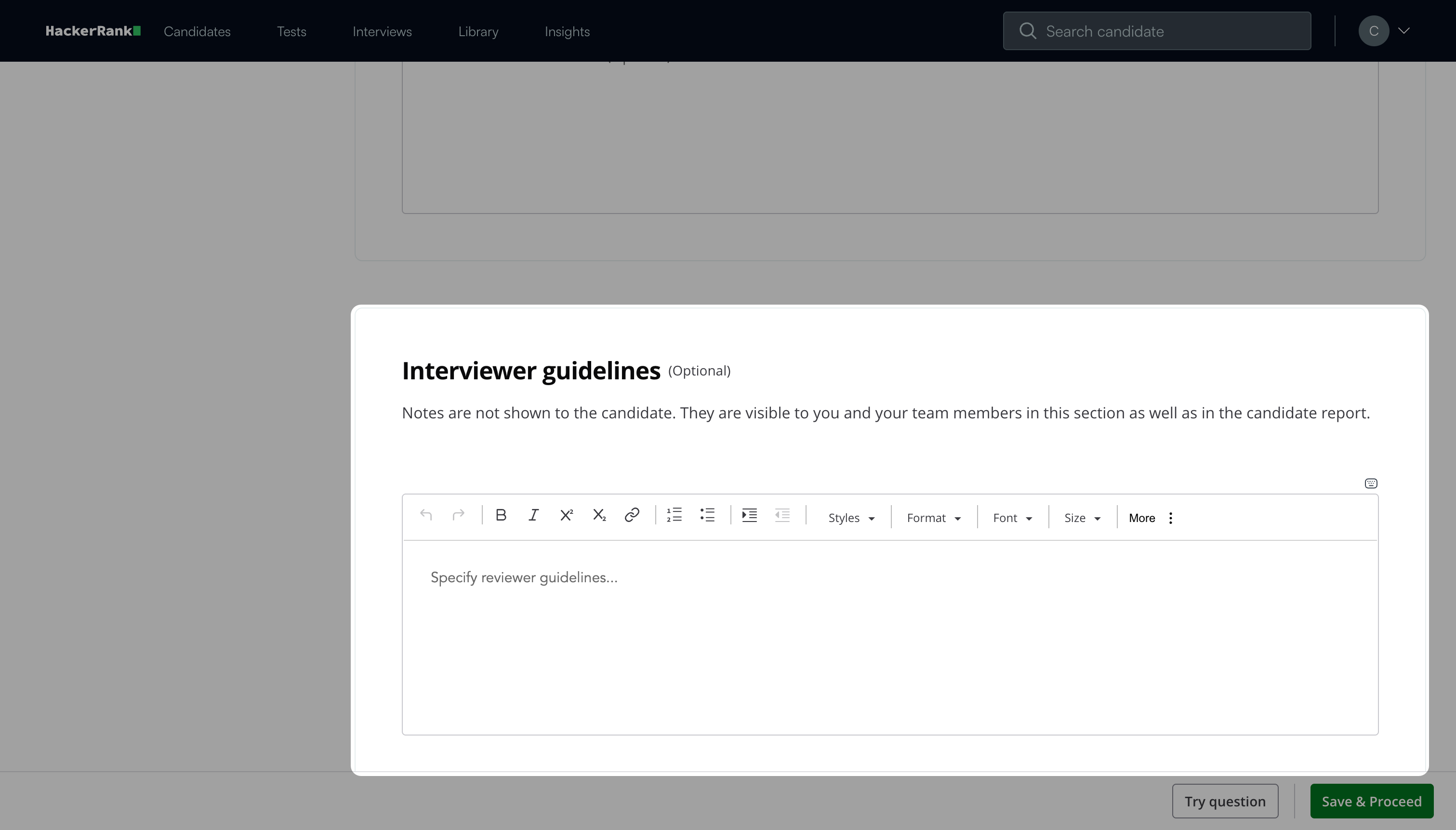
Note: Click Try question to view how the question appears to candidates.
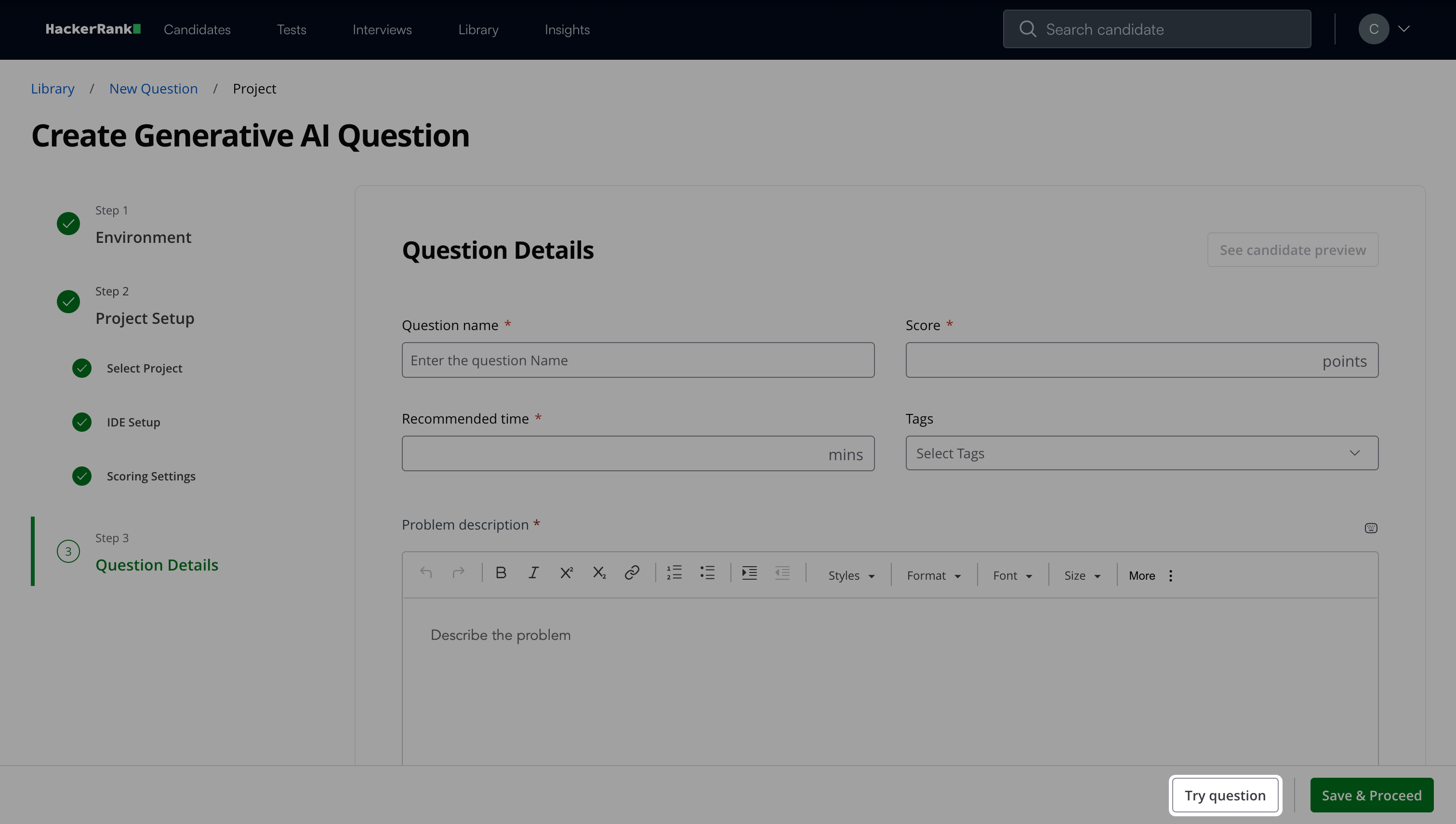
Click Save & Proceed.
The question appears under My Company questions in the HackerRank Library.
Candidate experience
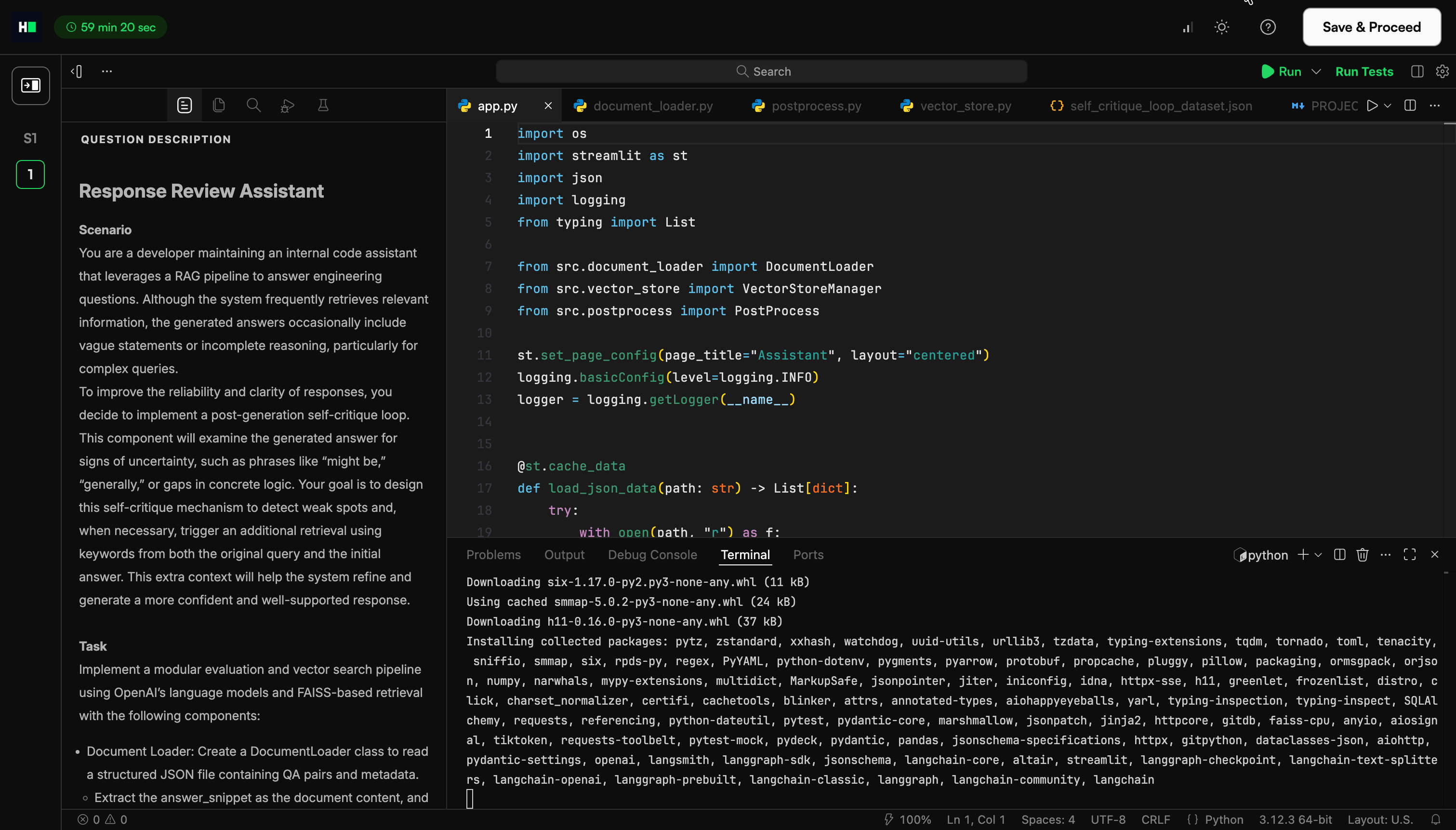
When a question loads, the IDE automatically starts the installation process. The candidates can click on Run to run the application.
Scoring a Generative AI question in tests
Generative AI questions support both automatic and manual scoring to evaluate candidate performance in realistic development environments.
Automated scoring
Automated scoring evaluates candidate submissions against predefined unit test cases. The final score depends on how many test cases the submission passes.
Each scoring format supports specific languages, frameworks, and testing tools. Select the format that matches your project setup and testing requirements.
HackerRank supports the following scoring formats.
JUnit-based scoring
JUnit-based scoring is the default method.
The system assigns an equal score to each test case.
A submission that passes all test cases receives the full score.
A submission that passes some test cases receives a proportional score.
For instance, if a question has five test cases and a total score of 50, each test case is worth 10 points. If the candidate’s code passes three test cases and fails two, the system assigns a final score of 30.
Example:
<?xml version="1.0"?><testsuite name="Node.js (linux; U; rv:v6.9.1) AppleWebKit/537.36 (KHTML, like Gecko)" package="unit" timestamp="2017-04-12T21:08:42" id="0" hostname="2c29b2a64693" tests="8" errors="0" failures="0" time="0.29"><properties>
    <property name="browser.fullName" value="Node.js (linux; U; rv:v6.9.1) AppleWebKit/537.36 (KHTML, like Gecko)"/></properties><testcase name="CountryList should exist" time="0" classname="unit.CountryList"/><testcase name="Check Rendered List check number of rows that are rendered" time="0.017" classname="unit.Check Rendered List"/><testcase name="Main should exist" time="0.001" classname="unit.Main"/><testcase name="Check Functions check if the filter works" time="0.093" classname="unit.Check Functions"/><testcase name="Check Functions check empty search" time="0.061" classname="unit.Check Functions"/><testcase name="Search should exist" time="0.001" classname="unit.Search"/><testcase name="Check Search check if search bar works (case-sensitive)" time="0.071" classname="unit.Check Search"/><testcase name="Check Search check if search bar works (case-insensitive)" time="0.046" classname="unit.Check Search"/><system-err/></testsuite>
xUnit-based scoring
xUnit-based scoring applies to .NET projects that use xUnit.net for testing.
This format supports .NET languages in .NET 2.0 projects.
Scoring works the same way as JUnit-based scoring.
Example:
<?xml version="1.0" encoding="utf-8"?><assemblies timestamp="01/25/2018 18:32:09"><assembly name="/home/ubuntu/fullstack/project/tests/bin/Debug/netcoreapp2.0/tests.dll" run-date="2018-01-25" run-time="18:32:09" total="4" passed="2" failed="2" skipped="0" time="0.011" errors="0">
    <errors />
    <collection total="2" passed="1" failed="1" skipped="0" name="Test collection for Tests.UnitTest1" time="0.011">
      <test name="Tests.UnitTest1.Test1" type="Tests.UnitTest1" method="Test1" time="0.0110000" result="Pass">
        <traits />
      </test>
      <test name="Tests.UnitTest1.Test2" type="Tests.UnitTest1" method="Test2" time="0.0110000" result="Fail">
        <traits />
        <failure message="failed">Failed</failure>
      </test>
    </collection>
    <collection total="2" passed="1" failed="1" skipped="0" name="Test collection for Tests.UnitTest2" time="0.011">
      <test name="Tests.UnitTest2.Test1" type="Tests.UnitTest2" method="Test1" time="0.0110000" result="Pass">
        <traits />
      </test>
      <test name="Tests.UnitTest2.Test2" type="Tests.UnitTest2" method="Test2" time="0.0110000" result="Fail">
        <traits />
        <failure message="failed">Failed</failure>
      </test>
    </collection></assembly></assemblies>
TAP scoring
Test Anything Protocol (TAP) is a standard unit test output format. HackerRank supports a basic version of the TAP output format. The system evaluates test results based on the TAP specification. For more information on the TAP specification, see TAP documentation.
Example:
TAP version 13
1..6
#
# Create a new Board and Tile, then place
# the Tile onto the board.
#
ok 1 - The object isa Board
ok 2 - Board size is zero
not ok 3 - The object is a Tile
ok 4 - Get possible places to put the Tile
not ok 5 - Placing the tile produces error
ok 6 - Board size is 1
Manual scoring
Manual scoring allows you to assign scores directly for Generative AI questions.
To manually score:
Open the candidate’s Detailed Test Report. For more information, see 📄 Viewing a Candidate's Detailed Test Report.
Select the relevant Generative AI question.
Enter the score for the question.
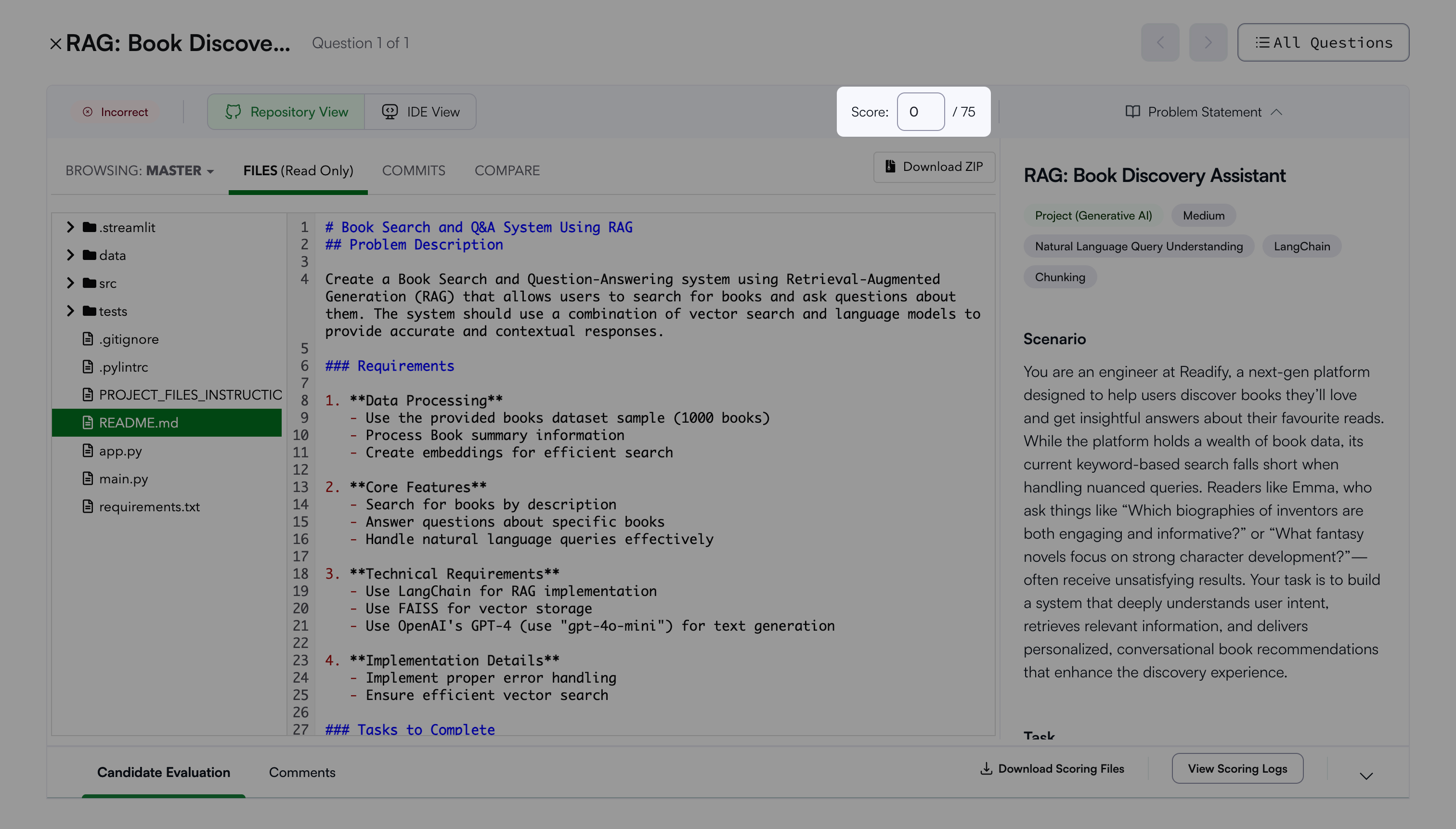
The system saves the score for the selected question.