View Candidate Report in Chakra
Last updated: October 28, 2026
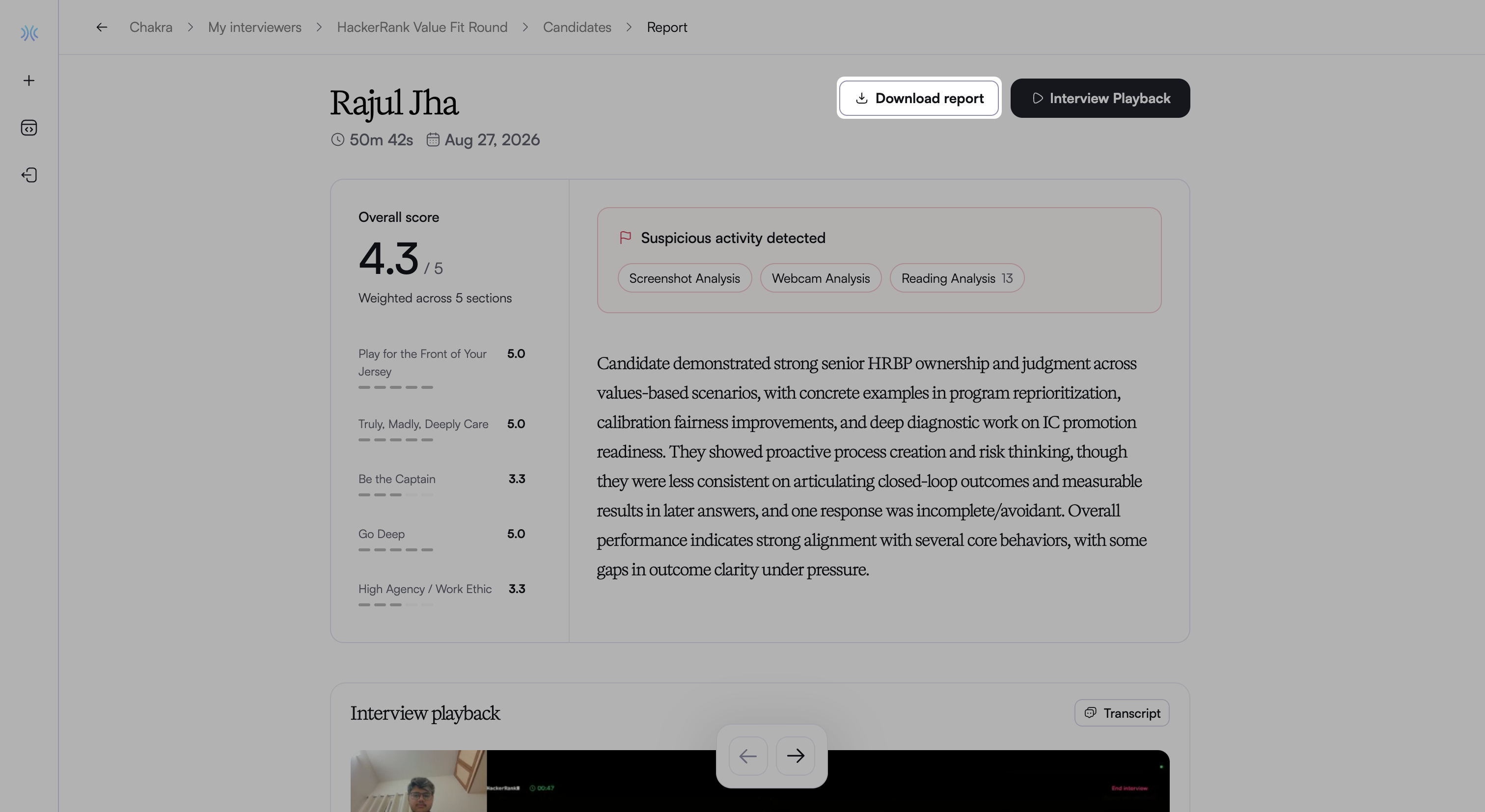
The candidate report summarizes a completed AI interview. It organizes evidence and feedback so you can quickly evaluate a candidate's performance and integrity.
You can use the report to review recommendations, interview responses, integrity signals, and section-level feedback in one place.
Note: You can view AI Interview reports only for candidates who complete the interview.
Viewing candidate report
To access candidate reports:
Log in to Chakra using your credentials.
Click the sidebar icon and select My Interviewers.
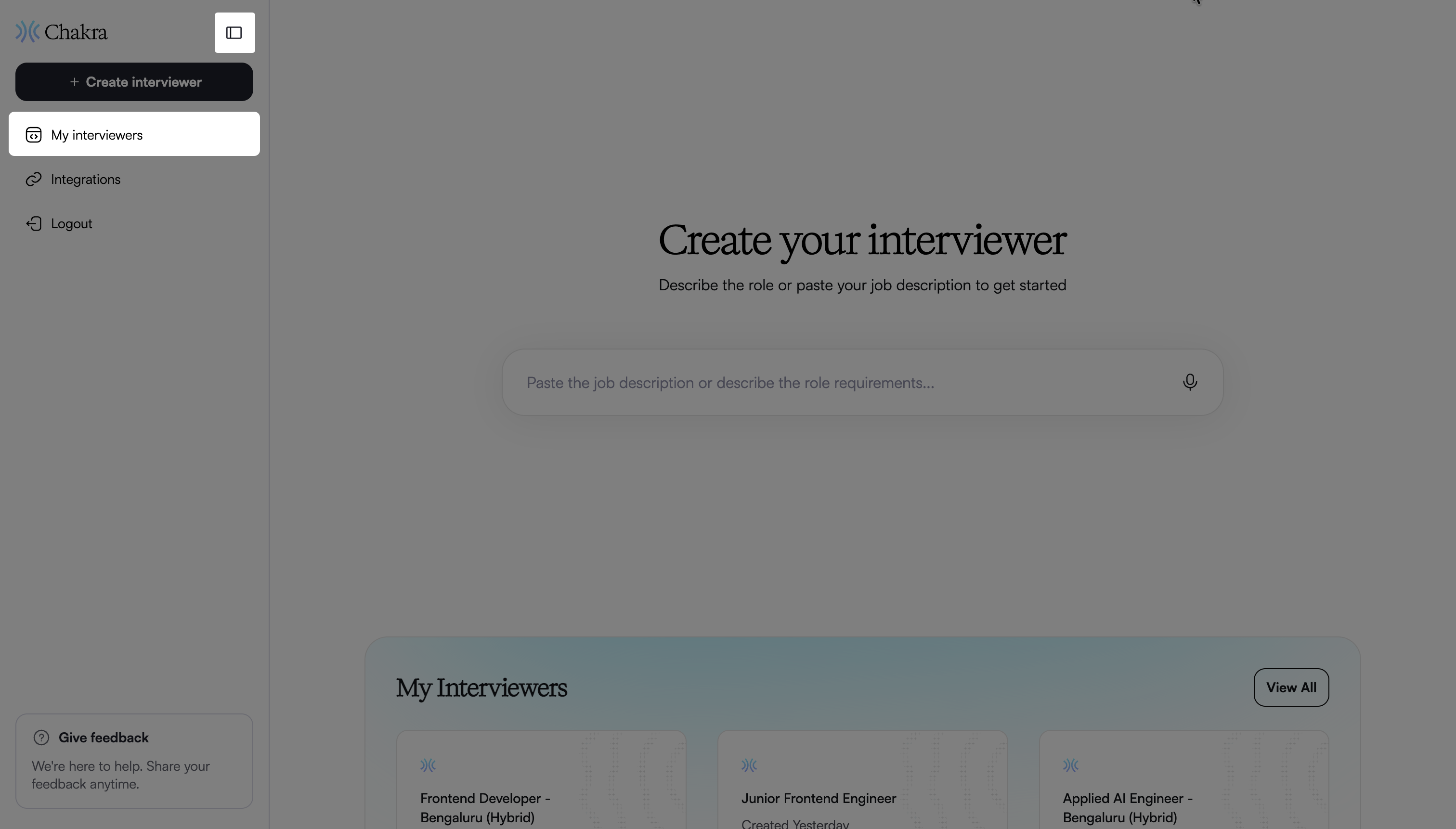
Select the interview for which you want to view candidate reports.
Go to the Candidates tab.
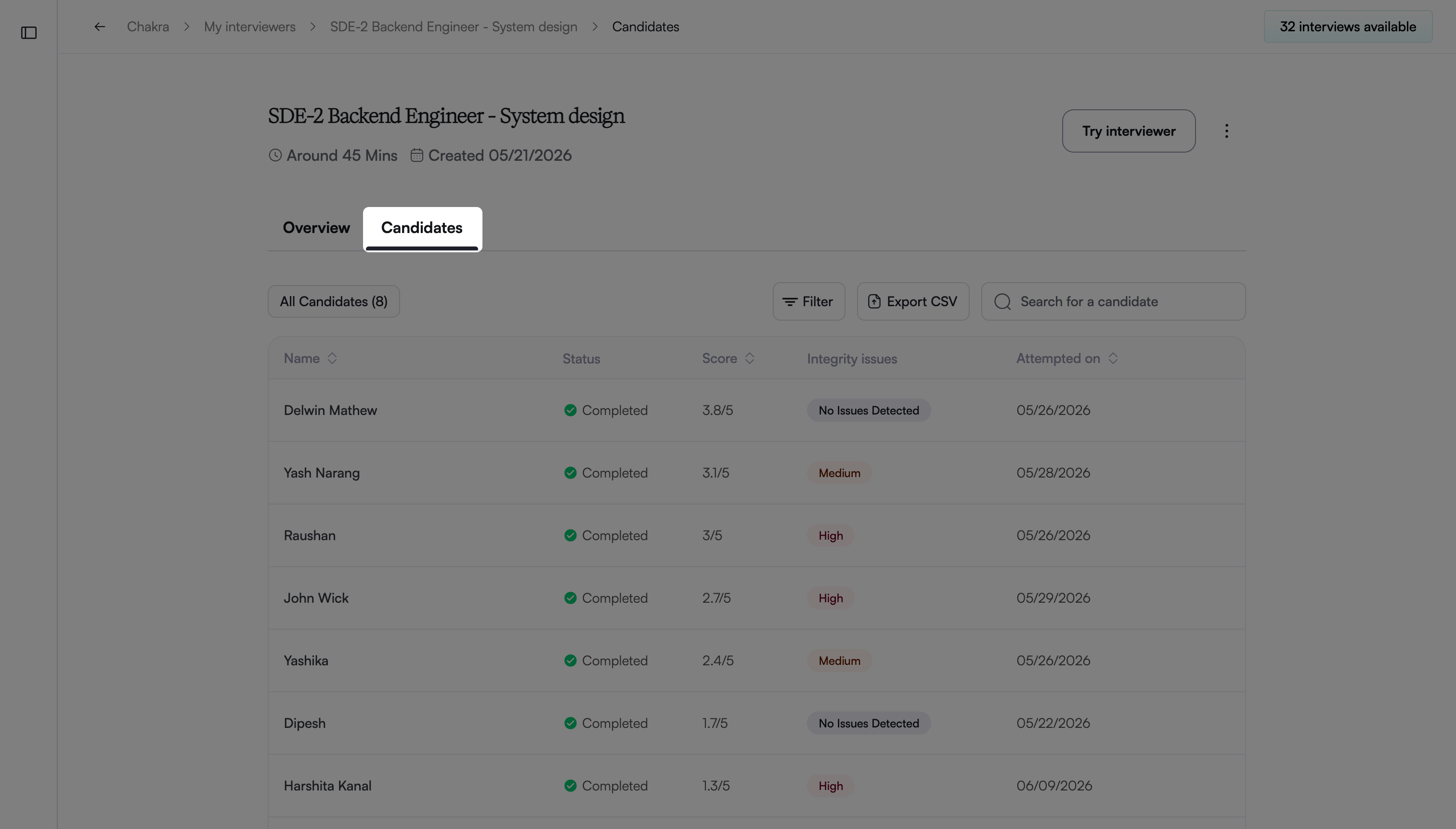
Note:
Use the search bar to find a specific candidate.
Use the following filters to refine results:
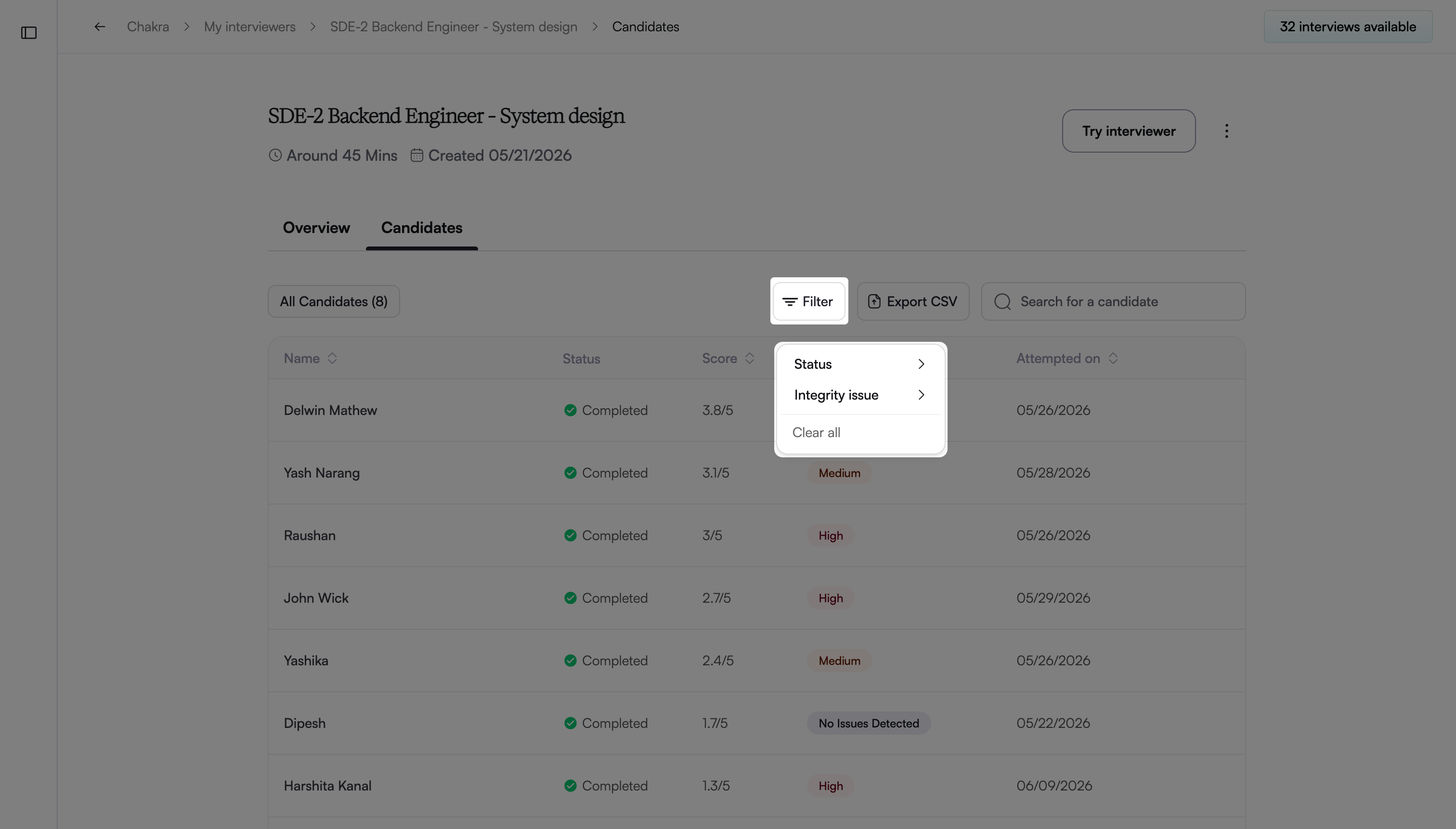
Status: Filter by Invited, In Progress, Completed
Integrity Issue: Filter by No issues detected, Medium, High
Click Export CSV to export the report as a CSV file. For more information, see 📄 Export Candidate Reports as a CSV
Select a candidate's name to open the candidate report.
Candidate report components
The candidate report includes the following components:
Overall score: The overall score uses a 5-point scale and reflects weighted performance across all interview sections and competencies.
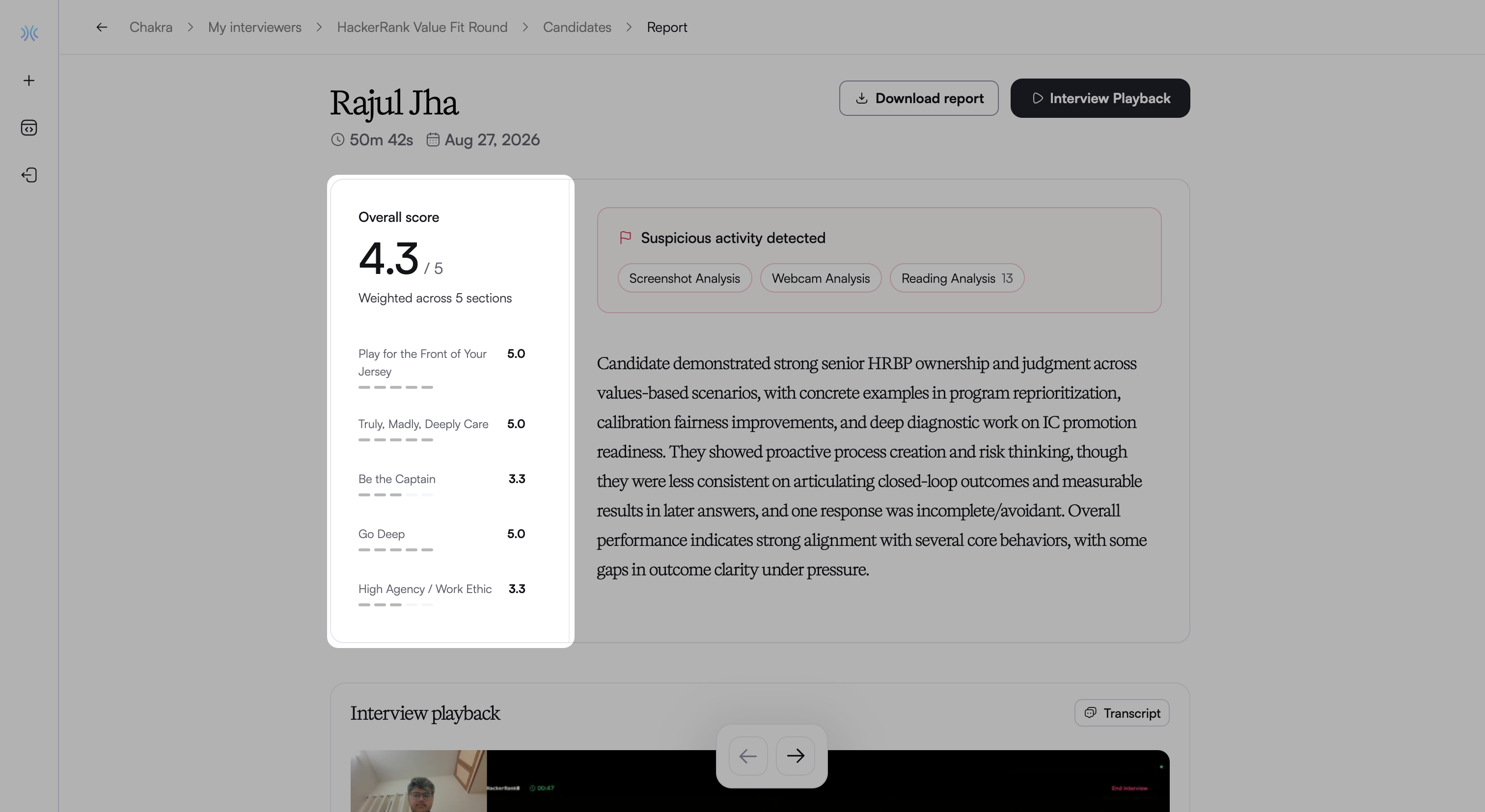
The report also displays a score for each interview section. Click a section score to go to that section's feedback in the report.
Overall summary: The overall summary describes the candidate’s performance and highlights:
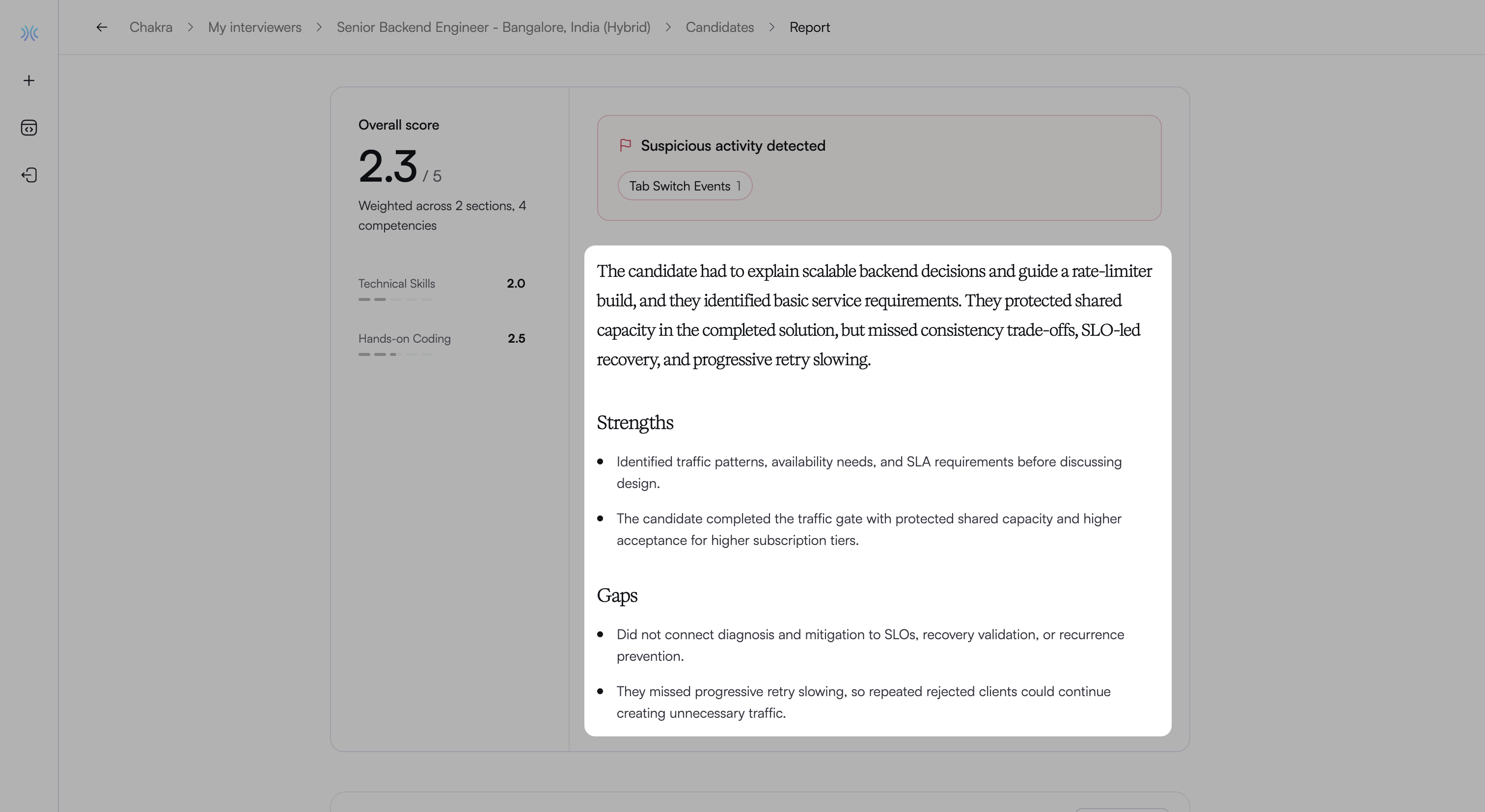
Strengths: Areas where the candidate performs well.
Gaps: Areas where the candidate’s responses fall short of expectations.
Click a bullet point under Strengths or Gaps to view the related competency’s detailed evaluation, including its score, the reasoning behind the score, and supporting transcript references.
Detected Integrity signals: The Suspicious activity detected area highlights integrity-related signals captured during the interview. Common signals include:
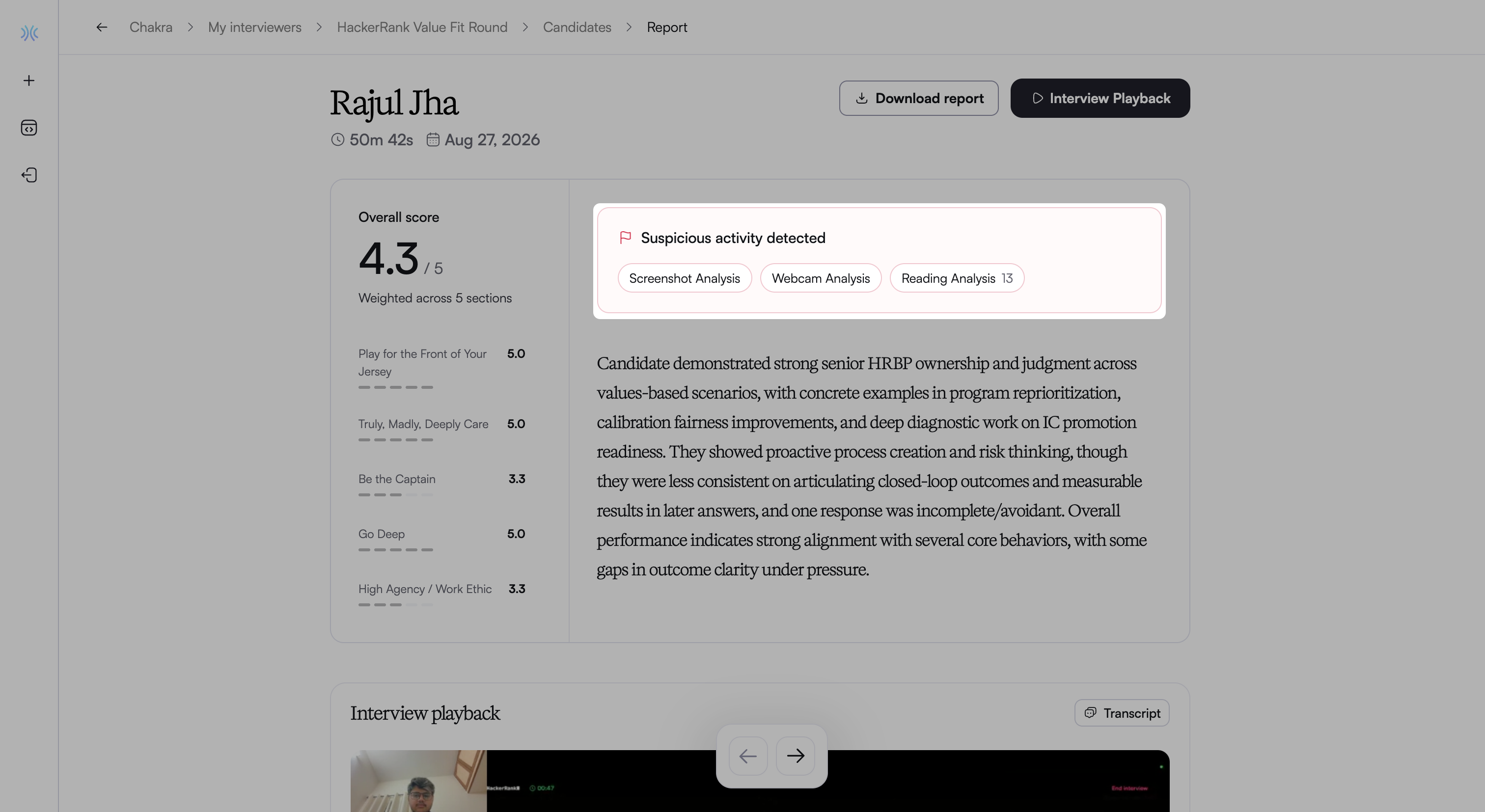
Tab switch or full-screen exits: Attempts to exit full-screen mode or switch browser tabs are automatically flagged and logged.
Webcam analysis: Analyzes webcam images for potential violations, such as the candidate's face missing for an extended period, multiple faces visible, or secondary faces detected.
Screenshot analysis: Reviews periodic screen captures for suspicious activity during the candidate session.
Object detection: Review captured images of detected mobile phones and tablets in the candidate's webcam feed.
Reading analysis: Analyzes the linguistic patterns and structure of candidate responses to flag answers that may be generated by a large language model (LLM). The report highlights the parts of the interview where the candidate may be reading an LLM-generated answer.
Note: For more information in Chakra integrity signals, see 📄 Chakra Integrity Signals.
Click a signal to open the Interview playback view with the Suspicious activity panel. Expand a signal to view its flagged events and timestamps.
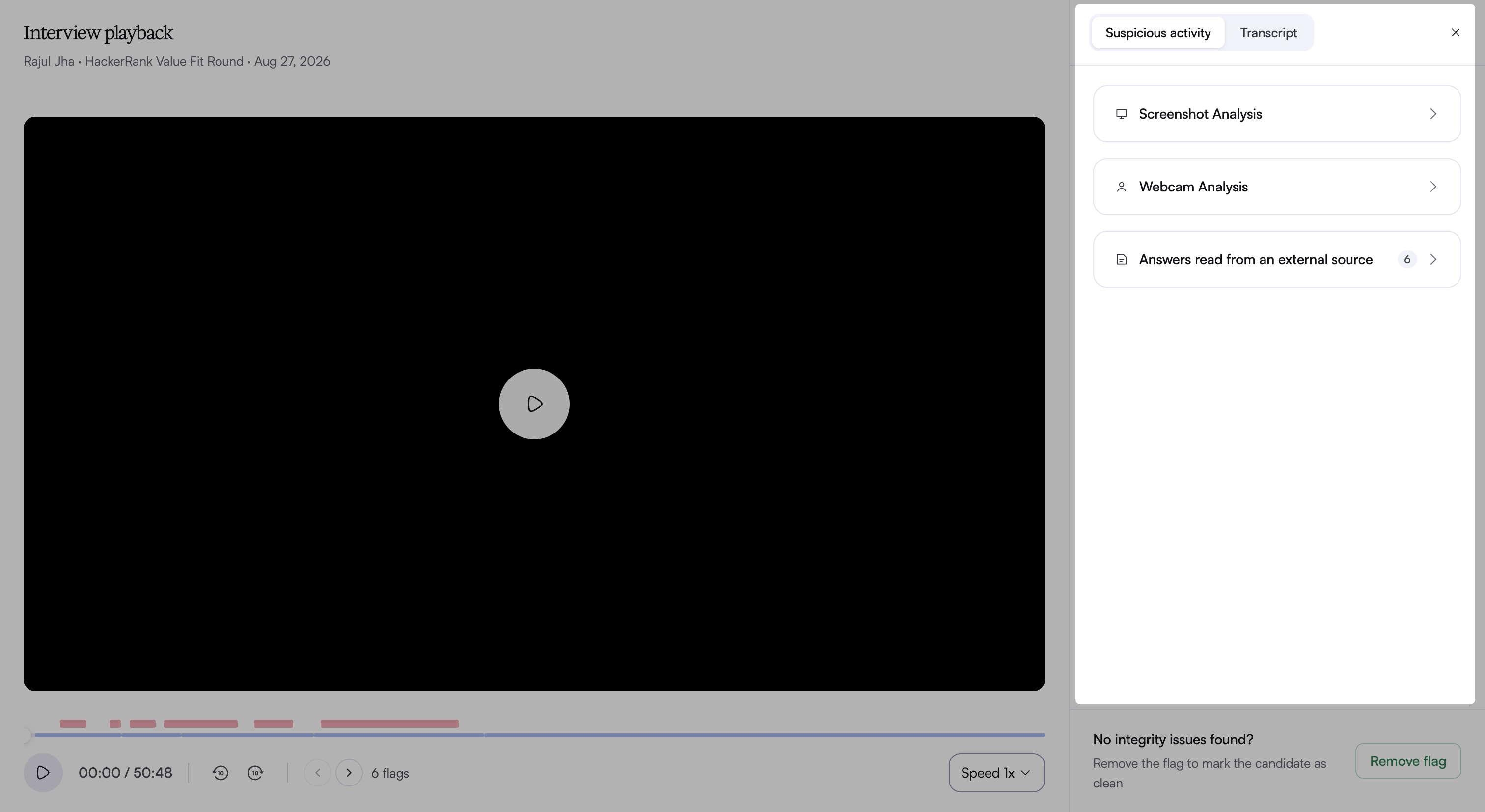
Red markers above the playback timeline show when each flagged event occurred and how long it lasted. As the recording plays through an event, a label on the video identifies the signal and its time range.
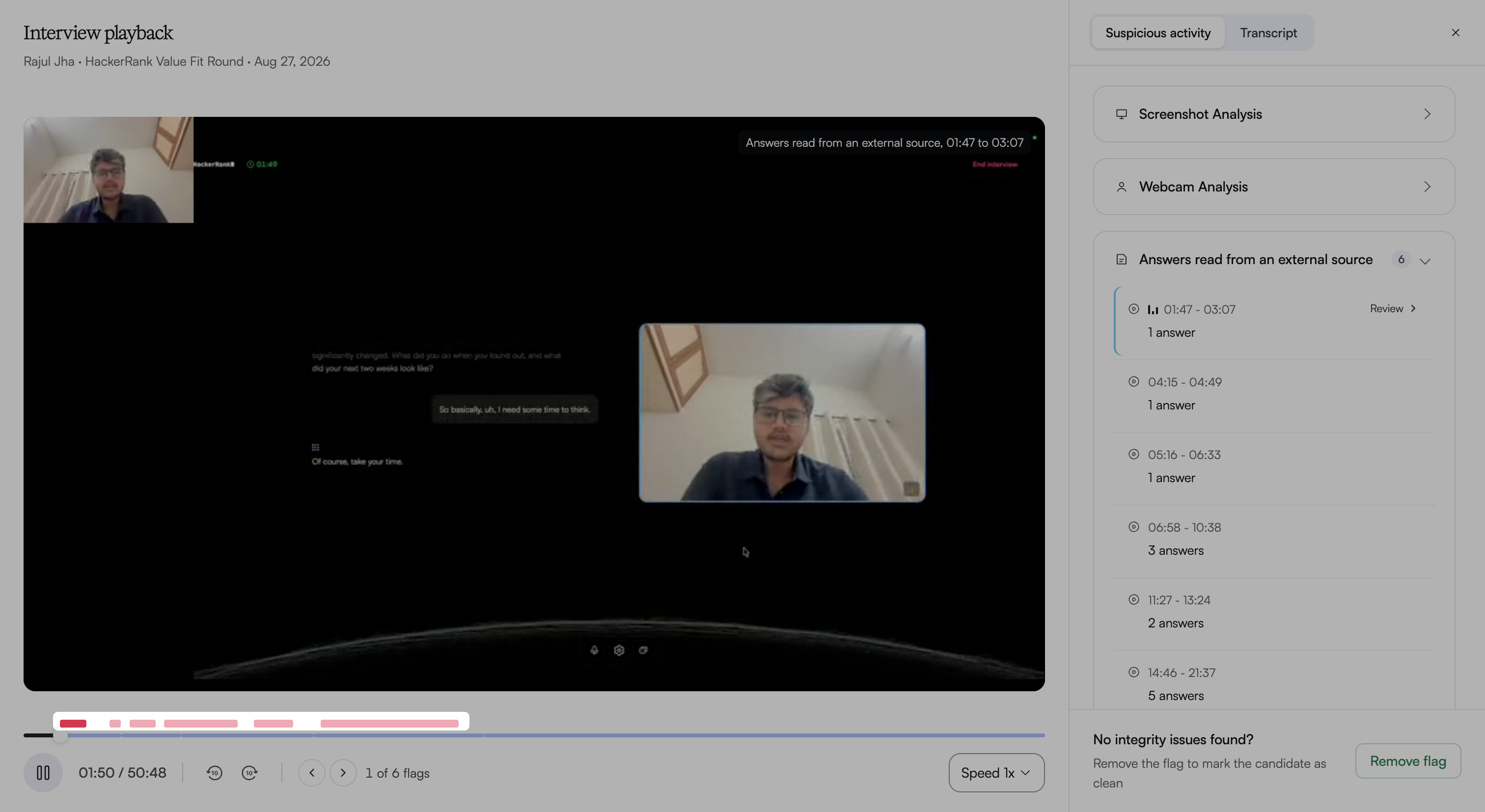
Use the arrows next to the flag count to move between flagged events.
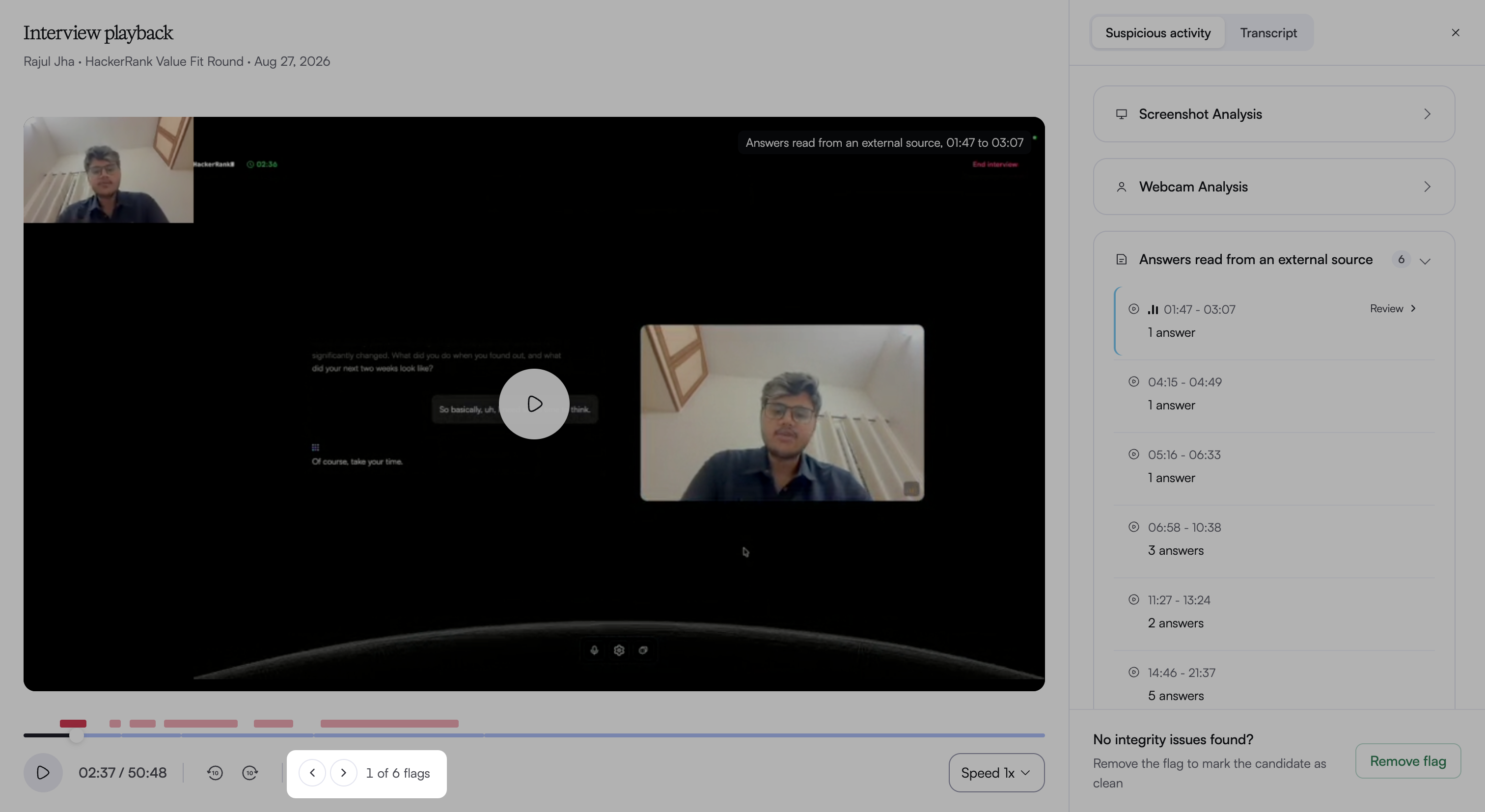
Review the supporting evidence for each signal before you draw conclusions. If you find no integrity issues, click Remove flag to clear the candidate’s integrity flag.
Interview playback: The report includes a full interview video recording.
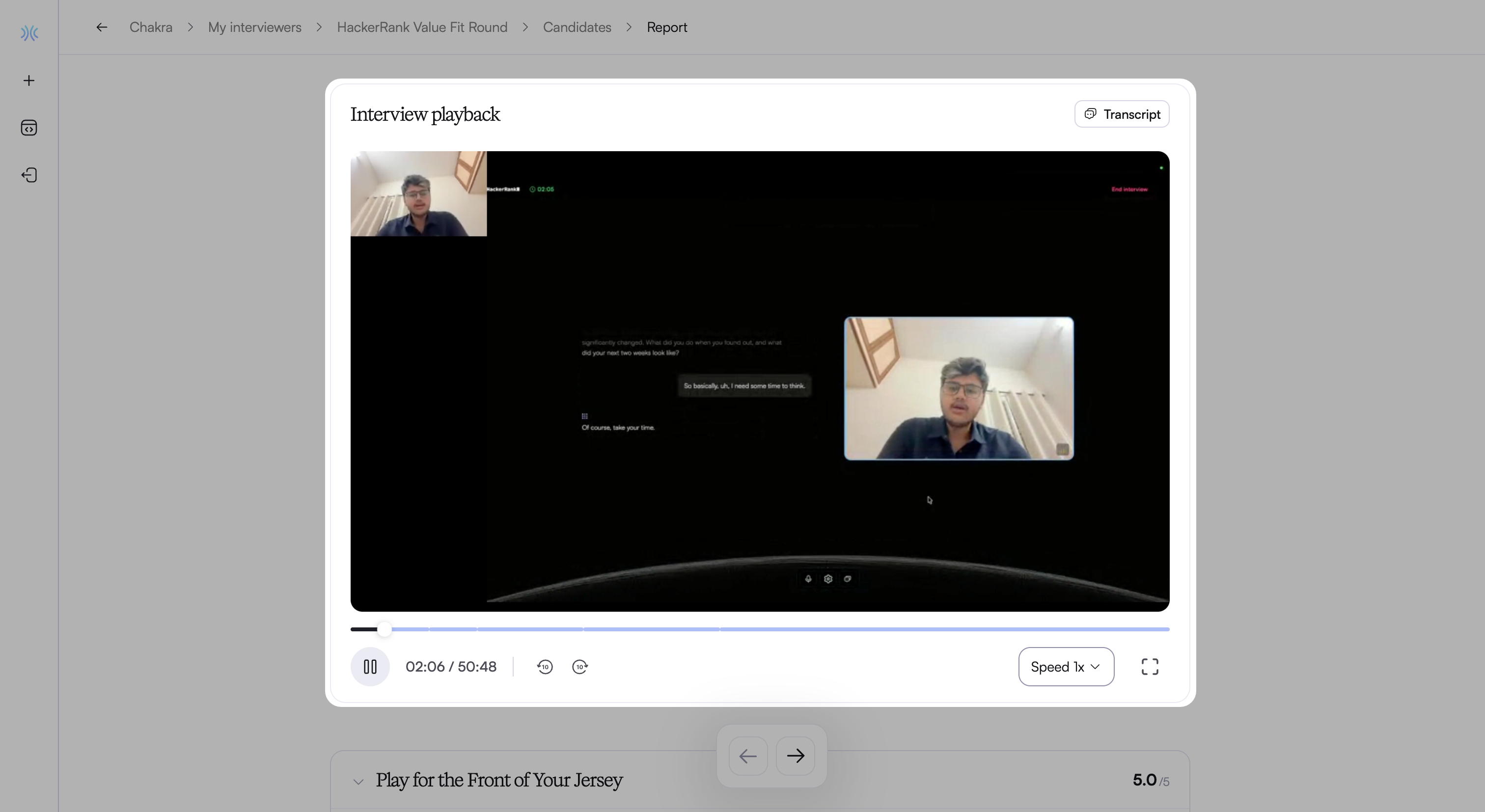
You can also click Interview Playback to watch the interview recording in full-screen view.
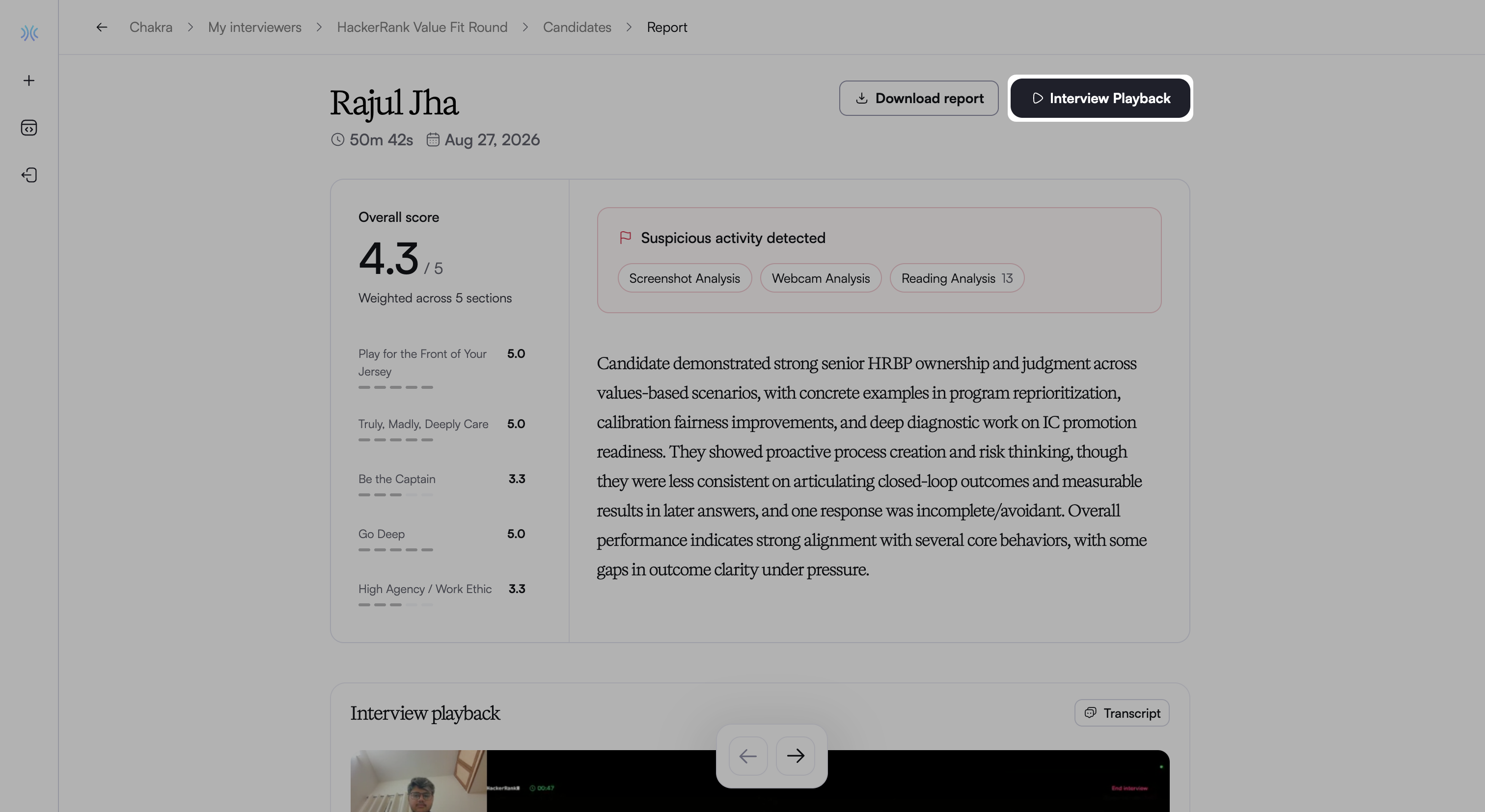
You can use the playback controls to:
Play or pause the recording
Skip backward or forward by 10 seconds
Scrub the timeline to navigate to specific points
Adjust playback speed
Switch to full-screen view.
The timeline aligns with the interview sections. Hover over the timeline to view section names and timestamps.
Interview transcript: Click Transcript in the Interview playback section to open the Interview transcript panel.
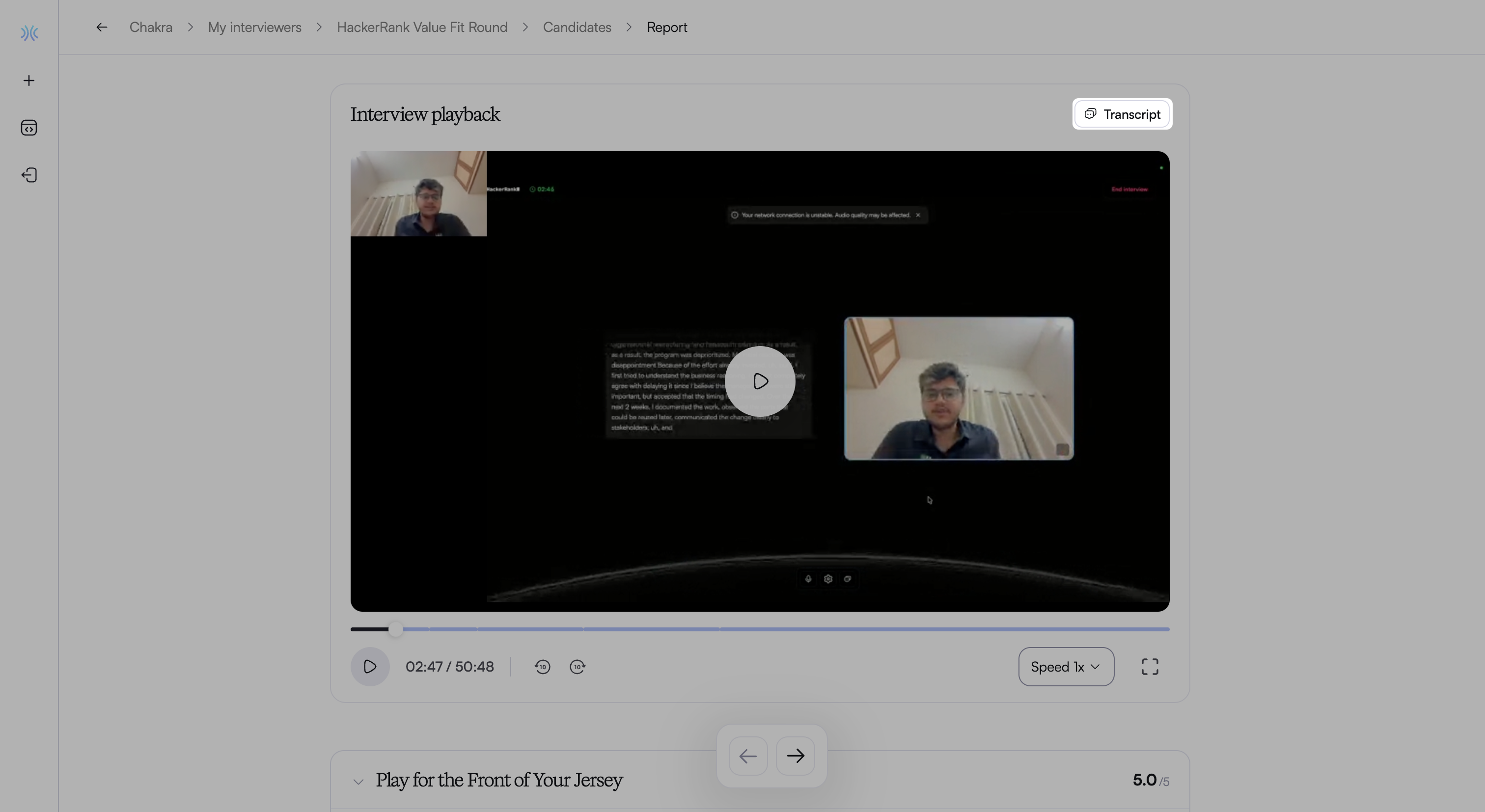
Use the Go to menu to navigate to a specific section in the transcript.
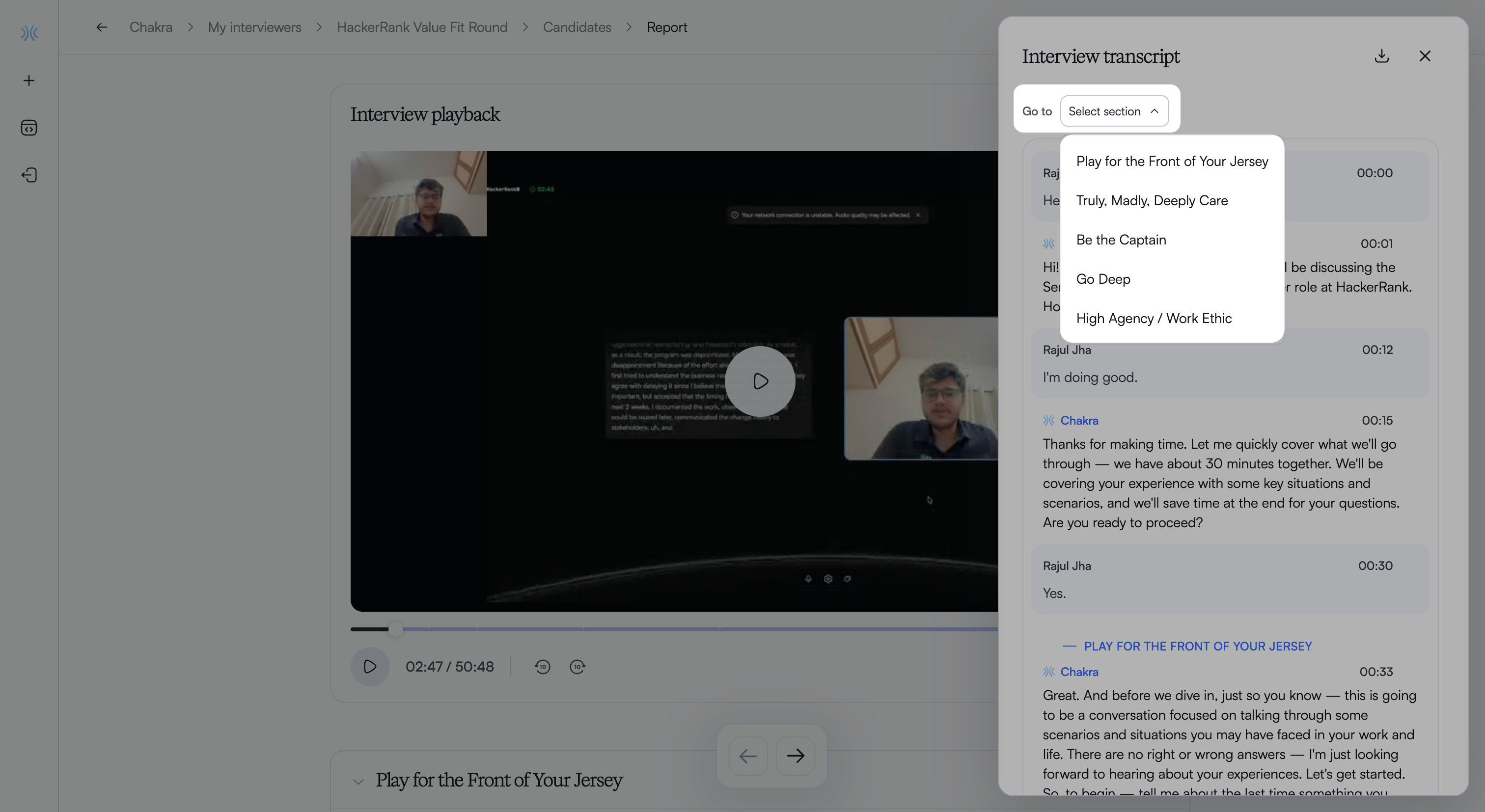
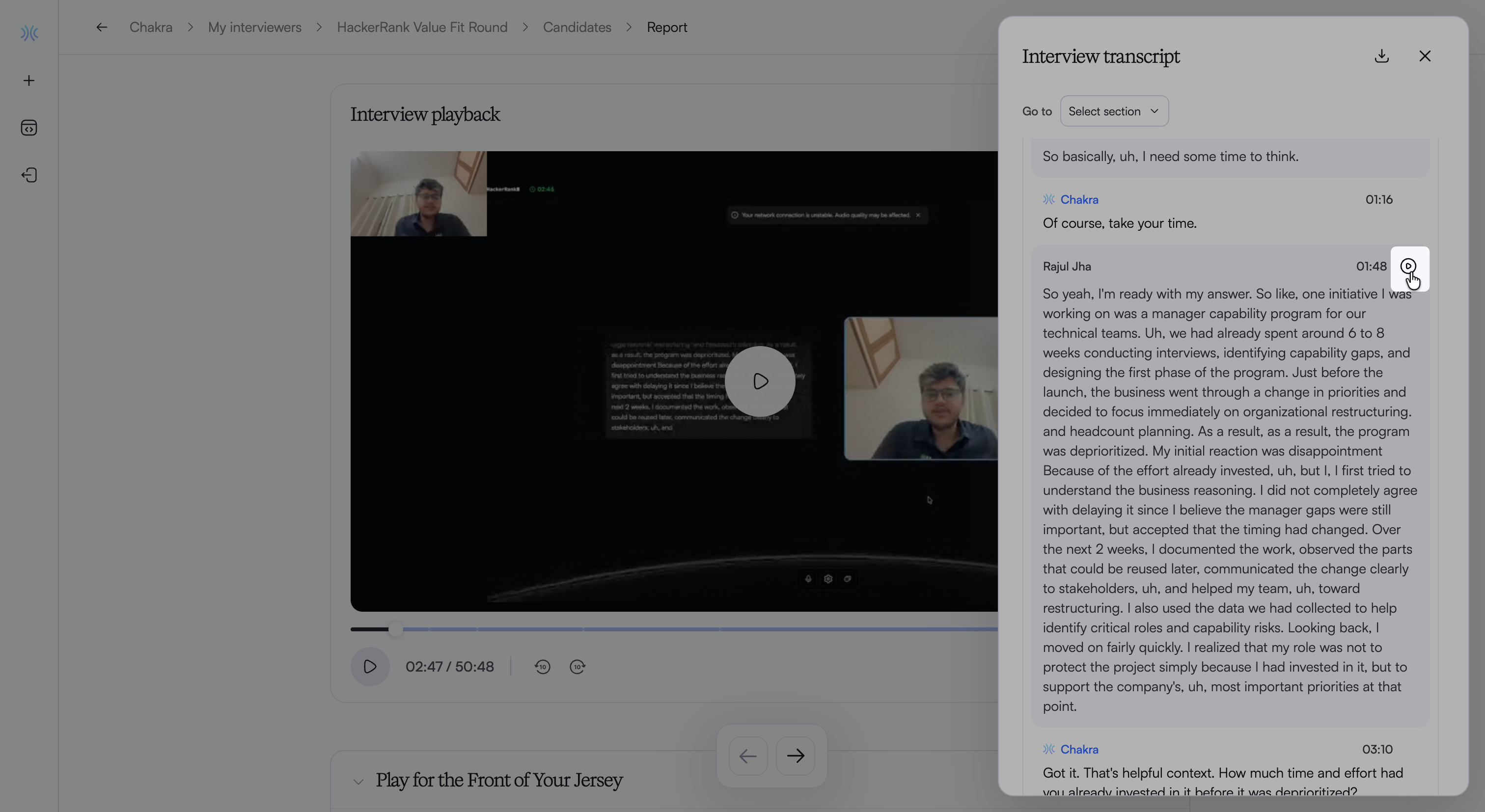
Hover over a response in the transcript and click the play icon next to its timestamp to play the recording from that point.
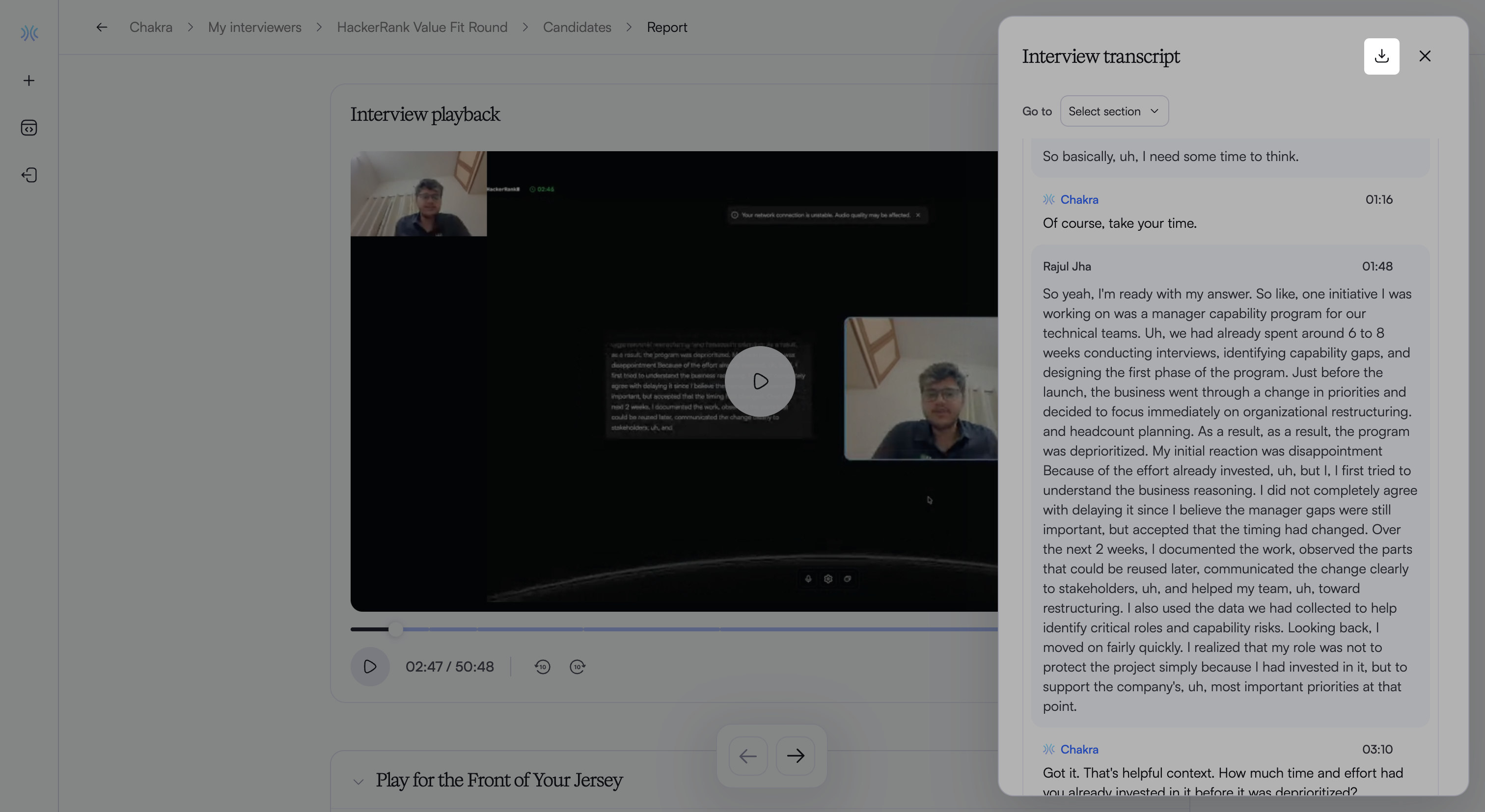
Click the download icon at the top right of the panel to download the transcript.
Section-based feedback: The report organizes feedback by interview section. Each interview section includes:
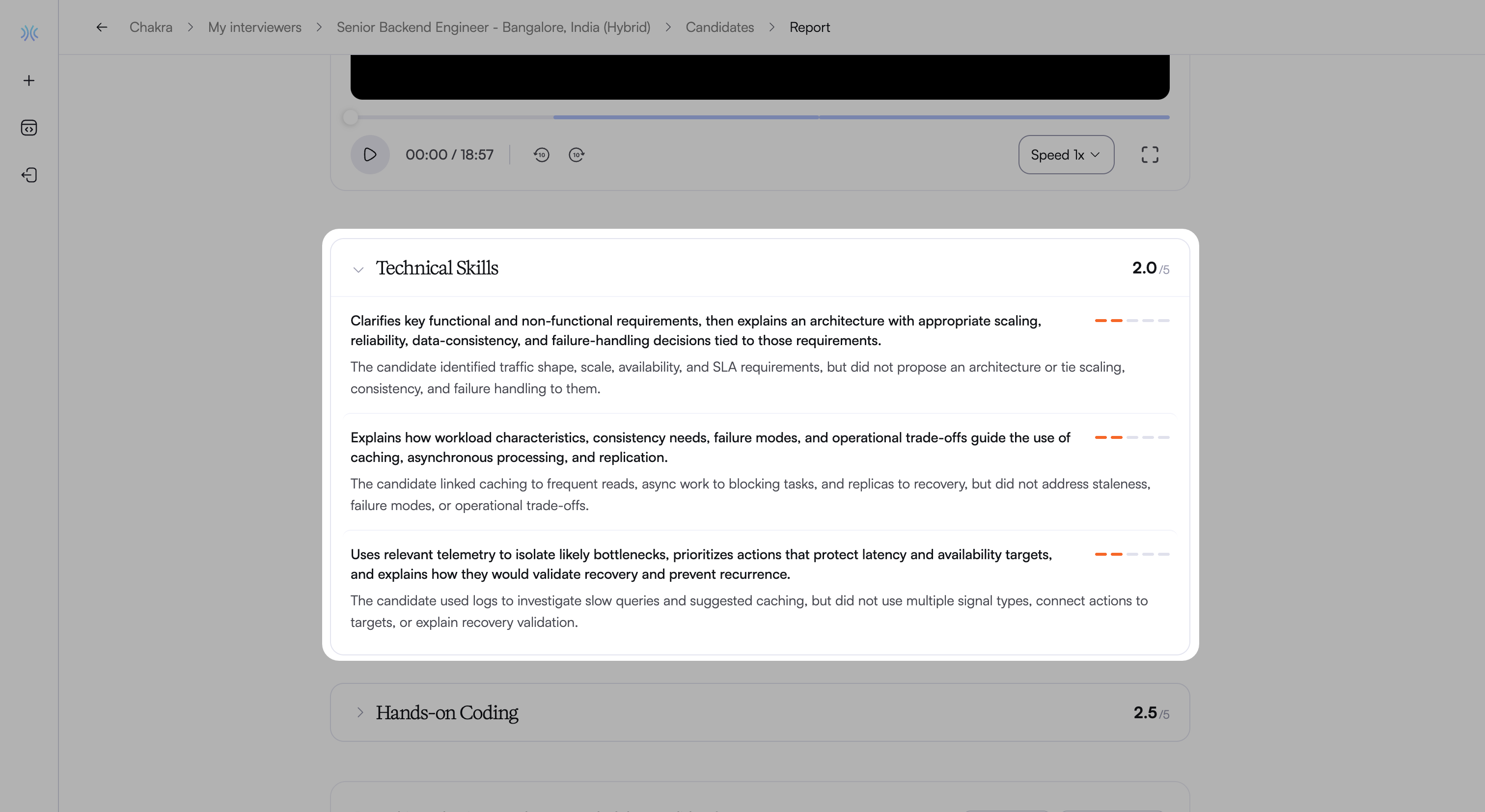
A score on a 5-point scale.
The competencies the section evaluates, with a rating and performance summary for each competency.
Select a competency to view detailed insights that support the evaluation, including:
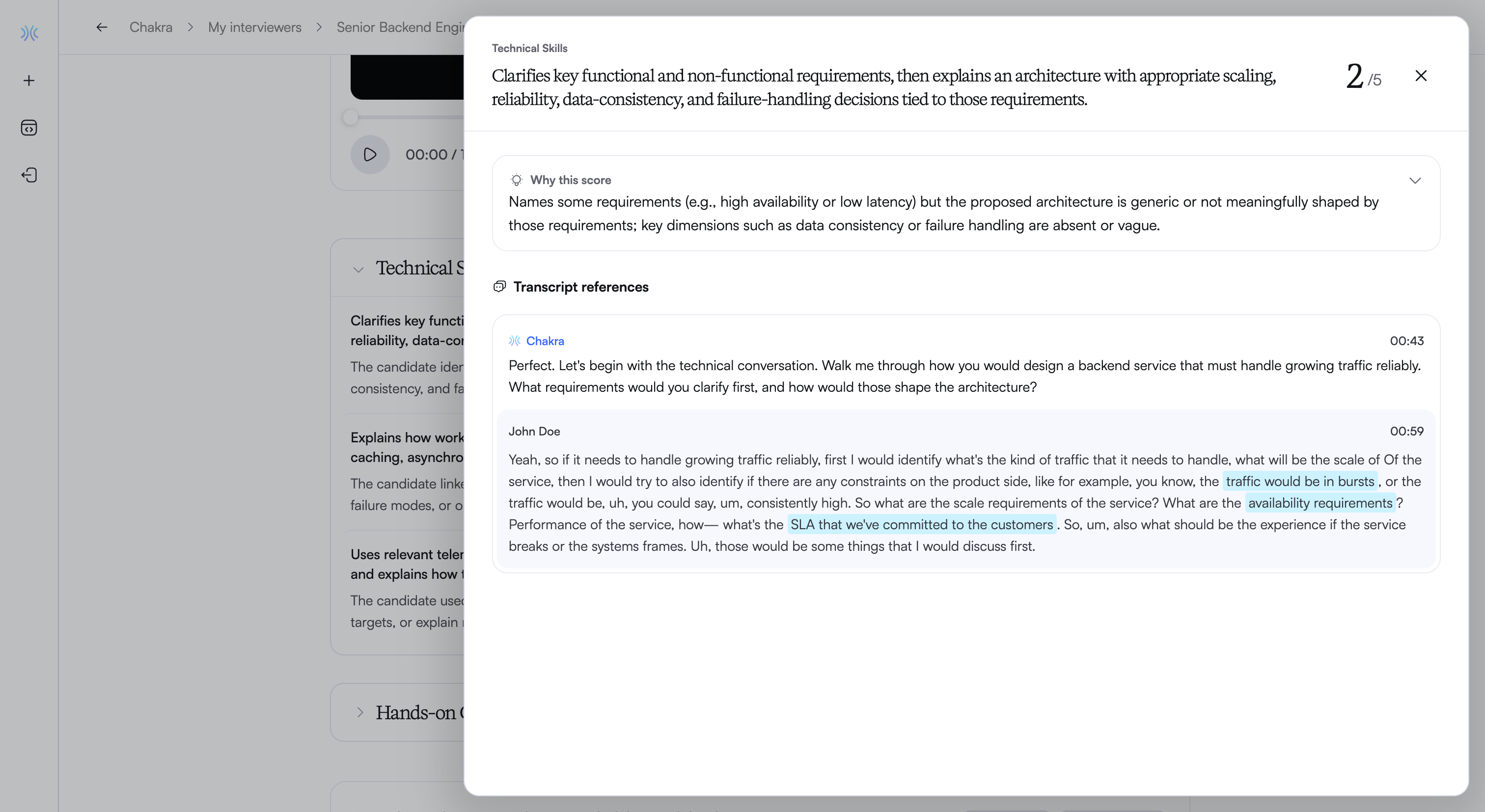
Competency name and description: Identifies the competency and displays its description and score on a 5-point scale.
Why this score: Explains the rating level that matches the candidate’s performance. Expand it to view all five rating levels. The level the candidate achieved is marked as Landed.
Transcript references: Provides relevant interview exchanges with timestamps and highlighted candidate responses.
Hands-on sections: The report displays results based on the question type:
Coding questions: Code submission, test case results, and follow-up discussion.
Code Repository questions: Solution, code changes, follow-up discussion, and AI fluency evaluation.
For more information, see 📄 Review Hands-on Coding section in Candidate Report.
Download report: Click Download report at upper right of the candidate report to download the candidate report as a PDF file. For more information, See 📄 Download Candidate Report as a PDF.