AI-Assisted Tests
Last updated: August 19, 2026
This feature is part of the AI Add-on. For more information, see 📄 HackerRank AI Add-on.
HackerRank enables AI assistance for project-based coding questions to mirror real-world development environments. This feature helps candidates experience realistic workflows and allows recruiters to evaluate practical problem-solving more accurately.
The AI Assistant operates in the following modes:
Unguarded: Allows candidates to interact freely with the AI, similar to real-world AI coding tools and agent-style workflows.
Guarded (Default): Provides help with syntax, platform navigation, and conceptual guidance but does not generate complete solutions.
Note: Contact your account manager to change the default setting or to learn more about the available modes.
The AI Assistant currently supports the following question types:
Coding
Database
Data Science
Projects
Frontend
Backend
Full-Stack
Mobile
Generative AI
Code Repository
Enable AI Assistant for Tests
To enable the AI Assistant:
Step 1: Enable AI Assistant in Company Settings
Log in to your HackerRank for Work account using your credentials.
Select your profile icon in the upper-right corner.
Select Settings from the drop-down menu.
Select Test Settings from the left panel under the Company section.
In the Test Evaluation section, turn on the AI Assistance for Candidates toggle.
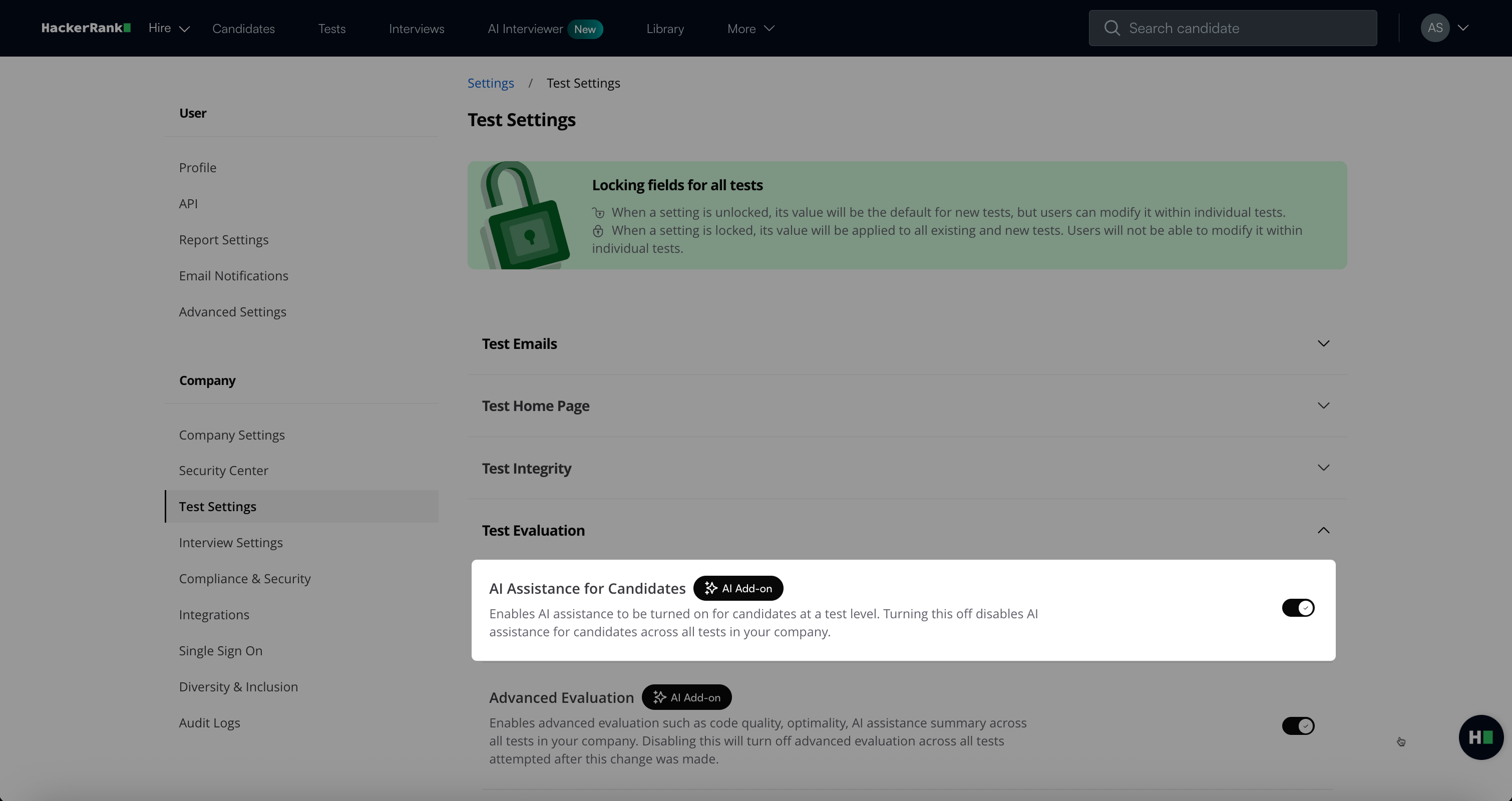
Click Save Changes.
Step 2: Set up AI Assistant at the section level
Go to the Tests tab.
Open the test for which you want to add the AI assistant.
Hover over the section name and select the Settings icon.
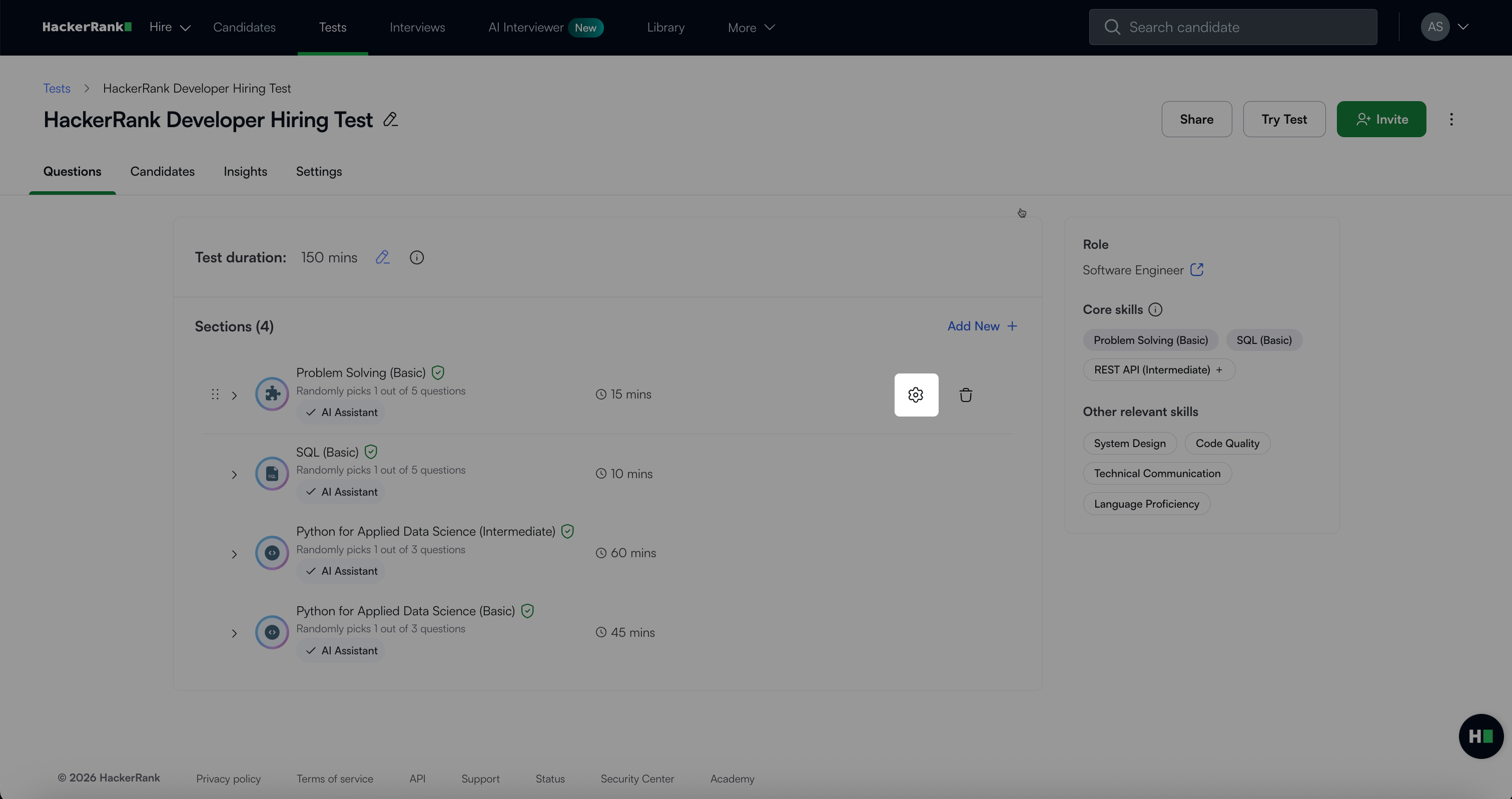
In the Section Settings dialog, select the AI assistance level you want to enable for candidates:
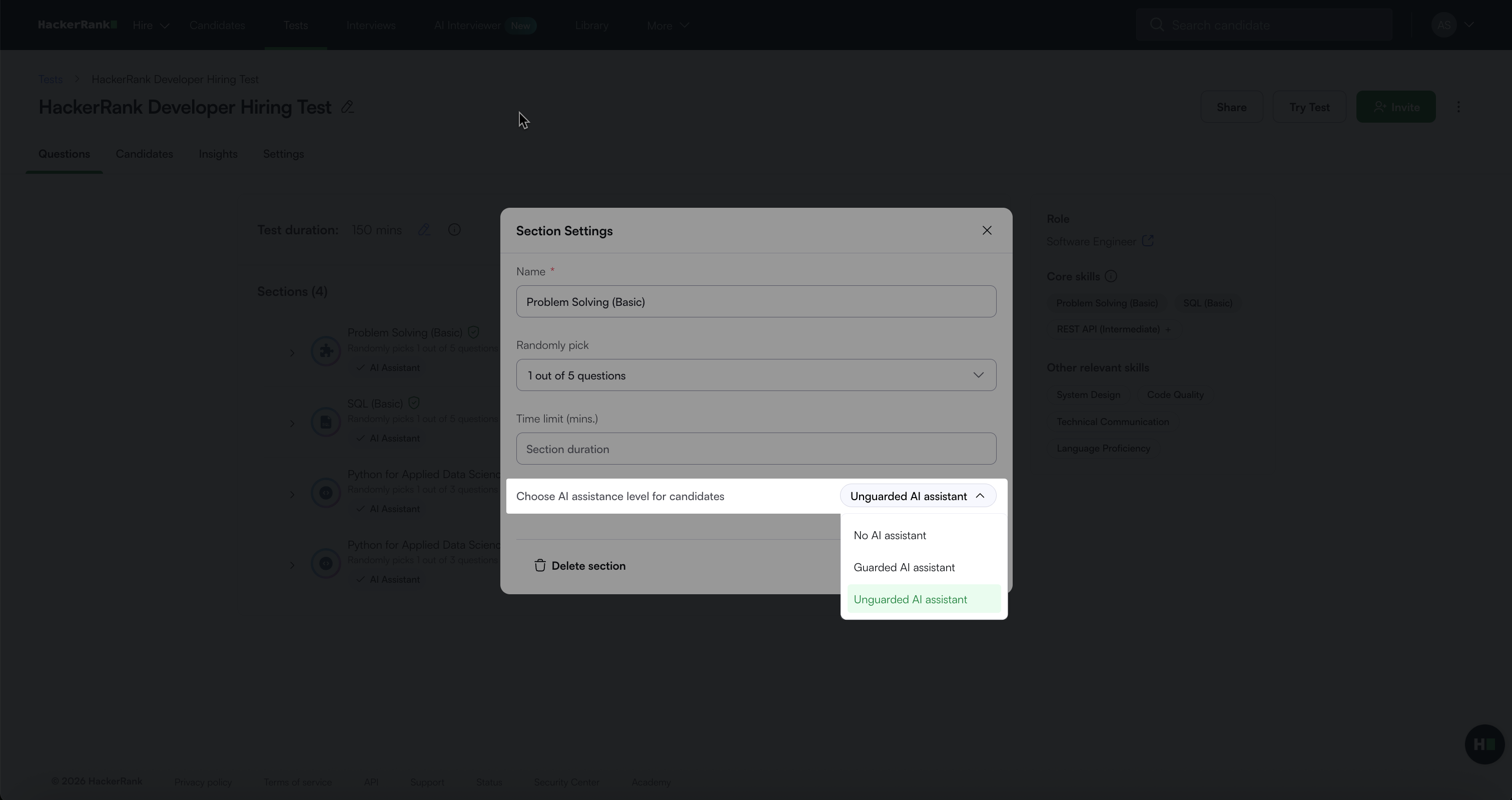
No AI assistant
Guarded AI assistant
Unguarded AI assistant
Click Save.
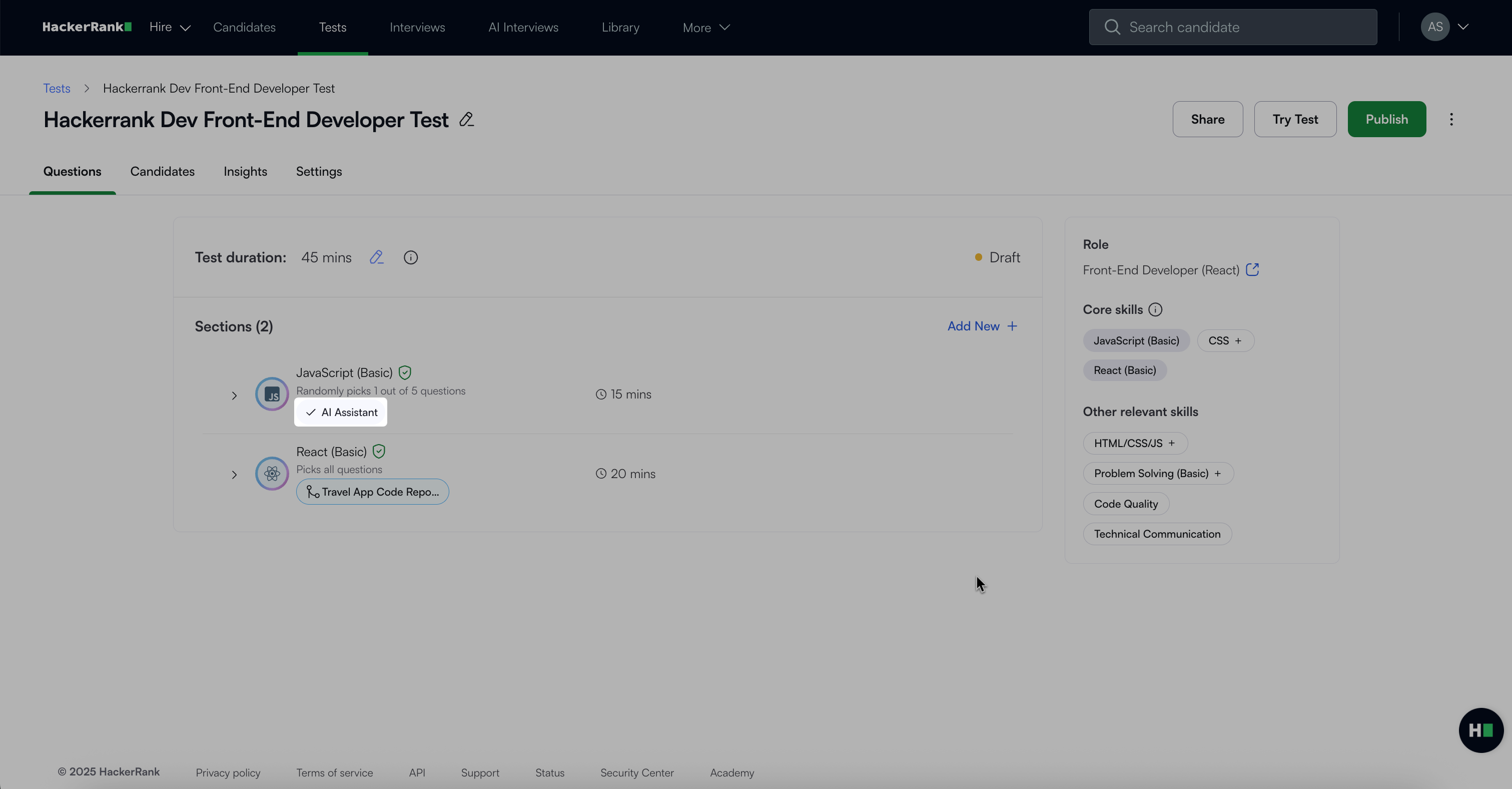
After you enable the AI Assistant at the section level, the section displays an AI Assistant tag.
Candidate experience
When candidates take a test with the AI Assistant enabled in guarded mode, they see AI chat support that allows them to ask for help with syntax, platform navigation, and conceptual guidance.
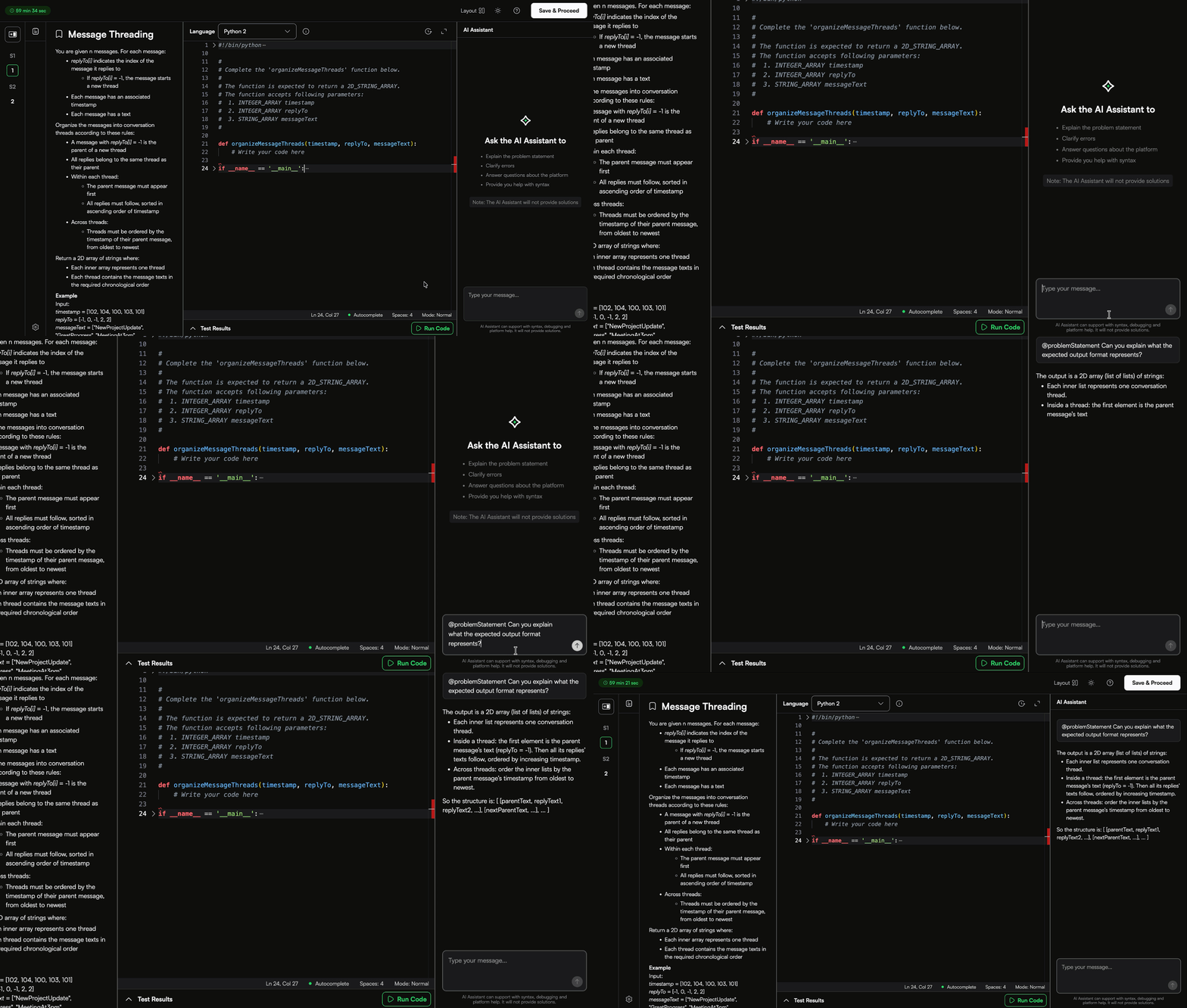
When candidates take a test with the AI Assistant enabled in unguarded mode, they can interact with it in the following ways:
Plan Mode: Plan mode lets candidates develop an approach to a problem with the AI Assistant before they write any code. The AI Assistant reads the problem statement and existing code, asks clarifying questions when requirements are ambiguous, and generates a proposed implementation plan in Markdown format for review. Plan mode does not modify code. It only creates a plan for candidates to review before they begin implementation.
Plan mode also reduces unnecessary rework. Candidates can correct misunderstandings or adjust the proposed approach before the AI generates code. Resolving issues during the planning stage is faster than reviewing and undoing incorrect code after it is written.
Ask Mode: Candidates can ask questions about the problem statement, code, or specific files. Candidates must tag the
problem statementto provide context. The AI Assistant uses the tagged content to generate accurate responses.This helps you assess how well a candidate understands the task and how effectively they use the AI Assistant to plan their implementation. It also enables the AI Assistant to apply the same context throughout the interview.
Agent Mode: Candidates can switch to a mode designed for longer, multi-turn conversations. In this mode, candidates can ask the AI Assistant to write code, edit files, and perform actions directly from prompts. This mode is useful for complex tasks and step-by-step guidance.
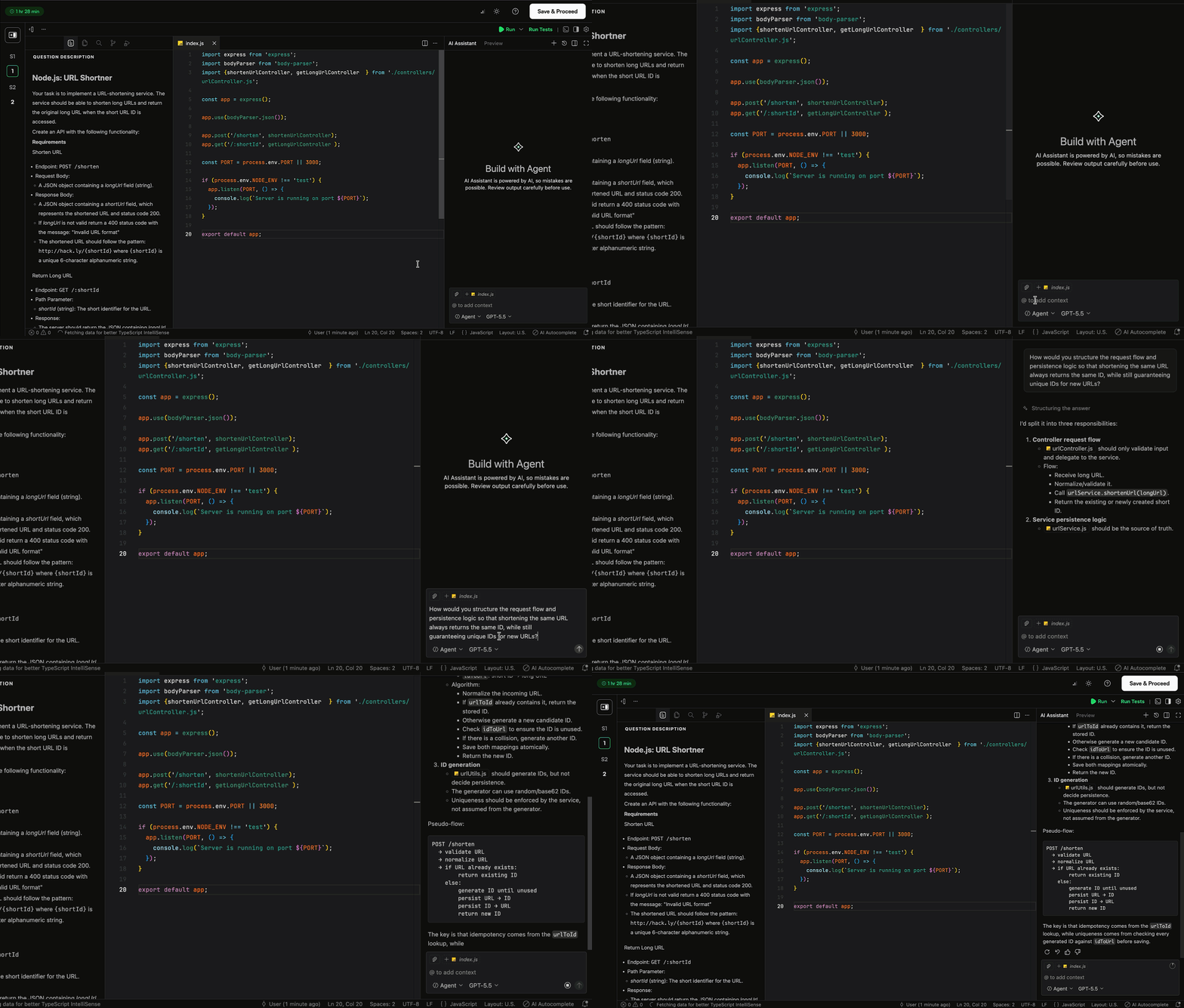
Model Switching: Candidates toggle between available models based on their preference or the task requirements. Currently, the AI Assistant supports Claude Opus 5, Claude Sonnet 5, Gemini-3.5 Flash, GPT-5.6 Luna, GPT-5.6 Sol, and GPT-5.6 Terra. By default, the AI Assistant uses GPT-5.6 Terra.
Context window: The context window helps candidates understand how much information the AI assistant processes for the current request. For more information, see 📄 Context Window in AI-Assisted Interviews.
The table below shows the availability of AI Assistant features to candidates in each mode.
Feature | Guarded Mode | Unguarded Mode |
Ask Mode | Available | Available |
Agent Mode | Not Available | Available |
Inline Code Completions | Not Available | Available |
Model Switching | Not Available | Available |
For Coding questions, both guarded and unguarded modes support only the Ask Mode.
Report insights
After the test is complete, the candidate report displays AI-specific interaction data.
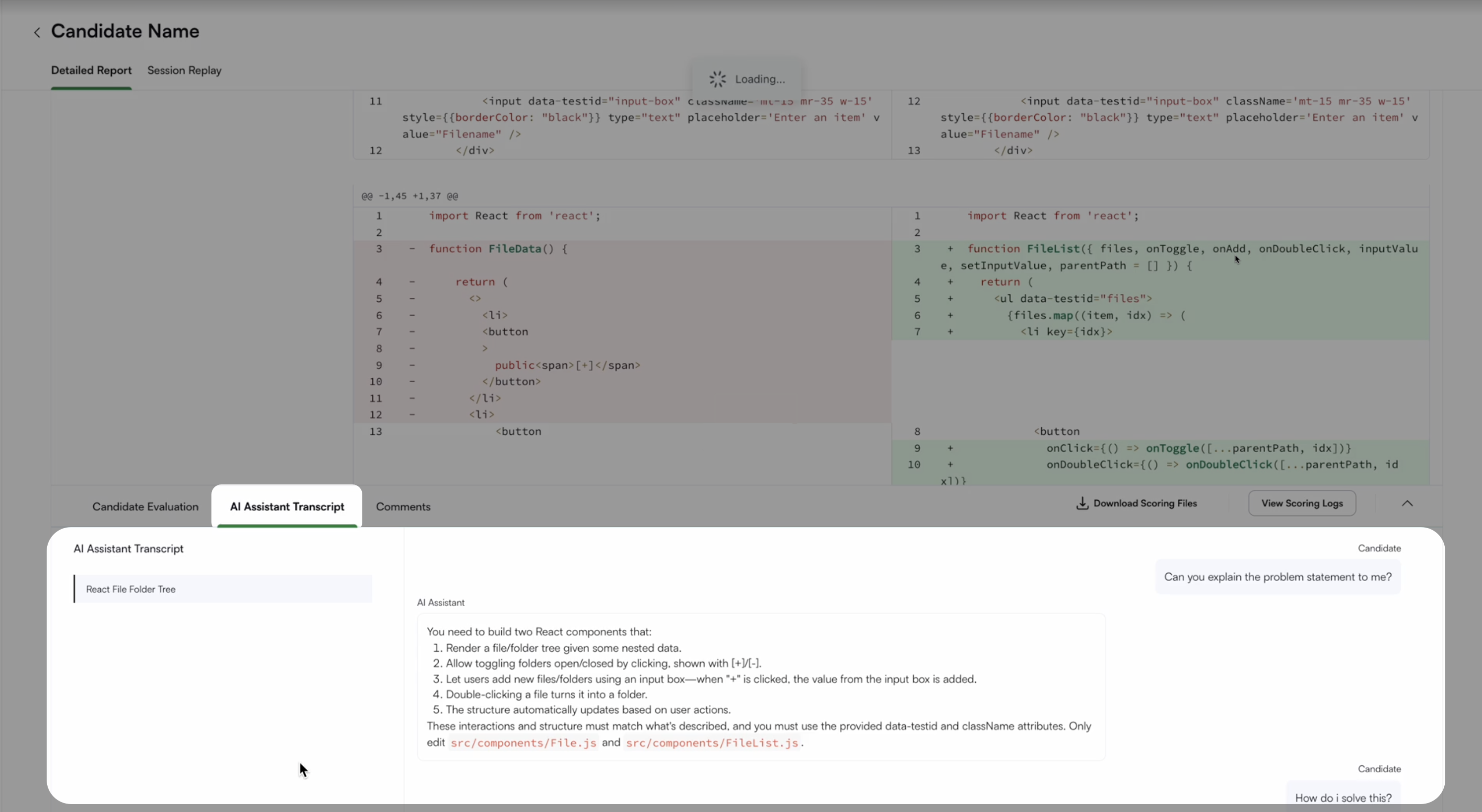
AI Assistant Transcript: This transcript shows the full conversation between the candidate and the AI assistant in the Detailed Report. It is enabled by default for all AI-Assisted Tests.
AI Fluency (optional): Provides recruiters with a holistic view of how candidates interact with the AI assistant during a test. For more information, see 📄 AI Fluency.
Frequently Asked Questions (FAQs)
Does the AI-Assisted Summary work in proctored tests?
Yes. In proctored tests, the Performance Summary appears in the new reports interface.
Can I view the AI Fluency in older reports?
In the classic reports view, the AI Fluency is available only at the question level, but not at the test level.
Is the AI Fluency reliable?
Refer to the 📄 AI Fluencyarticle.
When should I use the Unguarded AI Assistant?
You can use the Unguarded AI Assistant when you want to evaluate how candidates work with AI in real-world, agent-style workflows.