Source and Manage Candidates for Events
Last updated: April 22, 2026
After setting up your event, you can source and manage candidates through the following:
Promote event on the HackerRank Community
You can publish your microsite on the HackerRank Community to attract candidates for your event.
Promotion slot availability
Two targeted promotion slots
One general slot visible to all candidates
Set up your promotion
To publish your event promotion on the HackerRank Community:
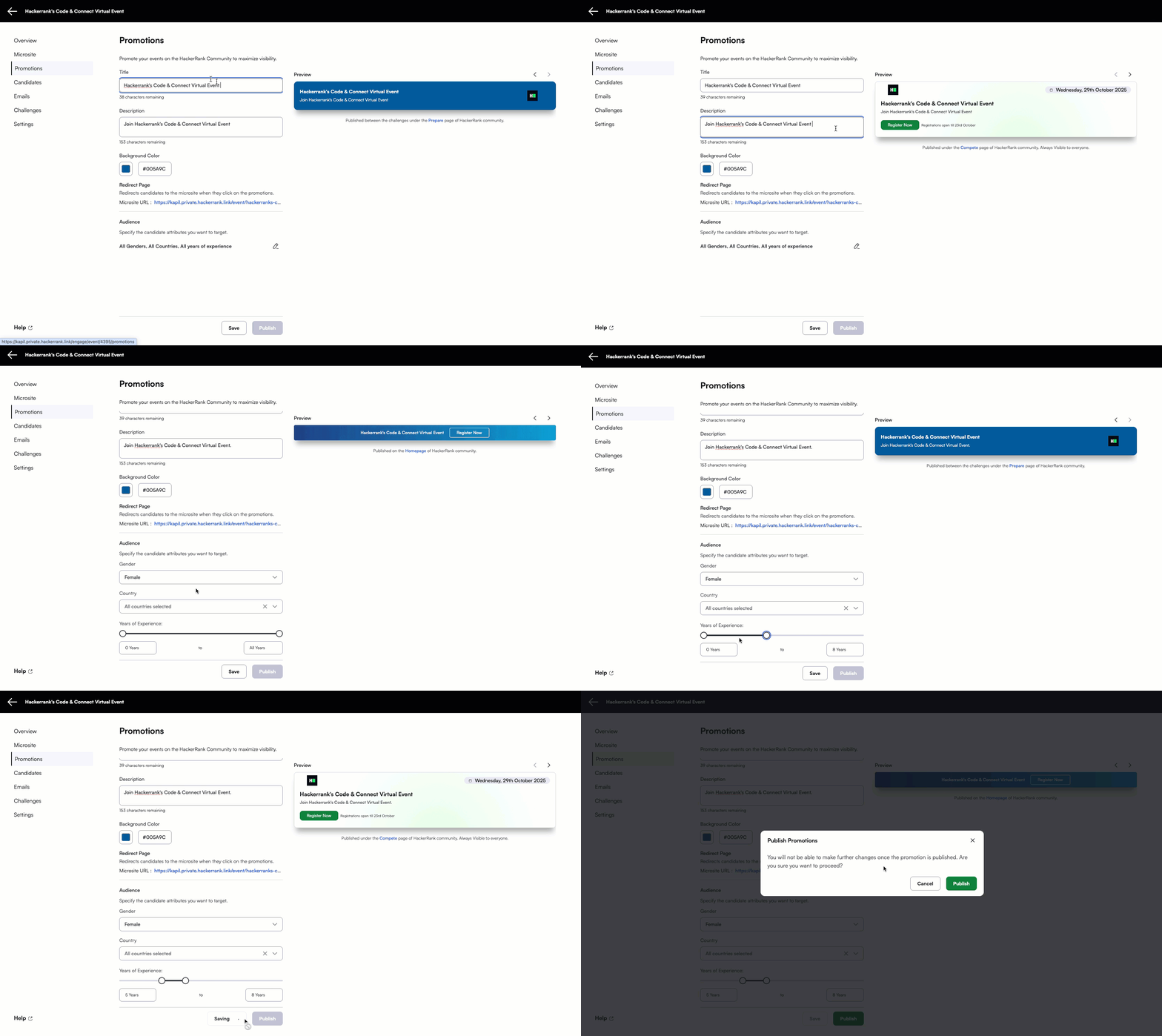
Log in to Engage using your credentials.
Select the event you want to promote.
In the left panel, select Promotions.
Enter the following details:
Title
Description
Background color for the promotion tile
(Optional) Define a target audience to display the promotion only to specific users. If you do not modify the target audience filters, the targeted promotion slots will be shown to all candidates in the HackerRank Community, in addition to the general slot.
Review your promotion details and click Publish to open the confirmation pop-up.
Click Publish again to submit your promotion.
Publish event on social channels
To maximize visibility and drive registrations, promote your event across multiple platforms:
Share your microsite on social channels such as LinkedIn, Facebook, and Google.
Publish it on your company’s career site.
Feature it in the HackerRank Community for additional reach.
Once published, candidates can begin registering for the event. The registration experience depends on whether the event is set up as an individual or team-based event.
Manage candidates
All candidates associated with your event appear in the Candidates section of the respective event in Engage.
In the Candidates section, you can:
View and search candidate or team information.
Apply filters across multiple attributes, such as:
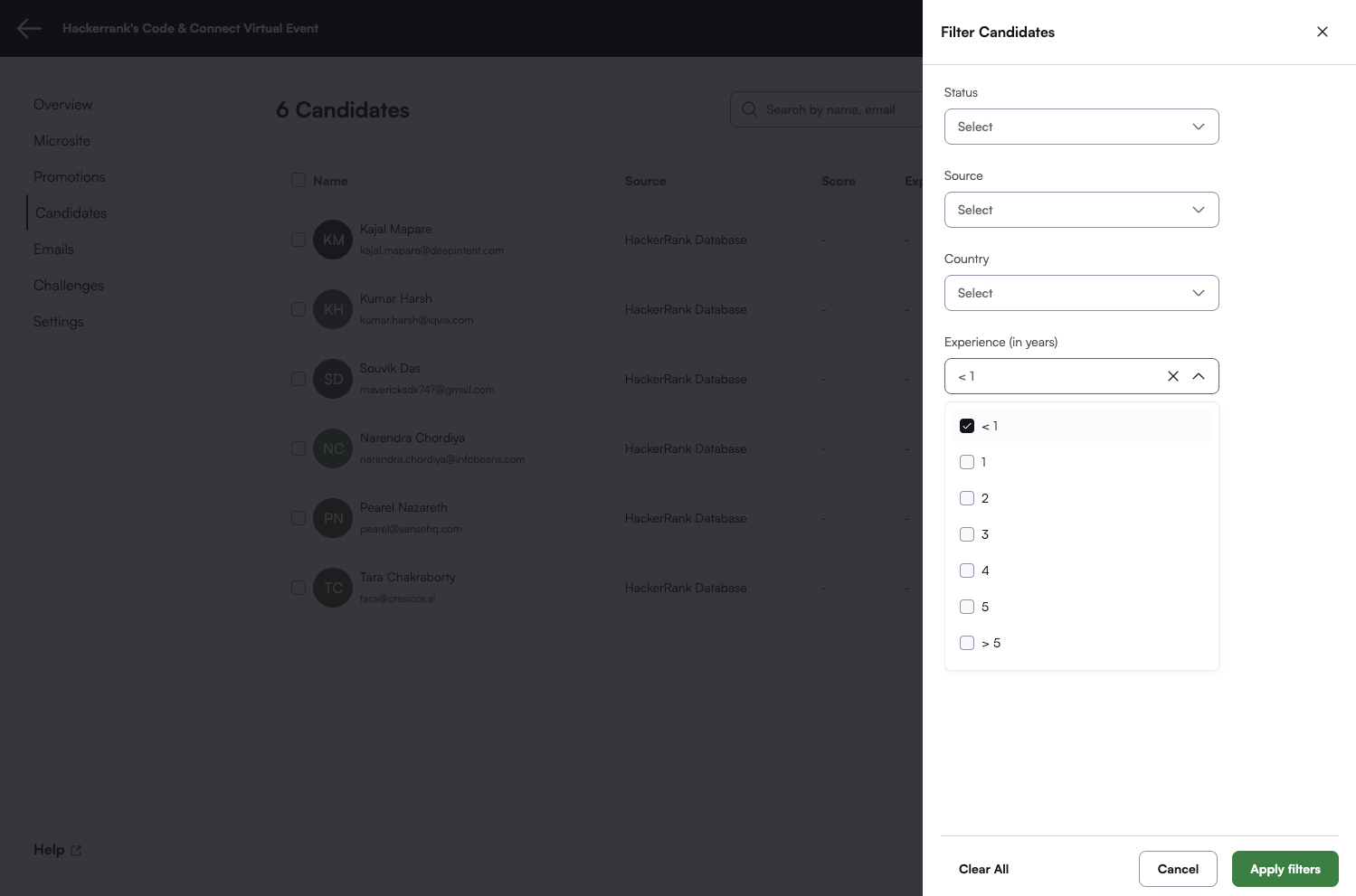
Status
Source
Country
Experience level
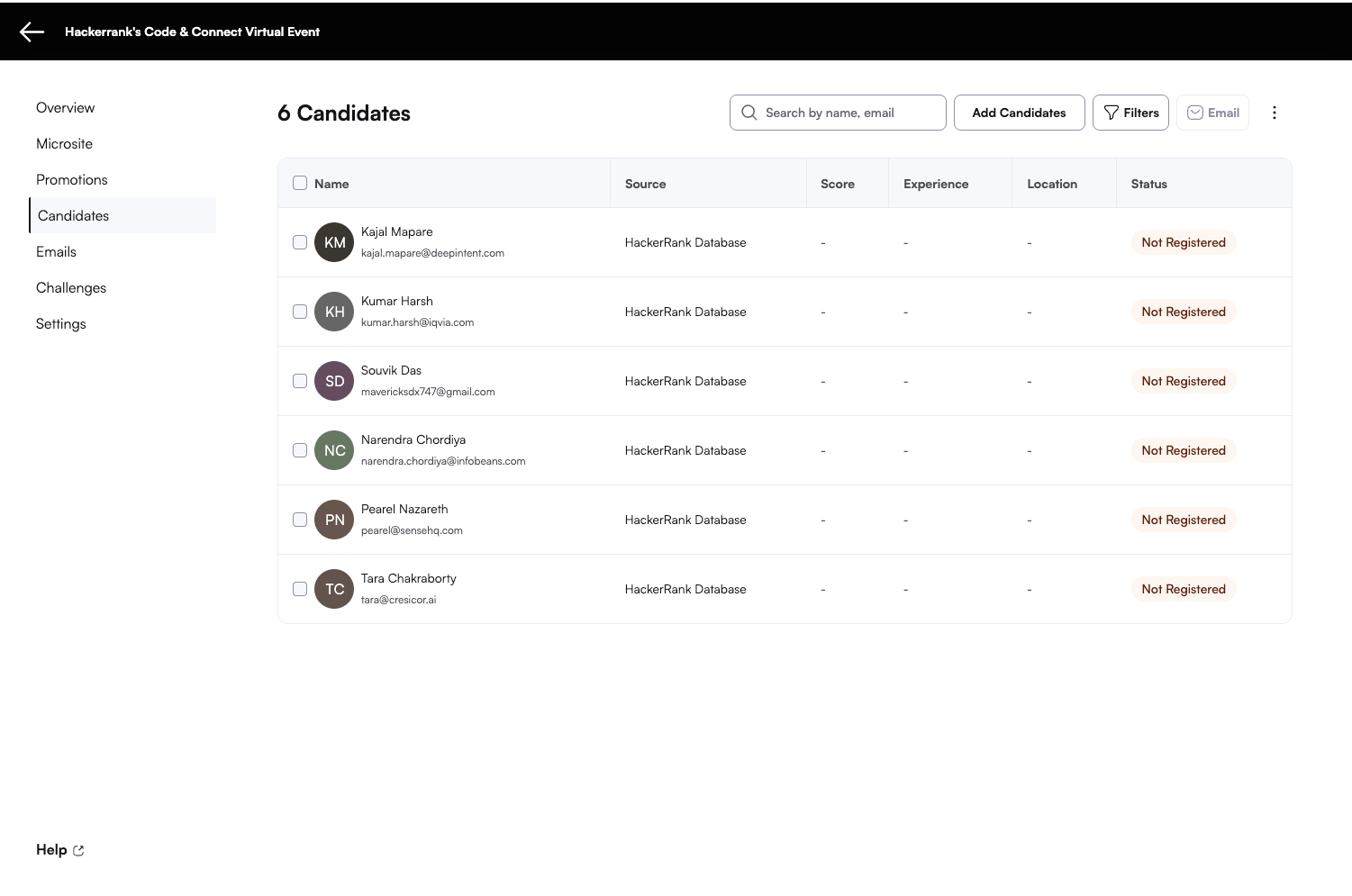
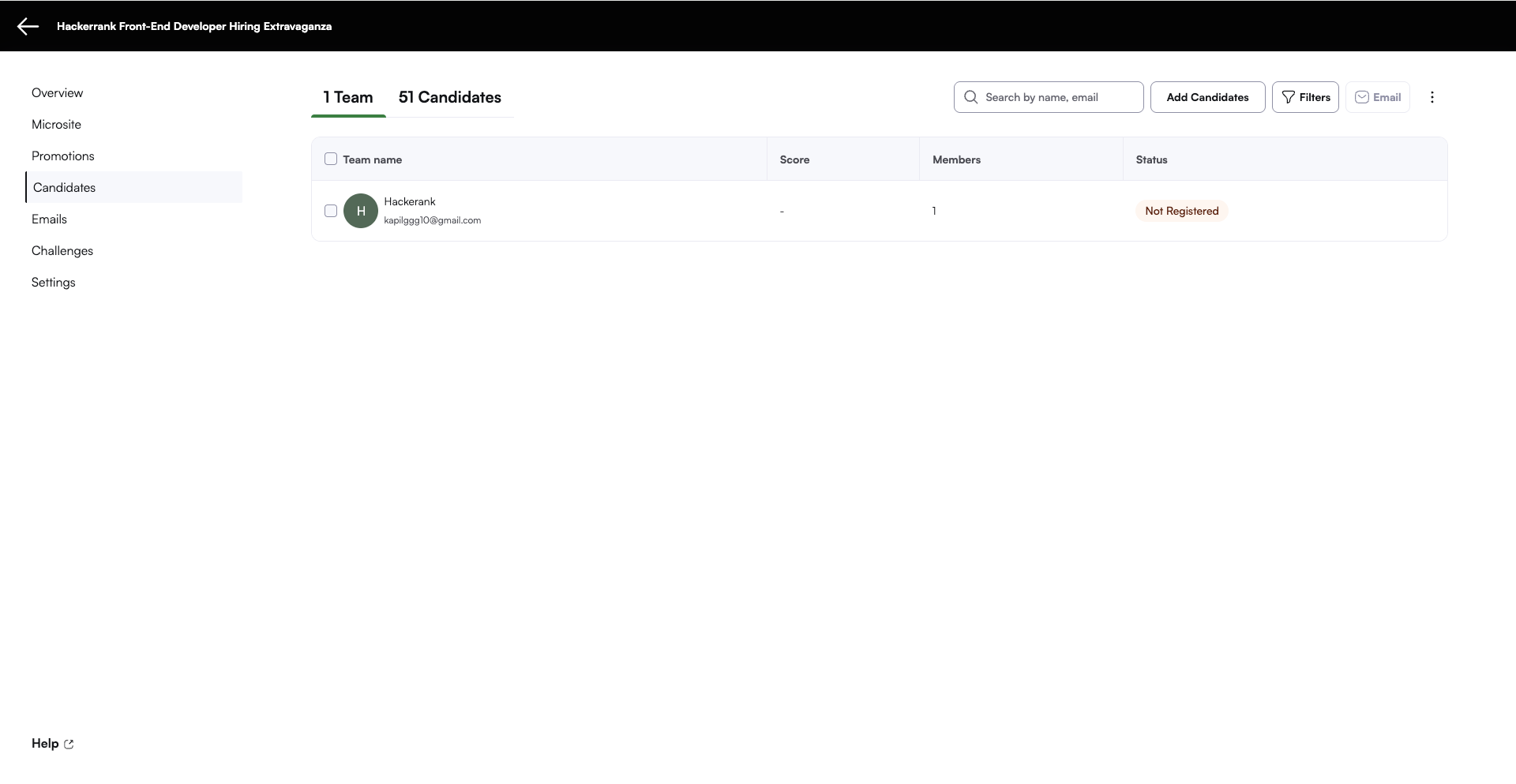
The layout of the Candidates section changes depending on the event type:
For individual events, a single Candidates tab is displayed.
For team-based events, both Teams and Candidates tabs are available.
Candidate experience of the registration step
Registration for an individual challenge
For individual events:
Candidates register by submitting their personal information through the microsite.
Once registered, they receive a confirmation and relevant event details via email.
Candidate experience:

Registration for a team-based event
For team-based events:
One candidate registers as the team leader.
During registration, the team leader provides the names and email addresses of team members.
Engage automatically sends invitation emails to the team members, prompting them to confirm their registration.
Candidate experience
Team leader registration experience:

Team member registration experience:
