Manage Users
Last updated: February 23, 2026
The User Management section provides access to all users within your organization. You can view, add, and manage user accounts based on assigned roles and permissions.
Accessing User Management
To access user management:
Log in to your HackerRank for Work account using your credentials.
Click your profile icon in the upper-right corner and select Admin Panel.
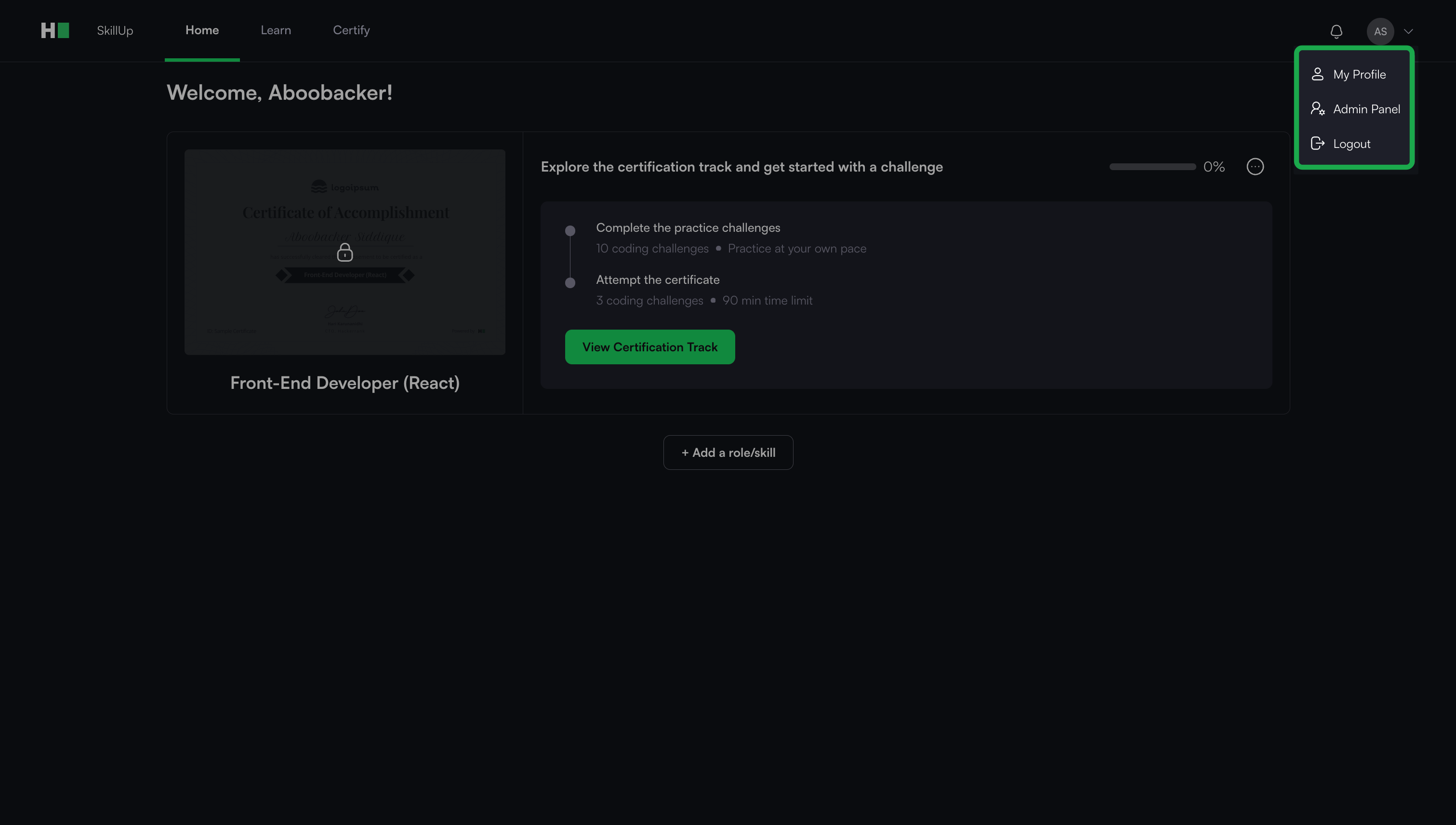
The Admin Panel interface appears.
Click your profile icon in the admin panel and select User Management.
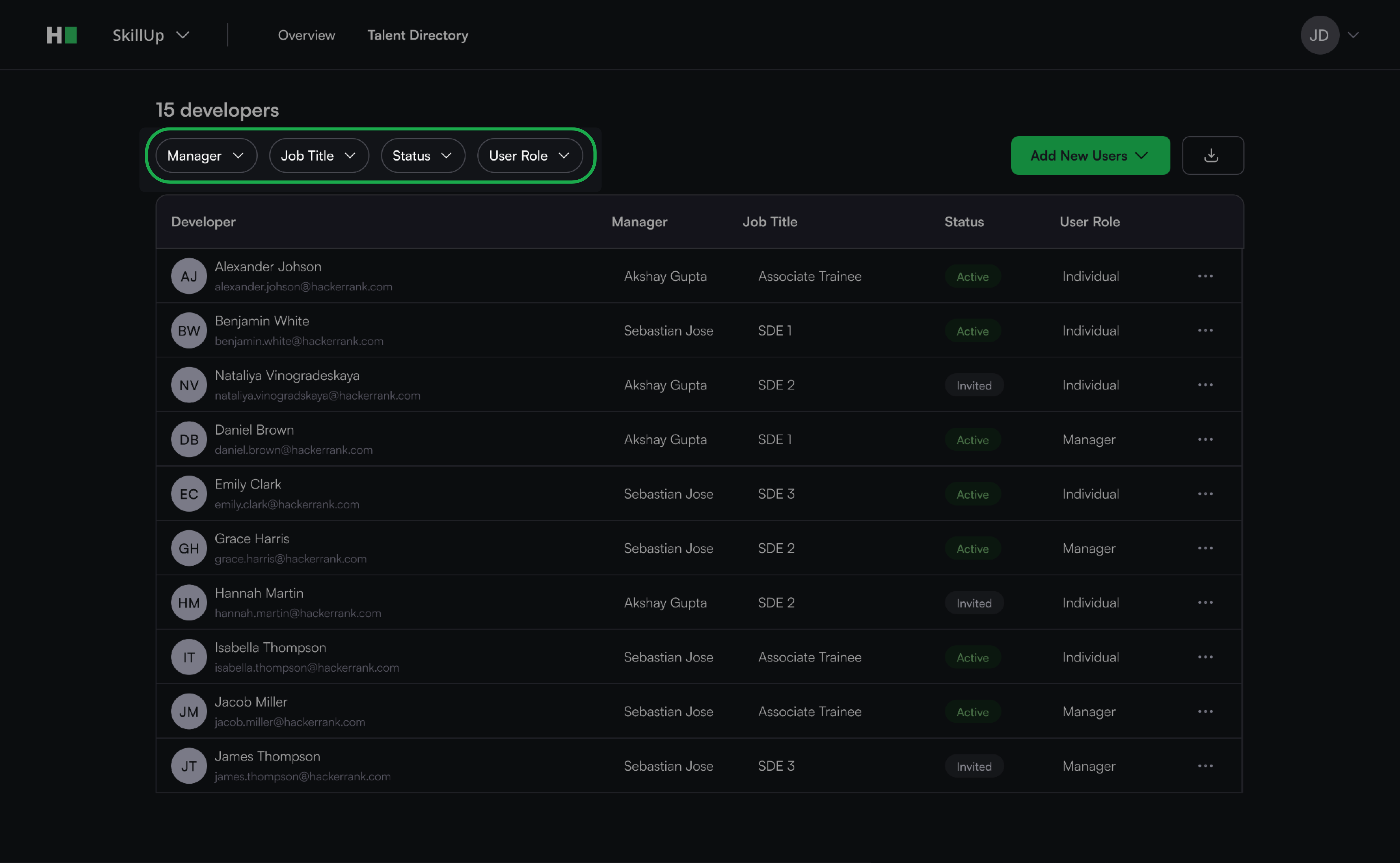
Use the search bar or filters to locate users.
Adding a new user
To add a new user:
Click Add New Users.
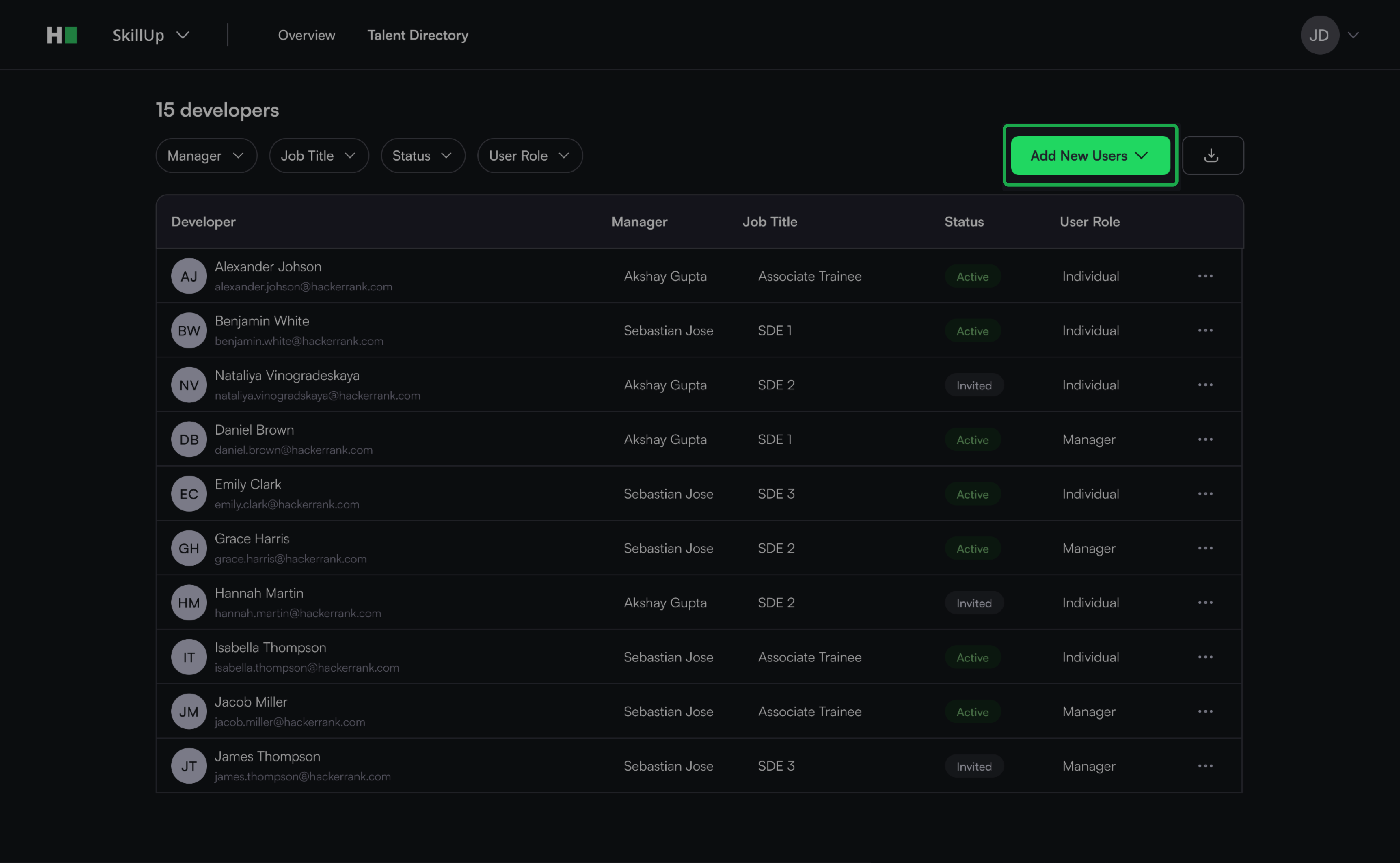
Choose an option:
Invite user:
Select a role:
Individual License:
Individual: Explore skills and roles, earn badges and certifications, and create a skill profile.
Organization License:
Manager: Access all individual features, assign tasks to team members, view insights, and export reports.
Admin: Access company-wide insights, reports, and user management tools.
Click Next.
Update the following fields:
First Name
Last Name(Optional)
Email
Job Title
Manager
Click Next.
Select certification:
Allow users to select: Let users choose their first certification.
Assign a specific certification: Choose a certification from the drop-down menu.
Click Add User.
Upload CSV: Upload a CSV file to add users in bulk.
Edit user details
To edit user details:
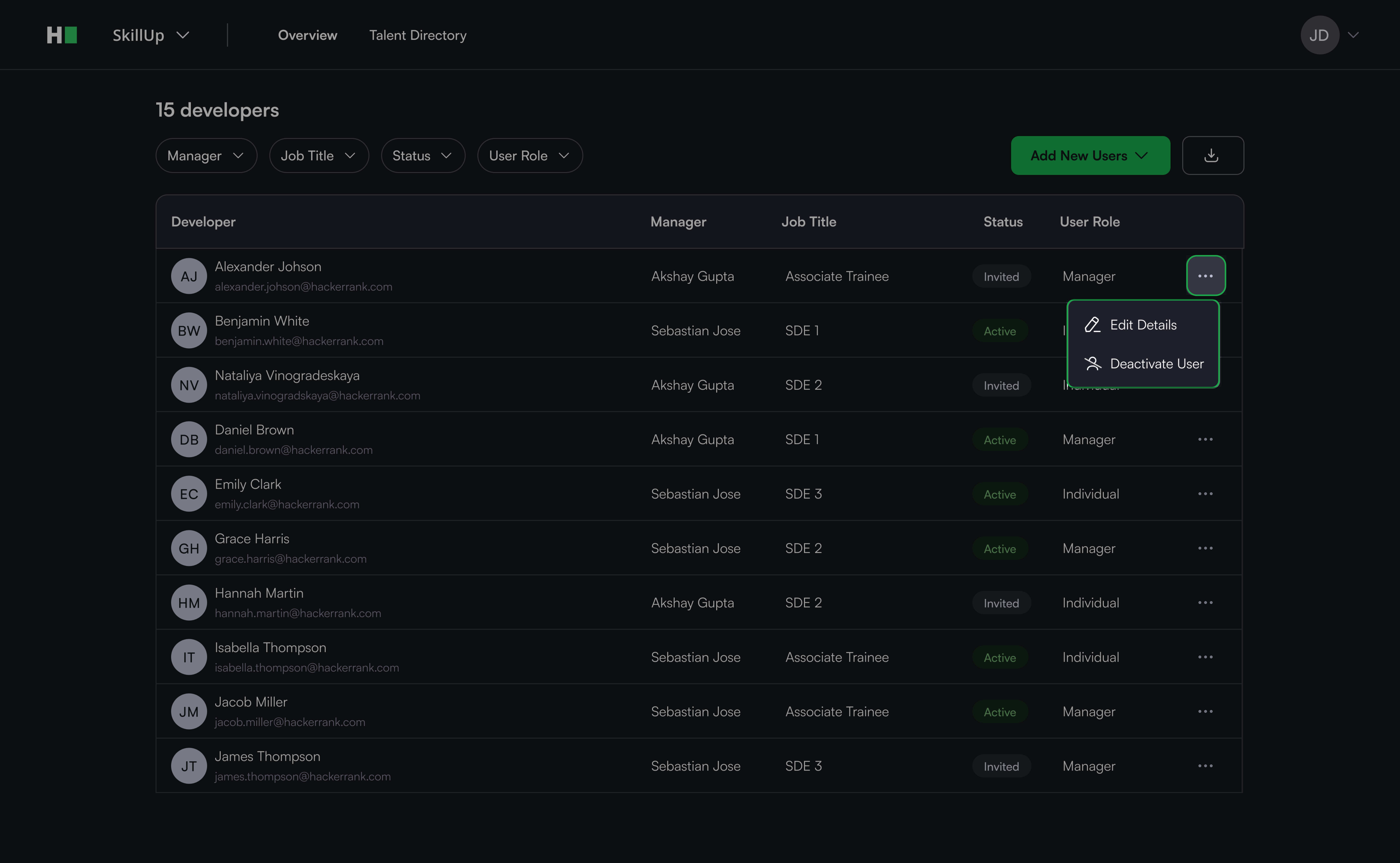
Click the ellipsis (⋯) icon next to the user’s name.
Select Edit Details.
Update the required fields.
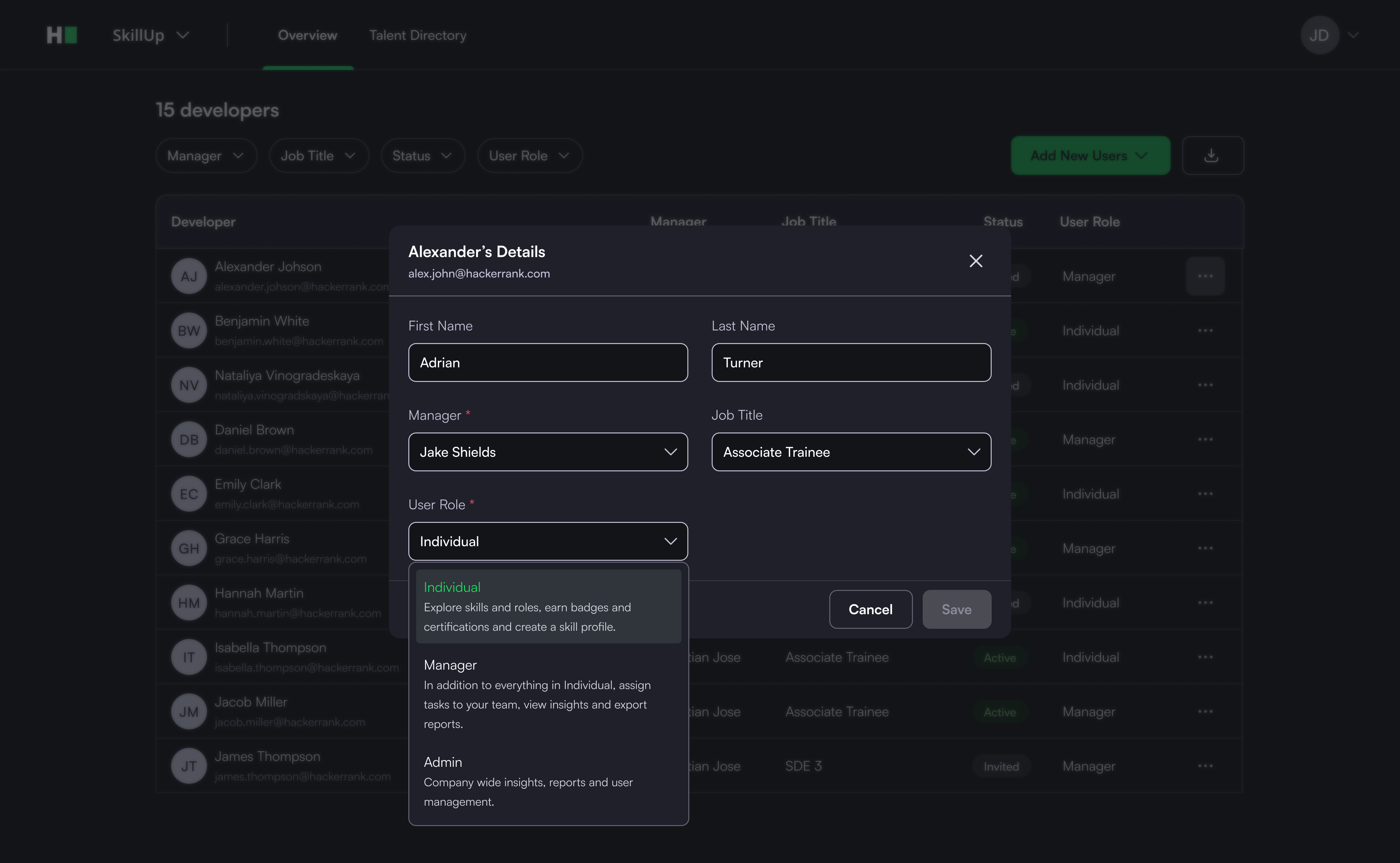
Click Save.
Deactivating a user
To deactivate a user:
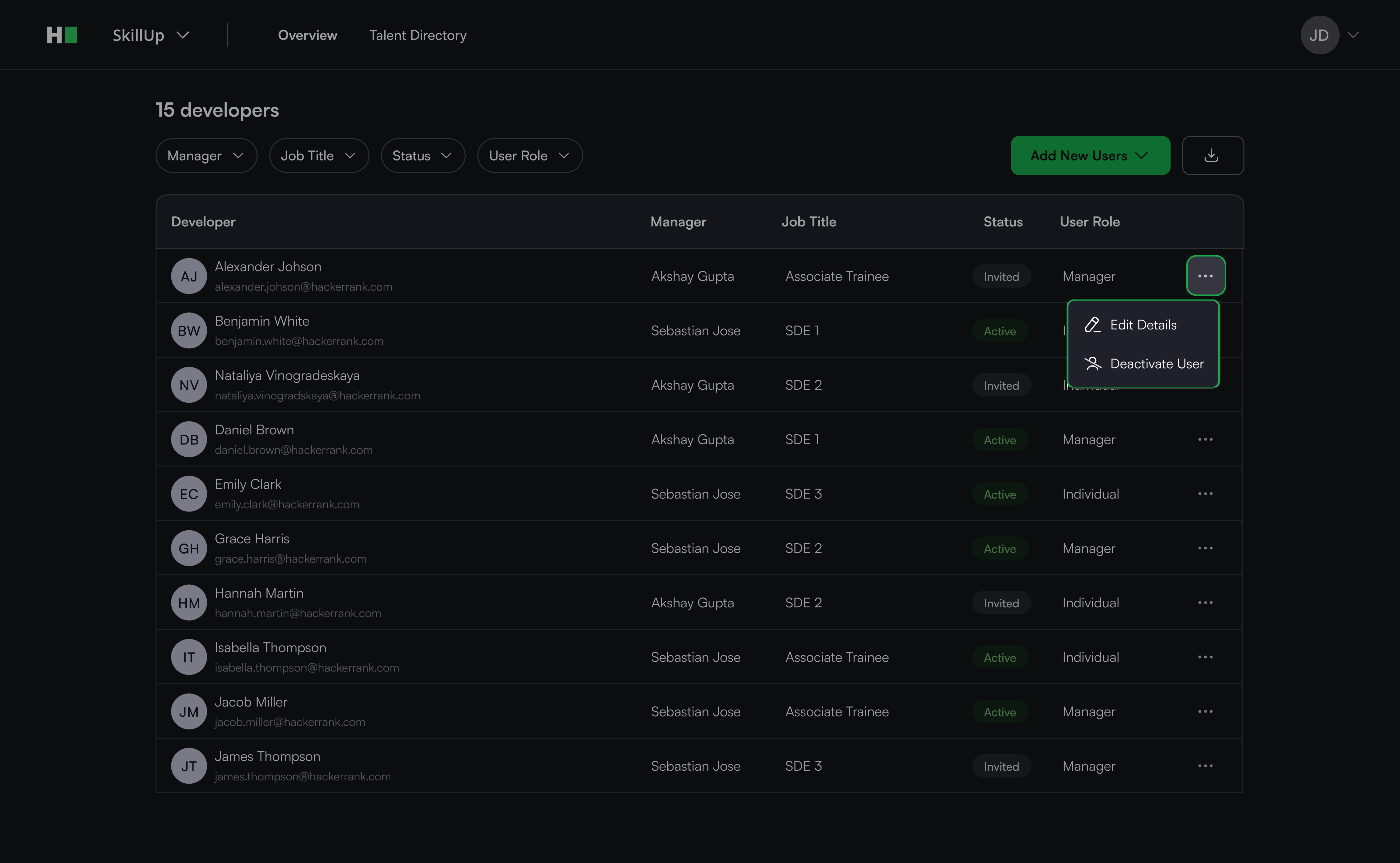
Click the ellipsis (⋯) icon next to the user’s name.
Select Deactivate User.
Click Deactivate in the dialog box to confirm.
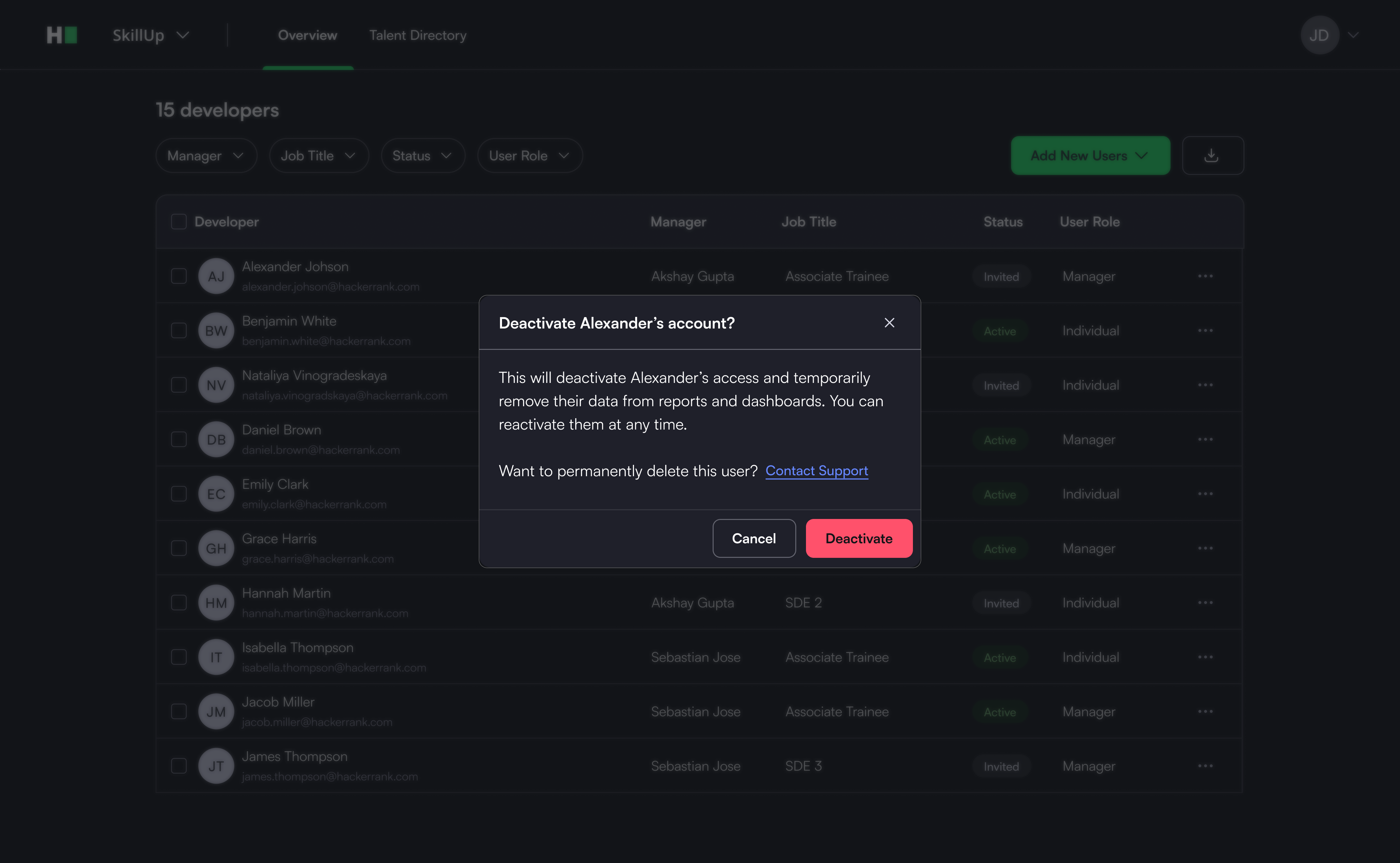
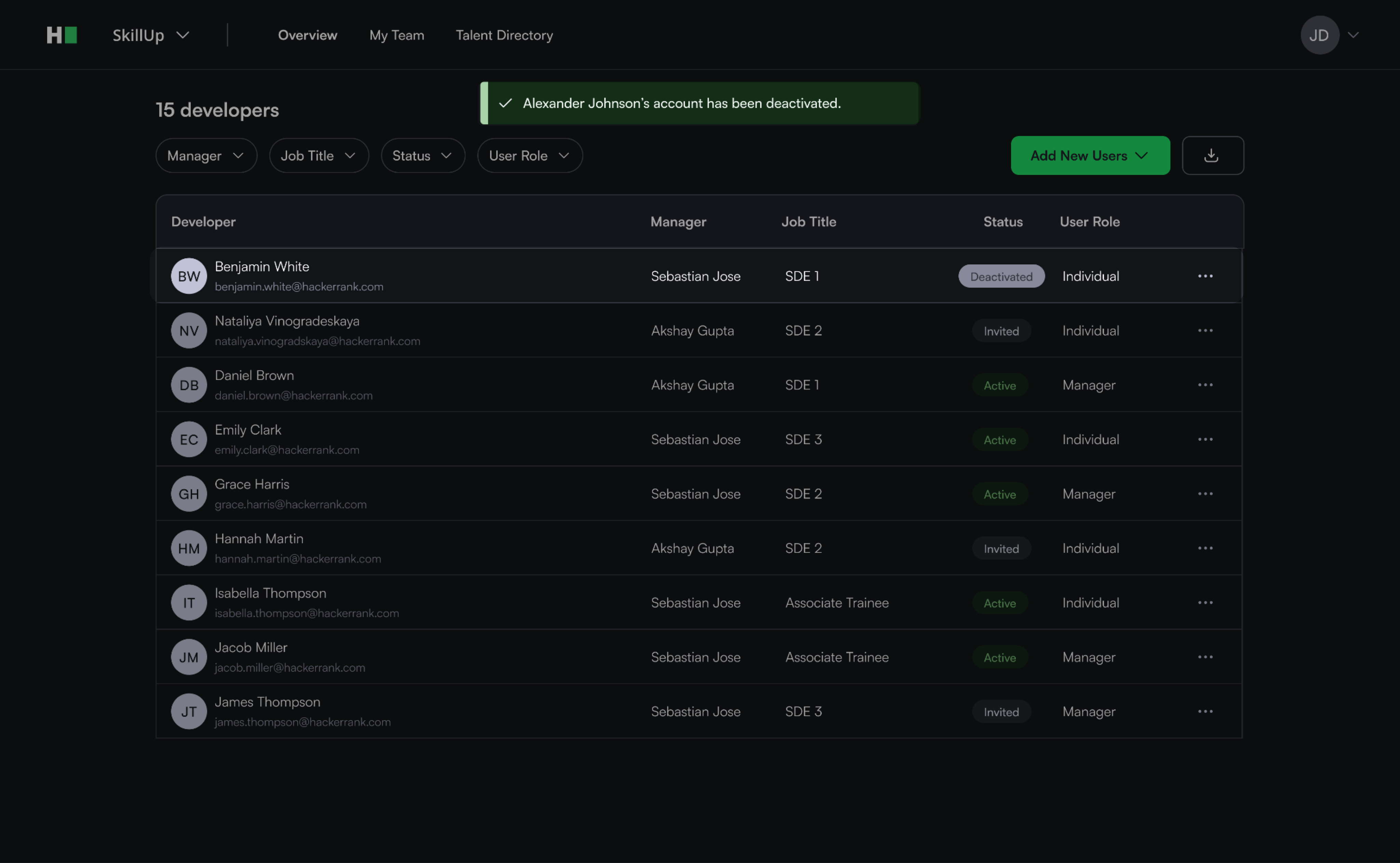
A confirmation pop-up appears, and the user’s status changes to Deactivated.
Reactivating a user
To reactivate a user:
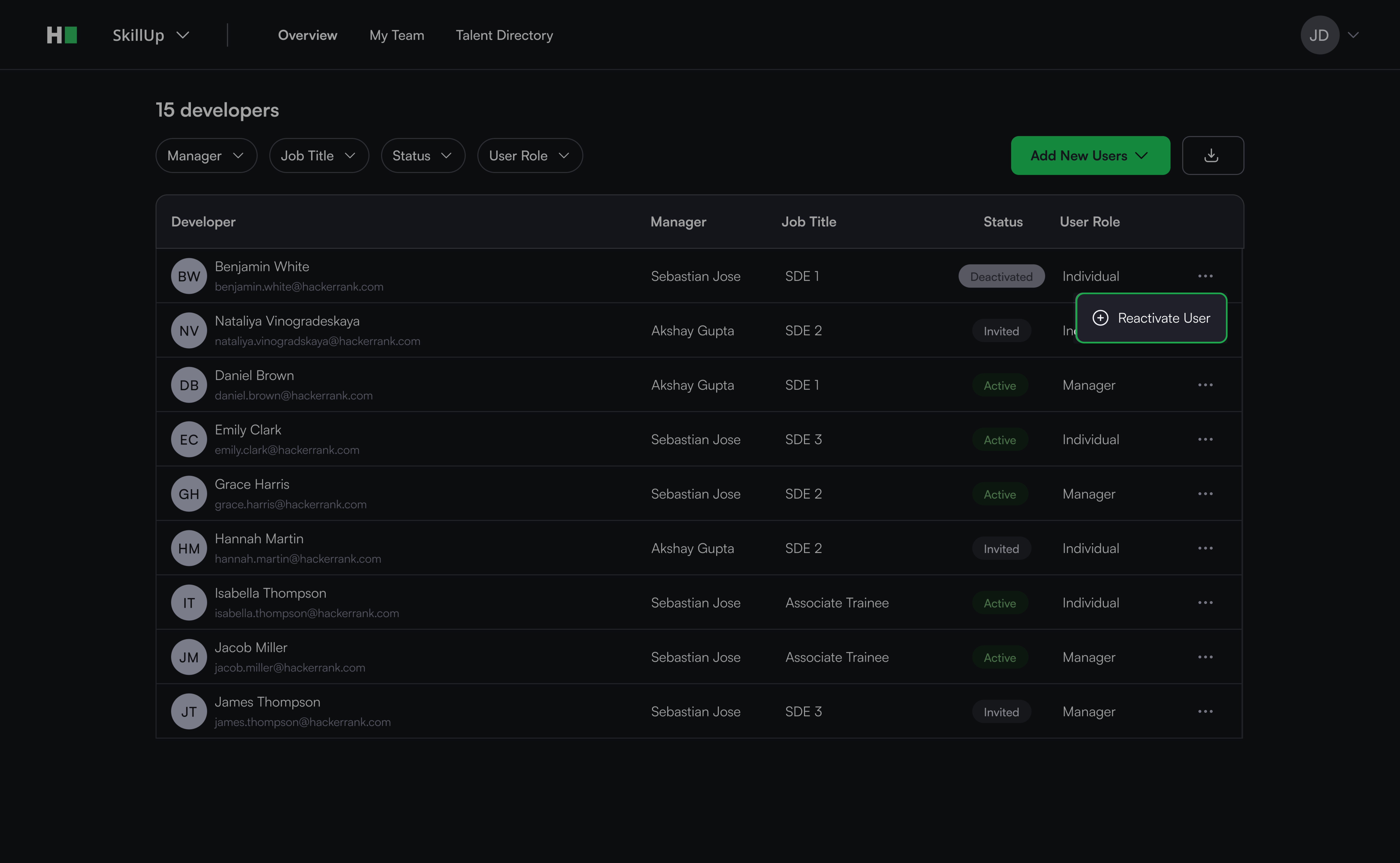
Click the ellipsis (⋯) icon next to the user’s name.
Select Reactivate User.
Review the user’s details and click Reactivate.
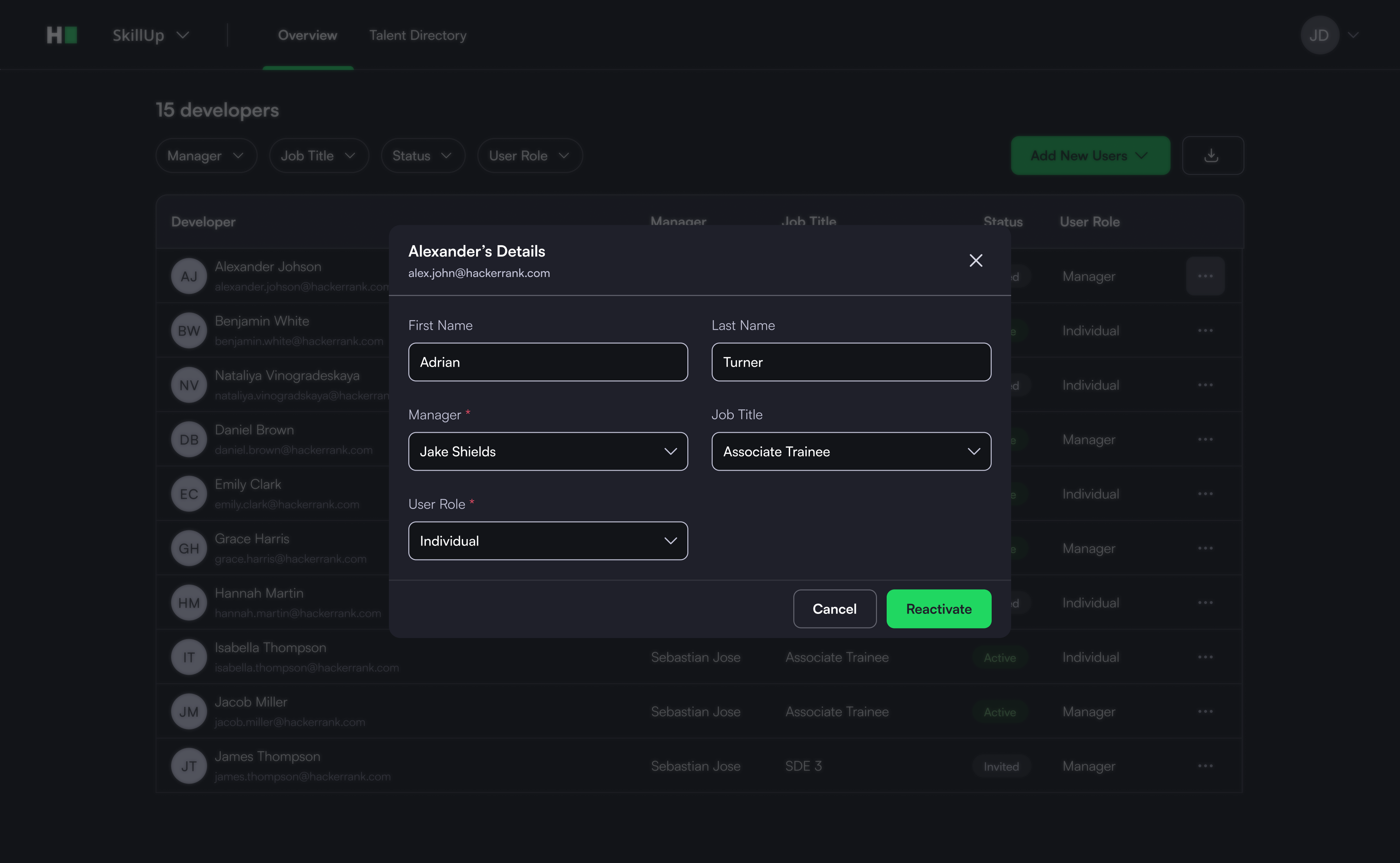
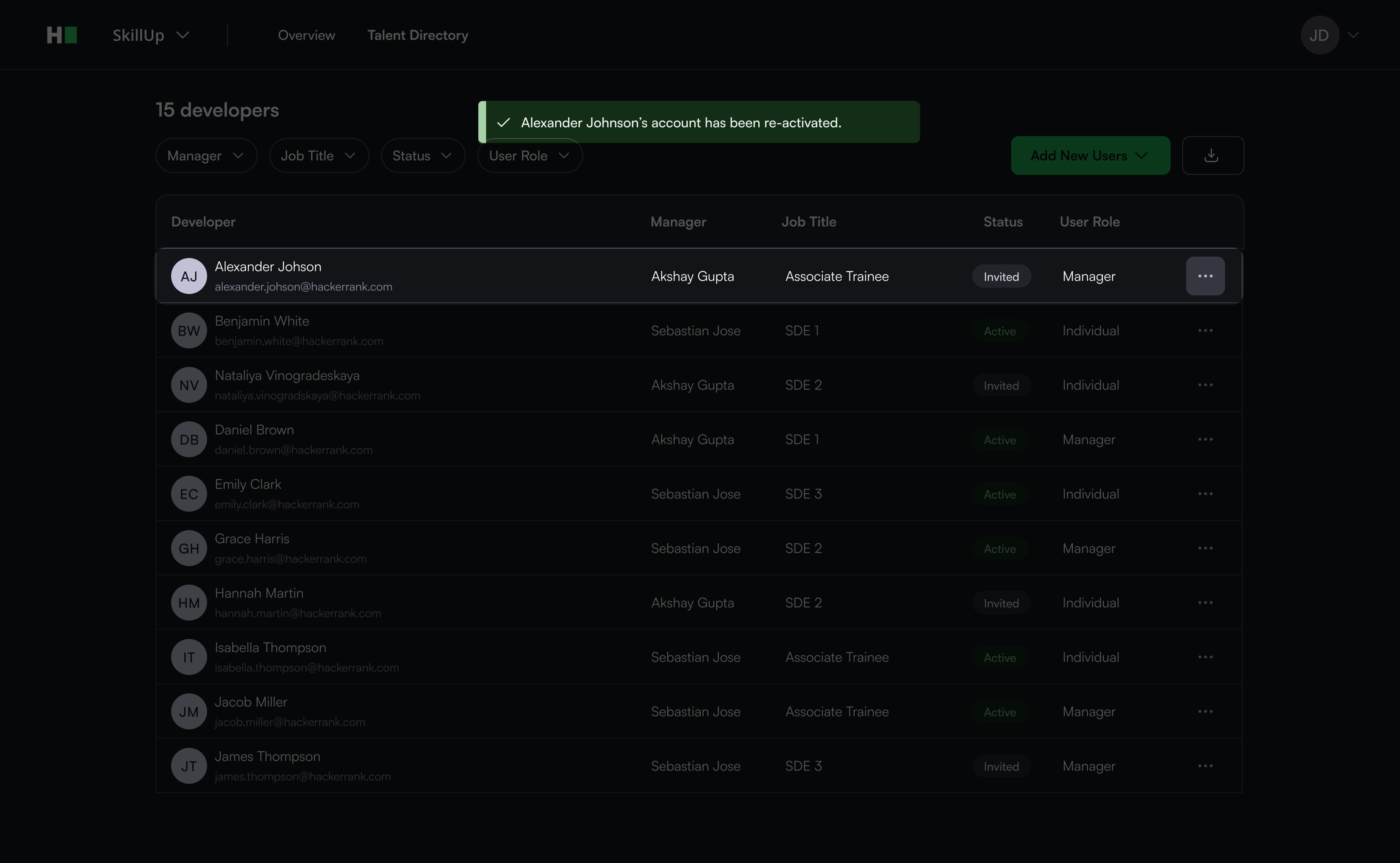
A pop-up message confirms reactivation, and the user’s status changes to Invited.